Overview: Allows you to check on the availability of an item. It will check both open contracts and pending reservations to determine the quantity available for any time period.
Item Availability can be accessed in different ways. Through program menu>Item Availability or through the Counter System>Item Availability.
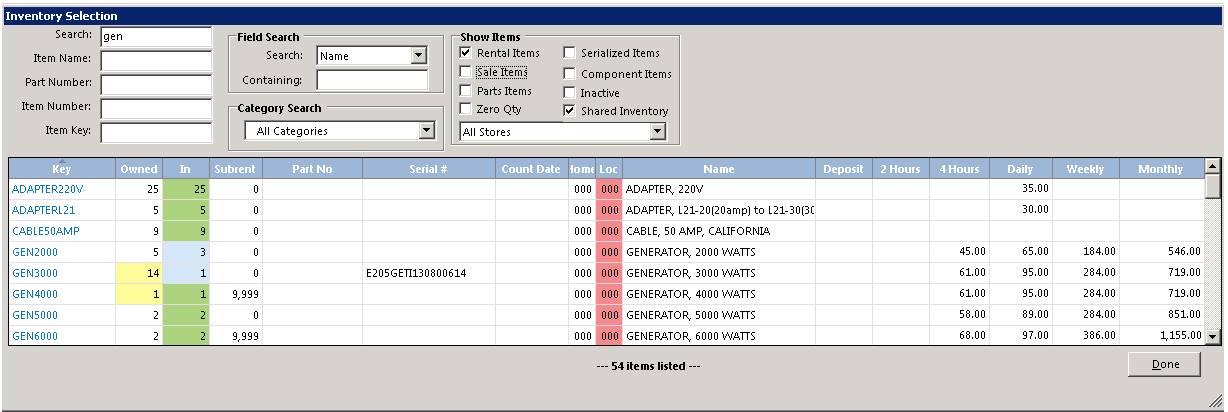
Once in Item Availability, you are prompted for an item key in the Inventory Selection screen..
Enter the item key, name, number, part number, search or use MORE if an exact match could not be found. You can also use the Category selection to list all the items n a particular category

Up & Down Arrows - The up and down arrows can be used to select the next or previous item. If you click the up arrow next to “Key” then the previous item by “Key” will be displayed. If you click the down arrow next to “Part Number” the next item by “Part Number” will be displayed.
Key, Name, Part No, Number - Click on any of these blue labels and an Item MORE screen displaying the items from the current item forward will be displayed. If you click on “Key”, then the items will be displayed in “Key “order. If you click on “Name” then the items will be displayed in “Name” order.
Serialized – This button will display all of the serialized items under this header. This button only displays for Rental Header Items.
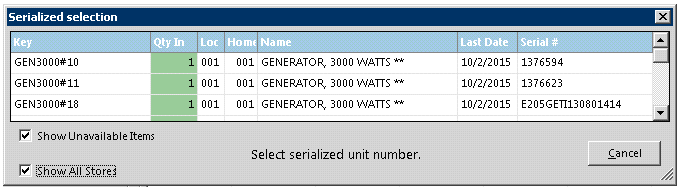
Header - This button will display the Rental Header item for this serialized item. This button only displays for serialized items.
Kits - This button will display the kit associated with this item. The button only displays for items with kits defined.
All Stores - This button displays all the items that match the current items ‘ key from all stores. This button only displays for muliti-store systems.
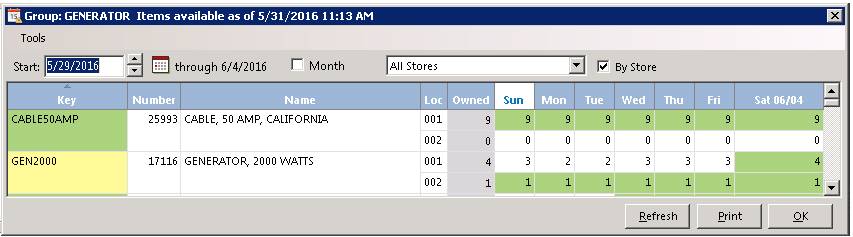
Previous - This button will decrement the calendar in 4 week periods. This button is only available if there is a contract dated before the period displayed.
Today – This button will set the calendar to start for the current week.
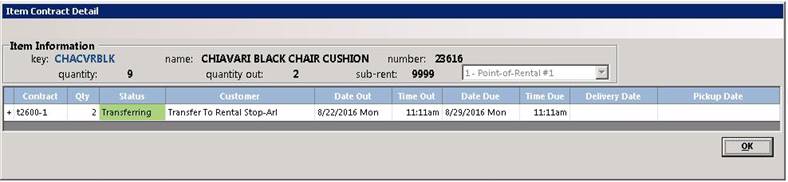
X Total Contracts - This button will display the detail for ALL the contracts that have the current item on it. X denotes the total number of Open & Reservation contracts written for this item.
Pictures - Allows you to right click in the box and paste a picture of the item. Once the image has been entered, double click on the image to enlarge the picture.
Quote – This button allows you to get a price quote for a certain quantity and a specific item period for the current item. You will also have the ability to change quote to a reservation or open ticket.
Missed - This button allows you to add the item to the Missed Rental Report. This would be done when someone calls in for an item and the item is not available for the date he desired, click the Missed button to add the item. When you click on this button, the following screen will be displayed.

Enter the appropriate information in Customer, Quantity and Rental Amount as well as the reason and any particular notes. Then click the OK button.
Tear Sheet – The button will print out an item information sheet that includes the item rates, picture, and notes for the item. This can be given to a customer for pricing purposes.
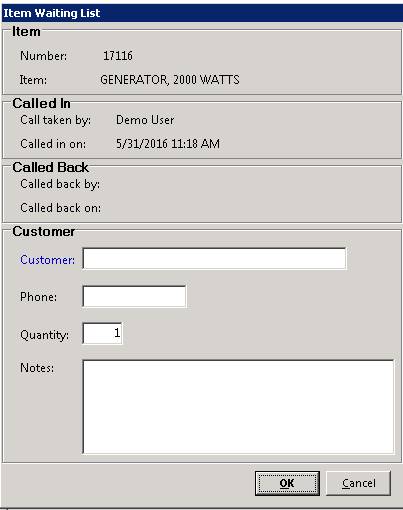
Wait List – This button will put a customer on the waiting list for this item. This button will only be displayed if the item has “Allow Wait List” checked. When you click the button, the following screen is displayed:
Hourly – This button will display the hourly availability for the current item. The hourly availability will be displayed for a 9-day period. This button will only be available if there are contracts on this item for the current period. The screen will look similar to the following screen:

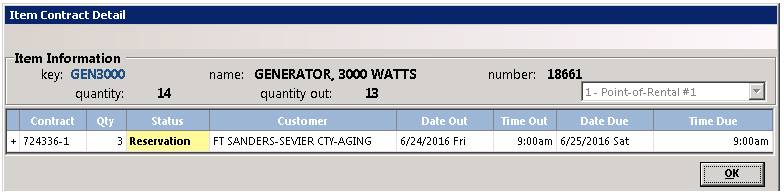
Details – This button will display all of the contracts that occur within the current period. The detail screen will look similar to the following screen:
Note: When looking at the contract details for a specific store, all items being transferred into that store via Transfer Contracts will be displayed as well.