
How to get there: Item Availabitlty>Parts Look Up Tab
This option allows the lookup of parts from various manufacturers. The parts are looked up by item part number. Depending on the information provided by the manufacturer, you will see item part number, item description, list price, purchase price, and superseding part number. If the item record exist in your inventory, the inventory name, sell price, quantity on hand, quantity on order, and quantity sold for current month, year, and life time will be displayed. You can select from the various manufacturers available by clicking on the radio button (the circle) in front of the manufacturers name. The screen will look similar to the following:
Add to Inventory – If the item is currently not in inventory, you can click on this option to add the currently displays item to your inventory. All of the fields that the manufacturer has available will be filled in on the new item record. You can change or add any other information that you desire before saving the new record.
*Notes:
Rental Items – If on any day (or hourly period, see below) the number of items due to be out is greater then quantity owned, the quantity will be increased and will be negative showing the number needed to satisfy the situation. This quantity is a DAILY quantity. Even if this number is red, the item may not be over booked because items may be returning in the morning to fill reservations for later in the day. Use the Hourly Calendar to see if you are truly overbooked for any time period during the day. For example you could have a Bobcat due in at 10:00 am and another customer getting it at 4:00 pm. The calendar will show -1 for the availability, but the hourly calendar will show that you have 0 to 10 am, 1 from 11am to 4pm, an then 0 after 4pm.
Sales Items – If the item has reservations pending, the sum of the quantities reserved to be sold will be displayed in a calendar format for the next 4 weeks. The total number of contracts for this item along with the number f contracts for the displayed period will be shown. The selling price is displayed in blue and may be changed by double clicking it. The ability to change the sell price is password protected with the password level set in Data File Security. The item quantity is displayed in blue. You can update the quantity be double clicking on the item quantity. You will receive the same options as under Sales Qty Update.
*Note: If the cursor is placed over the calendar, it will change to a magnifier. In this position, if you left click on the quantity available, the system will “drilldown” and display the details of all the contracts that affect that day’s quantity available. If you left click o the date, the Hourly Availability Calendar will displayed for that week.
Item Pictures – To add a picture to an item, copy the picture from the source location. Usually this is done by right clicking on the picture and then left clicking on Copy. Then right click on the “No Picture Available” or the current picture
Waiting List
Overview: There are times when you might not have your equipment available for a customer; you have the ability to add them to a waiting list.Upon the return of the item, you will be prompted with a message there is a customer waiting for this particular equipment.
A customer can be added to a waiting list through Item Availability, select the waiting list button at the bottom of the screen.
Wait List – This button will put a customer on the waiting list for this item. This button will only be displayed if the item has “Allow Wait List” checked. When you click the button, the following screen is displayed:
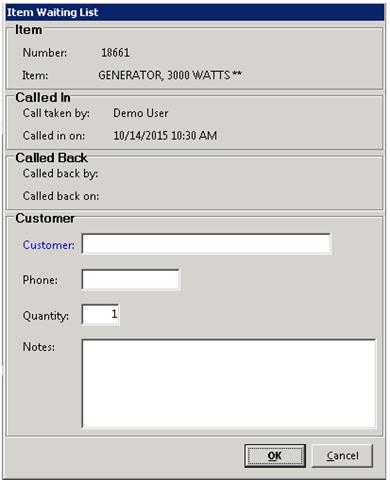
Number - Will assign a number to record the customer is being added to the waiting list.
Item – Description of the item out of stock
Call taken by – Person entering order
Call In On – Date customer place order
Call back by – Person calling customer once item is back in stock
Call back on – Date customer was called back
Customer – Name of customer requesting equipment.
* Note – Clicking on the blue customer name will open up the customer selection screen.
Phone – Customer telephone number
* Note – Once customer is selected, the phone number will auto populate in this field.
Quantity – How many of the item
Notes – Allows you to add in any notes or comments.
Once the customer has been added, the following message will appear on the screen, from Item Availability or if someone tries to add the item to a contract.

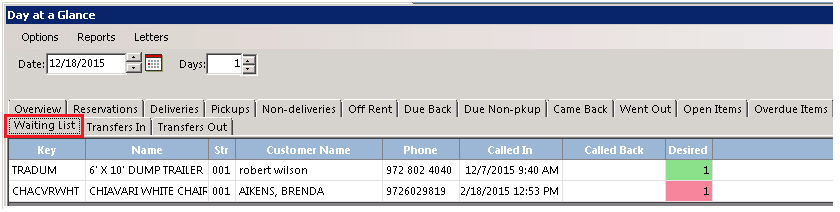
You can view all customers who are actively on a waiting list from Day at a Glance. Go to Counter System>Day at a Glance>select Waiting List tab.
Deleting Waiting List
You can delete the customer from the waiting list either through Item Availability or Day at a Glance.

Item Availability - Select the item customer is waiting for. Waiting list message will populate, it will ask you “If you want to view”, select Yes> Click on the delete button.
Day at a Glance – Click on item, Waiting list message will populate>You will ask you “If you want to view”, select Yes> Click on the delete button> Do you really want to clear customer, select Yes
Tear Sheet
This option allows you to print a price list to give to a customer, to include picture of item daily, weekly and monthly pricing. This option is only available if something is entered in the instruct file name field.
