Overview: There are times when you might not have your equipment available for a customer; you have the ability to add them to a waiting list.Upon the return of the item, you will be prompted with a message there is a customer waiting for this particular equipment.
A customer can be added to a waiting list through Item Availability, select the waiting list button at the bottom of the screen.
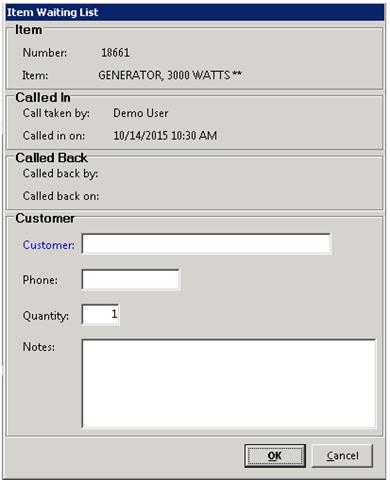
Wait List – This button will put a customer on the waiting list for this item. This button will only be displayed if the item has “Allow Wait List” checked. When you click the button, the following screen is displayed:
Number - Will assign a number to record the customer is being added to the waiting list.
Item – Description of the item out of stock
Call taken by – Person entering order
Call In On – Date customer place order
Call back by – Person calling customer once item is back in stock
Call back on – Date customer was called back
Customer – Name of customer requesting equipment.
* Note – Clicking on the blue customer name will open up the customer selection screen.
Phone – Customer telephone number
* Note – Once customer is selected, the phone number will auto populate in this field.
Quantity – How many of the item
Notes – Allows you to add in any notes or comments.
Once the customer has been added, the following message will appear on the screen, from Item Availability or if someone tries to add the item to a contract.

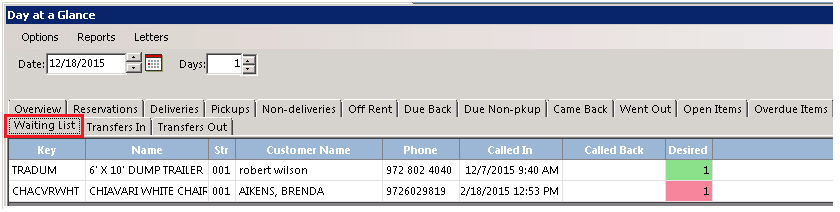
You can view all customers who are actively on a waiting list from Day at a Glance. Go to Counter System>Day at a Glance>select Waiting List tab.
Deleting Waiting List
You can delete the customer from the waiting list either through Item Availability or Day at a Glance.

Item Availability - Select the item customer is waiting for. Waiting list message will populate, it will ask you “If you want to view”, select Yes> Click on the delete button.
Day at a Glance – Click on item, Waiting list message will populate>You will ask you “If you want to view”, select Yes> Click on the delete button> Do you really want to clear customer, select Yes