
How to get there: Program Menu>Counter System>Close Contract
In the “Transaction Selection” screen enter the contract number or search for the contract by using any of the search options on the pull down menu accessed by a mouse click on the “search by” box. Under Field Search, you can search a particular field for a certain word or phrase anywhere within the field. If you push ENTER the program will return to the COUNTER SYSTEM MAIN MENU.
Note: A notification can be added for any refund on a Closed Contract. You can set the minimum refund amount before you are notified. (See System Notifications)
You can select any of the contracts by clicking on the contract number. If you click on the plus sign, then all the items on that contract will be displayed. If you click on the customer name, the customer record will be displayed.
Store to Display: This option allows the selection of only contracts for the desired store.
Status: These check boxes allow the selection of only contracts that have a certain status. Note: Some statuses will be unavailable when performing certain functions such as Closed status will be unavailable when closing contracts.
Payment: These check boxes allow the selection of only contracts for Account and/or Cash customers.
Search: This button will perform the search of all contracts that meet the selection criteria based on the boxes checked.
1. Note: Any amounts that are due from an Account customer will be displayed in green. Any amounts that are due on a closed contract for a cash customer will be displayed in red. For any contract marked for delivery or pickup, the contract status will be bold.
2. The contract will be displayed for your verification. If the contract cannot be found or you reject the contract, you will be asked for the contract number again. If the contract number you enter is already closed, you will be so notified and returned to the MAIN MENU.
3. Once you select an open contract, you will see the following menu:
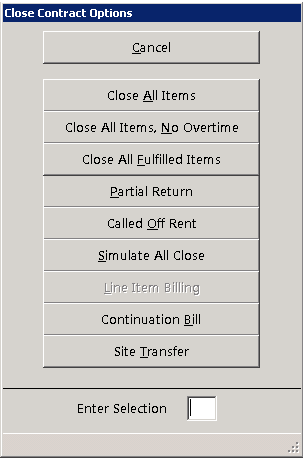
Cancel - Returns you to the counter menu without doing anything
Close All Items- means you have all the items in your store and you are taking all of them back.
Close all items, No overtime- means the customer may have been late but you are choosing not to charge them more.
Close All Fulfilled Items – means all items have been returned and prepped in.
Partial return- means they are only bringing back some of the items and are keeping the rest.
Called off rent- means they have called because they are done with the item and are waiting for you to pick it up.
Simulate all close- means you can click it and it will show what the customer owes if they were to brint the items back at that moment but it won’t close it. This will make the contract a cointinuation contract (Ex.Contract 1234 woul become 1234a).
Line Item Billing – Allows you to return an item and move any other item to another contract.
Continuation billing- closes the contract for that month and automatically sends it out for another rmonth so you can bill the customer if they still have the item, this helps cash flow.
Site transfer- tells the contract the customer is taking the item somewhere else.