Overview: Contracts, by default, group rental items at the top, and sale items next. When a contract has many items, it may be helpful to have the system auto sort the items by a default scheme. A contract is easier to read if all the furniture, dishes, and linens are grouped together. You can manually enter a sort field in each item on a contract, which is quite time-consuming, or you can set the default sort in the item category or in the item record.
From Program Menu, go to #9 Configuration. Click on Item Configurations and then Item Categories. You will see a list of categories, click on one to open the details window.
.
Default Sort: The Default Sort field allows you to sort items on a contract, by arranging were the items are to be placed on the contract. you can enter either letters or umbers in the sort field.
A contract will sort item in the following order:
Item with nothing in the sort field will print at the top
Items with sort fields that begin with symbols will print next
Items with sort fields that begin with numbers will print next
Items with sort fields that begin with letters will print last.
We recommend you use a one or two-digit code using only letters. You would use the first digit to put similar categories together, for example make 'F'' the first column for anything food related like dishes, flatware or glassware. The second column would be used to group all china or all glassware together. Most rental stores like to have the delivery an pickup charges print last, so they put a Z for the sort field of those categories.
Example A: Sort by Description

Example B: Sort by Default Sort

Entering a Default Sort at the Item Level
In the item record from File Maintenance click on the Options tab at the lower right. You will see the default sort field in the bottom center. this allows you take a single item that may be categorized correctly, but needs to sort differently than the default category sort.

Manually Sorting Items in the Contract
You can manually add or change a sort field per line item in the contract processing screen.

Simply double-click on the Sort Field for an item and a text box will pop up where you can add or change the sort field.

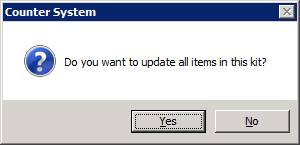
When changing the sort field on an item that is part of a kit, your will be asked if you want to update the entire kit.