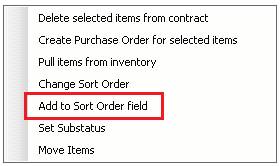
Adding to the sort field allows you to group items together to create a visual group for your customer or operation. Using your CTRL key and left-clicking with your mouse you can multi-select items, then right click one of the items. This will allow you to change the sort field for the selected items or add to the sort field. (i.e. sort field was ‘A’ and you add ‘10’ to the sort field; the result is ‘10A’.

*Note: The items marked as '10' in the sort field group together, then the items within group10 still sort from A-Z; this is true in group '20' also.
In this example we used the 'NOTER' (See Contract> Contract Note Item) item to create labels within the line items on the printed contract.
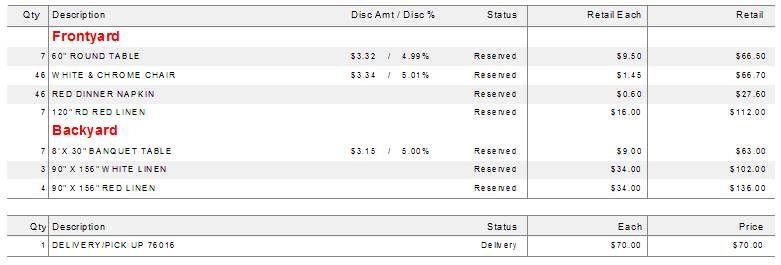
Using the Add to Sort Field we have created a group of items for the Frontyard and a group for the Backyard. This type of view makes it much easier for your customer or employee to understand the breakout of each area or group.