Close Contract
How to get there: Program Menu>Counter System>Close Contract
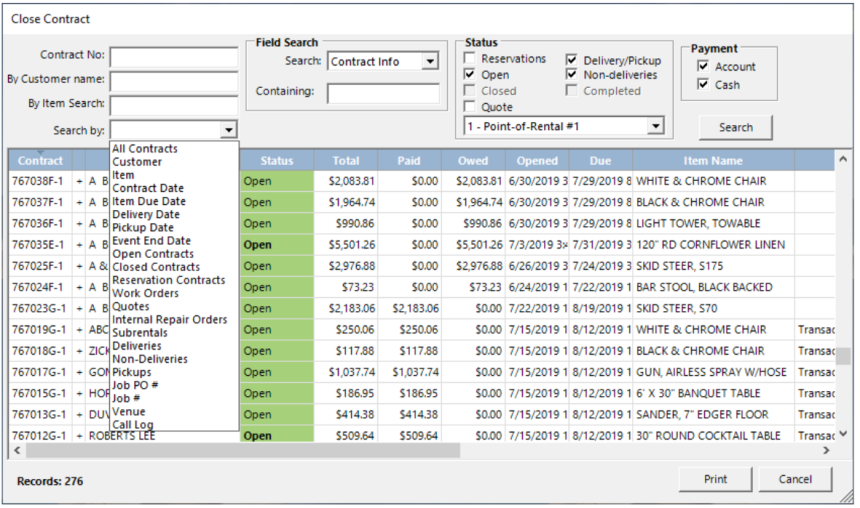
In the “Transaction Selection” screen enter the contract number or search for the contract by using any of the search options on the pull-down menu accessed by a mouse click on the “search by” box. Under Field Search, you can search a field for a certain word or phrase anywhere within the field. If you push ENTER the program will return to the COUNTER SYSTEM MAIN MENU.
Note: A notification can be added for any refund on a Closed Contract. You can set the minimum refund amount before you are notified. (See System Notifications)
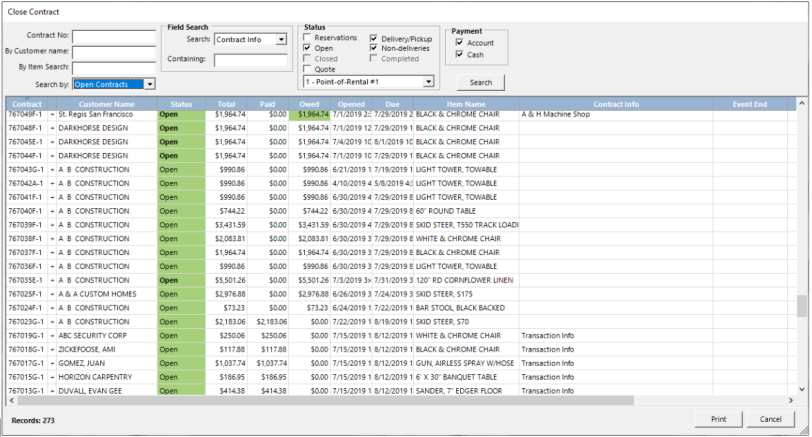
You can select any of the contracts by clicking on the contract number. If you click on the plus sign, then all the items on that contract will be displayed. If you click on the customer name, the customer record will be displayed.
Store to Display: This option allows the selection of only contracts for the desired store.
Status: These check boxes allow the selection of only contracts that have a certain status. Note: Some statuses will be unavailable when performing certain functions such as Closed status will be unavailable when closing contracts.
Payment: These check boxes allow the selection of only contracts for Account and/or Cash customers.
Search: This button will perform the search of all contracts that meet the selection criteria based on the boxes checked.
Search Option:
Note: Any amounts that are due from an Account customer will be displayed in green. Any amounts that are due on a closed contract for a cash customer will be displayed in red. For any contract marked for delivery or pickup, the contract status will be bold.
1. The contract will be displayed for your verification. If the contract cannot be found or you reject the contract, you will be asked for the contract number again. If the contract number you enter is already closed, you will be so notified and returned to the MAIN MENU.
2. Once you select an open contract, you will see the following menu

Cancel - Returns you to the counter menu without doing anything.
Close All Items - This automatically closes, all open rental items. This means that if the contract contains any non returned rental items the program will return them, compute the actual rental periods and charge the standard rates for the actual periods. The standard rate means that the customer will be charged the lowest rate for the period that kept the item. For example, if he initially rented the item for 1 day but kept it for 1 week, he would be charged the weekly rate.
Close All Items, No Overtime - This automatically closes all open rental items without charging any additional fees even if the items(s) were returned after the date/time due. For example, if an item was initially rented for 1 day but kept for 1 week. NO extra charges would be assessed. Note This option may require a password depending on how your Parameters are defined. If this is a delivered contract, then no password will be required.
When this option is used a Transaction Edit is written showing that the contract was closed with No Overtime. The only exception to this is when your Default Overtime Calculation is set to ‘Party Rate’. Since this is normal practice in an event store the edit is skipped.
Partial Return - This allows you to return an entire line item or a partial quantity of a line item. You specify which line item is being returned and how many. If the entire quantity is not being returned, a new line item is added to the contract with the quantity equal to the number being returned The original line item quantity will be decreased by the same amount. For this type of close, you must have fewer than 200 line items in the contract.
Called off rent - This allows you to stop the rental time on items but doesn't close out the contract or the item. Using this, you can stop the rental time on a pickup item when the customer calls in. Then when the item is returned to your store close out the ticket as normal. The system will allow you to enter a Call Log entry when you stop time to give the customer a call number for verification. In addition, the contract will be marked as a pickup and the pickup date and time can be set.
Simulate all close - This allows you to give the customer a final price quote over the phone without actually closing the contract. You will be asked to enter the estimated date and time the contract is to be closed. The program will then simulate a full contract close and show you the estimated amount due. This transaction will not appear at the end of day Transaction Summary.
Line Item Billing - This allows you to close the contract with all previously closed line items on that contract. This allows the customer to be billed for the items already returned. A new contract with a letter after the contract number will be created with all of the open line items. Note This option is only available if you have previously closed items on the contract.
Continuation Bill - This allows you to close a monthly contract and reopen a new contract for billing purposes. you will be asked to enter the close date. This is the date the contract will be closed and the new contract will be opened. All items will be opened for a one month period. If you have already Continuation Billed this contract, then this selection will be dim and not accessible. If the selection is dim, you need to select the latest contract to re-bill (i.e. contract 12345A instead of 12345).
Site Transfer - Allows you to call Off Rent the original contract displaying it as Pickup Due and opens a new contract for the new location displaying it as a Delivery to the new address.
* Note: The correct procedure to CANCEL a reservation contract is to CLOSE it without ever opening it. If you close a reservation contract, you will be asked if you really want to CANCEL the Reservation. The program will not proceed until you enter CANCEL or NO to confirm or deny your choice. If you type CANCEL all rental items will be closed and the process changed to zero. All sale item prices will be changed to zero. You will next be given the opportunity to charge a cancellation fee. Any amount you enter at this point will be added to Other charges on the contract, which is a non taxable service item. If you answer NO to cancel reservation you will be returned to the Counter System Menu.