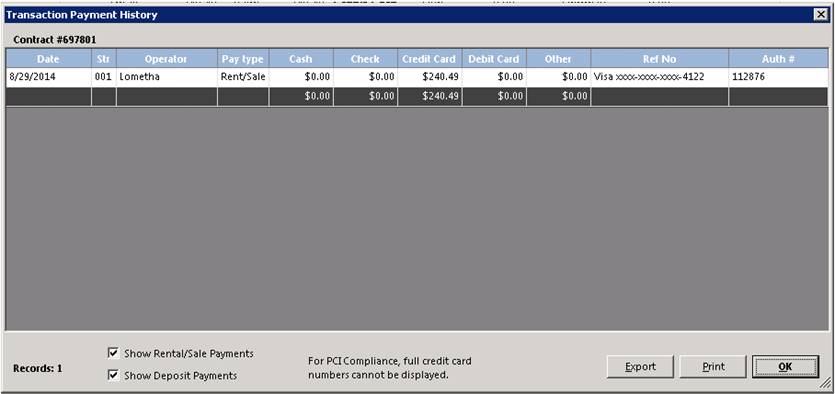
Payment History: This option will list all of the payments made on this contract, subtotaled by payment method. The screen will look similar to the following:
You can optionally select only Rental/Sale Payments or Deposit Payments. If you check Show Credit Card Number, the customer’s entire credit card number will be displayed in the Ref No column. A password may be required depending on the password level set in the Parameters.
Print Credit Card Receipt:By clicking on a credit card payment line, you will be given the option to reprint the credit card receipt. Note: This option is only available if you are using the Integrated Credit Card module.
Remove Credit Card from Historical Listing: If you click this option, the card will no longer be displayed when searching historical payments for credit card number.
Attachments:This option allows you to attach files to the contract. The files can be of any type accessible on the server. Once you have attached a file, you can open the file by clicking on the file name. Whatever program that is associated with that type of file will be used to open the file. For example a .DOC file would be opened with Microsoft Word; a .PDF file would be opened with Adobe Acrobat. When the contract is printed, there is an option to print attachments. Also when a contract is emailed, there is an option to attach the files to the email.
Task List
Create Reminder – Allows you to created a reminder to yourself or other employees.
Task Assigned – Allows you to assign a task to yourself or to other employees
See Task List under Counter System>Task List/Reminders