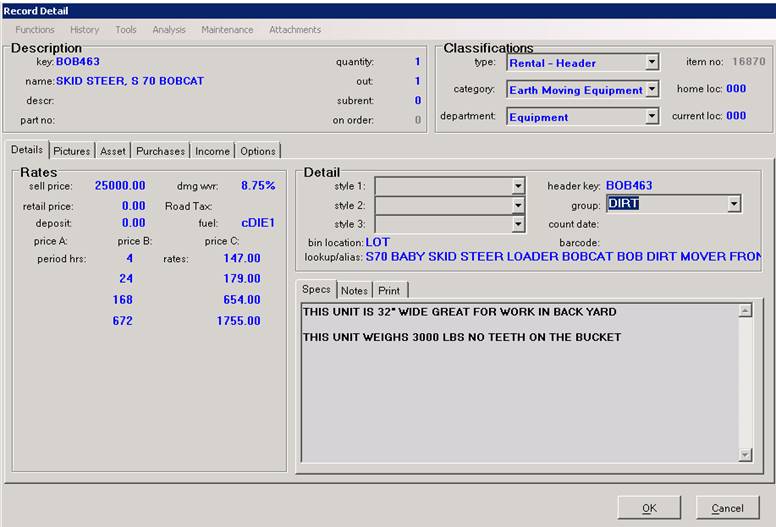
Overview: The item file will have all the information on the item. This can be Deprecation, Purchase History, Warranty information, Instructions Sheets, Item Specific Income reports and many others. To get to an item file, you can go through File Maintenance, click on Item File and Search or add a new item. You can also go through Item Availability by clicking the name and also from contract processing screen.
The item record will look similar to the following:
Functions Menu:
Modify – By clicking this, you will be allowed to modify the fields within the item record.
Copy –By clicking this, you will create a copy of the current item. After the item has been copied, you will need to change the key to a unique value. In addition any specific information about this item such as purchase date, purchase price, serial number, etc. should be entered.
Create Serialized –By clicking this, you will create a copy of the current header item. The system will try to create the next serialized key. If you don’t want the key assigned, you will need to change the key to a unique value. In addition any specific information about this item such as purchase date, purchase price, serial number, etc. should be entered.
Delete – By clicking this, you will delete the item record from your database. Note: It is not recommended to delete any items from your database unless it was never used. By deleting an item you also delete the historical income and detail associated with the item.
Merge into a different item – This will allow you to merge on item file record into another. *Note: the file being merged will be deleted; the items in the record will be kept.
Make Inactive – This will allow you to mark a item record inactive. You will need to make sure there is no quantity in the item record, prior to making inactive.
Transfer to Rental –By clicking this, you will decrement the quantity for the sales item and a copy of the sales item will be made as a rental item. This option will only show on sale items.
*Note: You can print a report listing all items transferred to rental from the Accounting Inventory Reports.
Contract Questions –This option allows you to create contract questions for a particular item that will be prompted to the counter person on the open of a contract