Mass/Fax/Email
Customers today want what they want when they want it. Automatically deliver invoices and statements to your customers by email, fax, or mail—the choice is yours, or theirs! With this feature, invoicing is automated, removing counter staff from the process and ensuring timely delivery. You can manually generate and print invoices on a daily, weekly, or monthly basis and even set invoices to auto generate and send the same day when contract is closed. Monthly statements are easily created and delivered by email, fax, or mail. Customers can also access this information through their web portal. In short, this feature saves you postage, envelopes, and time, while delivering a great customer experience.
Overview: How to set up a customer’s record to automatically email, fax, or print their closed contracts during the end of day processing. This assumes the fax function is set up.
• Note- Point of Rental does not store emails, you can set up a blind carbon copy (bcc) to have a copy sent to your inbox.
• If using MAPI email, the terminal doing End of Day needs to have their email properly configured on the End of Day terminal.
• If using SMTP then the global settings need to be set up correctly.
From file maintenance, customer record under the account tab set the Invoice and Statement Send By options to either Email, Fax, Printer, or None. You may also set up a default contract format for the customer, but this is not normally necessary nor is it advised.
Emails are sent to the email address in the email field and any contact with a department of Accounts Payable. Faxing only sends to the main fax number in the customer record.
*Note: An invoice will never be automatically generated if the mass sends to is set to None.
*Note: Customers grouped by Contract Send To under Customer Reports>Customer Income Menu>Customer Income by Grouping will show all customers set to Email, Fax, Print or None.

3. Program Menu > Configurations > Reports and Notifications > Mass Fax/Email Settings.
4. Select Email Setup

You will be prompted the Email Option screen.
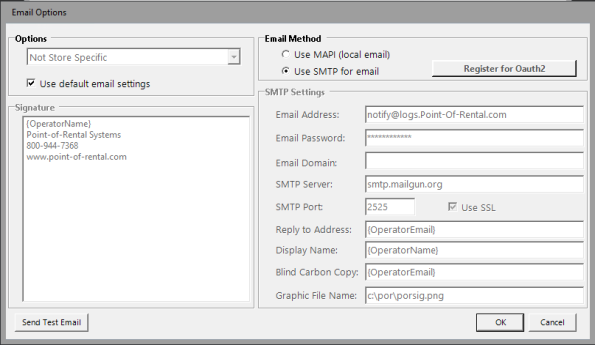
Options:
Use Default Email Setting - If this box is checked, the program will send emails using the default email settings set up for that store. If unchecked, you will be able to enter a different email address.
Email Method:
• If using MAPI email, the terminal doing End of Day needs to have their email properly configured on the End of Day terminal
• If using SMTP then the global settings need to be set up correctly.
Signature:
Signature: Allows you to enter a personalized signature line, customer will see when receiving an email
SMTP Settings:
Email Address: This will be the email address from your email provider (Yahoo, Gmail, Google, Outlook).
Email Password: This will be the email password from your email provider (Yahoo, Gmail, Google, Outlook).
SMTP Server: This will be the SMTP assigned in your email account (setup).
SMTP PORT: This will be the SMTP number assigned in the port field in your email account.
Replay to Address: Enter an address to apply to the email.
Display Name: Enter a name to be displayed in the body of the email.
Blind Carbon Copy - This allows a copy of the email to be sent to a designated email address during the End of Day processes.
* Note: when invoices are generated and sent out at through the End of Day processes, a copy of the invoice will be sent to a specified email address. This is a good way of verifying customers have received their invoices.
Defining Mass Fax/Email Settings

Fax Cover - Define the fax cover page to use.
Printer - Define the printer to use.
Default Format - Define the Invoice format to use.
Sender - In the Sender field type your company name.
Fax Delay - Unless instructed by a Point-of-Rental support person, leave the Fax and Email Delay set to zero.
Email Delay - Unless instructed by a Point of Rental support person, leave the Fax and Email Delay set to zero.
Use Customer Format - You can choose to use the customers default contract format if desired (Not recommended)
Include Finance Charge - You can choose to include finance charges
Auto generate at End of Day - Automatically generates the outgoing Mas Fax/Email after End of Day
Include Credits - Checking this box will include credits, un-checking the box will not include credits.
Subject - Define the Subject using freeform text and Special Fields from the Contract.
Special Fields - Define the Message using freeform text and Special Fields from the Contract
5. When Store 1 does their End of Day procedure, Point-of-Rental Will Print, Fax, or Email an invoice for all contracts that closed that day and have a balance due. Customers marked as None in the Mass Send To field will be skipped.
6. The terminal closing at store 1 should have their email program open and minimized prior to the End of Day procedure.
By looking at the fax log you can see what was faxed or not. The ones that printed will be on the end of day printer defined for this terminal
Manual Invoices
You can now select invoices to be sent by "operation"when manually generating invoices form accounts receivables.