Sales Rep Dashboard
Can be viewed from Program Menu>Item Availability or Counter System Dashboards.
Allows you to view total revenue by sales rep based on filtering by contract status, type, job site, grouping or store location. You can look at a single sales rep or all your sales reps. For the sales reps, they can go to the dashboard and see all their pending contracts by quotes, reservations, open or closed. They can know the amount of the pending contracts at a glance or create a subgroup, grouping all the contracts by status and then by Transaction Operation.
From drop-down, you can select 'Select Sales Rep', which lists all the sales reps' names and totals, or each individual sale rep with their respective totals.

* Note - Top line under the blue header bar will show the sum of each column.
+ - Clicking on the plus sign will display all the contracts under that sales rep. You will see the job name, total revenue for all contracts, amount paid, owed, deposits and total number of contracts under this sales rep.
Reports - Sales Reps will have access to different reports they can run directly from this dashboard.
a. Print all Contracts
b. Open Items Report
c. Off Rent Report
d. Details Job Report
e. Unpaid Contracts
f. Reservation Value Report
g. Customer Listing
h. Export to Spreadsheet
i. Print Grid
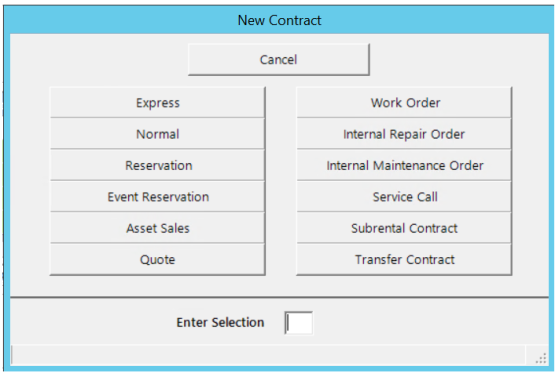
New Contract - Sales Reps can now start a new contract directly from this dashboard. They will be able to create a Quote, Normal Contract, or a Reservation.
Days to Report - Total number of days the report is generating information.
For example, if you wanted to see all contracts for a certain time period. Entering 365 would show all contracts, status and revenue based on the last 365 days.
After Date – Allows you to view contract details after the selected date entered.
*Note: If no date is entered, the date will default 12 months from the current date.
You can filter your view by selecting different criteria from the drop-down menus. Each criterion selected can be grouped or defined by an individual criterion.

* Note - Listings in the drop-down box are routinely updated, and should be checked often
Grouping - Allows you to select by different group criteria, these are often updated and should be checked regularly.
Security Features:
1. You can set security feature to allow or not allow other sales reps to see other sales reps' numbers. See System Security for more information.
2. You can set security feature to allow or not allow a sales rep to create contracts directly from inside the sales rep dashboard.
Graph Chart
Click on the graph icon to view a color display of the revenue breakdown for your filtered criteria. "Click to close" to close the graph box.

You can search by Contract Status and Contract Type, displaying the total revenue by grouping.

Contract Status:
Closed Contract - When checked, this will display all closed contracts.
Open Contract - When checked, this will display all open contracts.
Reservations Contracts- When checked, this will display all reservation contracts.
Completed Contract - When checked, this will display all completed contracts.
Contract Types:
Regular Contracts - When checked, this will display all regular contracts.
Quote Contract - When checked, this will display all quote contracts.
Work Orders - When checked, this will display all work order contracts.
Repairs Contracts - When checked, this will display all repair contracts.
Transfer Contracts - When checked, this will display transfer contracts.
Subrental Contracts - When checked, this will display subrental contracts.
Logistics Contracts - When checked, this will display logistic contracts.
Credit Contracts - When checked, this will display credit contracts.
Dashboard Columns
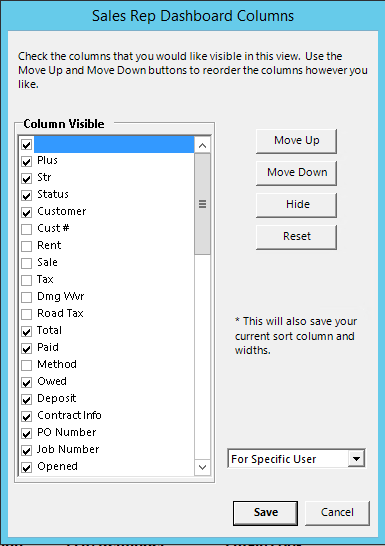
You can define the display columns from within your dashboard by clicking on the blue header bar. The column boxes will be displayed. Check the box on the columns you would like displayed. You can also move the selected fields up or down. Un-checking the boxes will hide those particular fields.
* Note - Listings in these field boxes are routinely updated and should be checked often