Logistic Ticket
Allows you to break out items from contracts to Logistic contracts that can then be assigned to as many trucks as needed at different times. Or if your customer want to will-call part of the order you can break it up to handle operationally. Logistics contract do not affect inventory availability- that is still controlled by the parent contract.
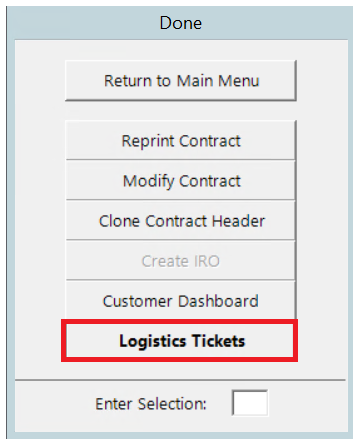
1. Once the original contract has been created and completed, you can select Logistics Tickets from the Menu Screen prior to going back to the Main Menu.
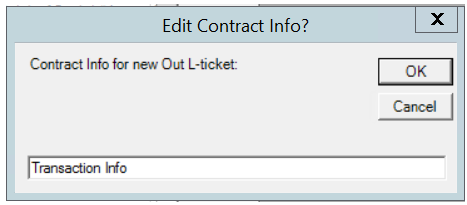
2. The screen will split showing the items on the contract on the left. You can move the items you would like to put on the L-Ticket or Logistics ticket by using the >>> arrows. Highlight the items you want to move, you will be prompted an Edit Contract Info box.
Delivery Notes and Comments: When selecting Delivery or Pickup you can view any notes or comments in relation to comments entered on the contract by clicking the blue button. These notes will carry over to the logistic ticket.

Note - If the delivery or pickup box is not checked on the L-ticket then no contract will show in the dispatch center.
3. Once the box is selected, use the >>>> button to move items. A Contract Info box will appear, enter the name of the Logistic Ticket. (Most of the time, it will be the same customers or event name).
4. The new name of the L Ticket will be shown in the upper right corner of the ticket. The ticket will be assigned a Logistic Number and updated status. Also the delivery date and time from the original contract will carry over to the new L-ticket.
• Note: The items will still appear on the original ticket, for billing purposes. A copy of the items will be entered on the logistic ticket.
5. You can add any comments or Delivery Notes by selecting the appropriate tabs.

6. Selecting the Out options will show as a delivery on the new L-ticket. Selecting In options will show as a pickup on the L-ticket. You can
7. Highlight the item you want to move from the original contract to the L ticket contract. use the >>>> arrows to move the item over.
* Note: You can not move over header records to a logistics ticket.

8. Once all the items you want to move to a different truck is complete. Click on the save button at the bottom of the screen. You can see a L-ticket has been created by viewing under Reports>Related contracts. A copy will also show in the dispatch center for routing.
9. To change the delivery/pickup address for the logistics ticket, double click on the address under the delivery location tab. The following box will appear allowing you to make changes.
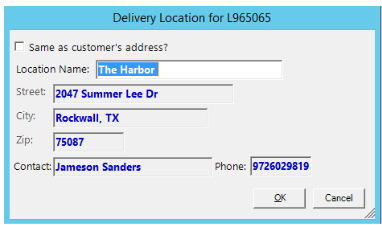
If the logistics ticket is for a repair or transfer contract, the following box will appear instead.


Dispatch Center - Once the logistic ticket has been created, the dispatcher will see both contracts in his daily routes, allowing him to schedule the pickup or delivery of the equipment. . Note: The logistisized line items will be suppressed on the parent contract.
Transfers Using Logistics Tickets - Logistics tickets created off of repair contracts are used to transfer broken items between stores without overbooking on a transfer contract. The item, item’s repair contract, and any unpulled sales items on the contract will be transferred to the store that closes that logistics ticket.