Base Rate Engine
Allow you to create different rate engines that define how rates are to be charged. You can now create multiple Rate Engines and store all of these settings, to be applied to your rental inventory.

Name: You can add the store to be associated with the item rate. (Ex) XYZ Company, Store 1. You will be able to create multiple Rate Engines with different equipment types.
Type: From the drop down menu you can select the type of Item Rate. (Base Rate vs Standard Rate) Standard rate uses the rate set in the item record.
Base Rate – This is a rate multiplier, allowing you to charge either a percentage or multiplier against the daily rate. Ex. (1 x the daily rate, 3 times the daily rate,etc). Note: This will use the rate set in the item record.
Inactive – Checking this box, will make the rate structure not available.
Period Rates:
Allows you to set the period hours and rate factor based on your type of rate selected (Standard/Base).
- If Base Rate is selected, you can charge a multiplier or percentage to the item rate.
- Rate: (Ex. 24 hrs = 1, 48 hrs 1.5 x the daily rate, 168 hrs = 2.5 times the daily rate, 672 hrs= 4 times the daily rate).
- Percentage: (Ex. 4 hrs = 80%, 24 hrs 100%, 168 hrs = 300%, 672 hrs= 900%). Entering an amount in the base rate on the item level, will automatically calculate the new rate structure. Ex. Entering a $100 in the base rate will show 4 hrs = $80, 24 hrs = $100, 168 = $300 and 672 hrs = $900.00
Default overtime calculation
This parameter selects how the program will calculate rental fees for time periods that are not defined in the item rate table. The program recognizes these rate codes:
RER formula (2) - The RER recommended formula will be used, with overtime hours based on the “Clock Overtime” parameter. This is the most common Rate Code.
Party rate formula (3) - Charges will be based on a day late. No overtime will be charged if the item is brought back within the same day that it was due. This rate code is mostly used in party stores where due back time is not critical.
Iterative Formula (4) - Iterative Rate formula will be used, with overtime hours being charged as the early rates in the table. For example, 196 hours will charge a week rate plus a day rate plus a 4-hour rate. This rate would charge the customer more than any other rate code.
24 Hour formula (0) - Charges will be based on a 24-hour day, 7-day week, 4-week month.
Interpolatable formula (1) - An interpolation will be done using the two values in the item rate table that the rental period falls between. Each hour past an exact day will be charged based on the “Clock Overtime” parameter.
No Hourly Overtime - This formula is a way for equipment stores not to charge any overtime, similar to a party store, without any of the other party store verbiage/settings. For example, if someone rents a mower in the morning for 4 hours, they won’t be charged overtime if they don’t return it until 5pm.
.
Grace period % of rental * 10 - When a rental item is returned, the counter program will compute the grace period by multiplying the total time out by this parameter. This parameter must be entered as a percent, e.g. 1.5 would mean 1.5%. The resulting grace period will then be adjusted, if necessary, to fall within the minimum and maximum limits described below. The customer will be charged for the time out minus the adjusted grace period. For late or on-time returns, the charged time will not be allowed to be less than the scheduled time.
Grace period minimum minutes - The program will not allow the grace period to be less than this value.
Grace period maximum minutes - The program will not allow the grace period to be more than this value.
Prorate rentals on close of continuation bill – With this box checked, when contracts are returned after multi-months continuation bill, the item rental rate will be prorated. Unchecked, the items will be charged at standard rates as if the customer had only rented the item for that time period.
Minimum refund amount - This specifies the minimum refund amount per line item that you wish the program to consider when rental items are being returned early. For example, if you set this parameter to .50 (which is 50 cents), then the program will not give the customer a refund unless the refund is greater than 50 cents.
Minimum extra charges - This specifies the minimum extra charges amount per line item that you wish the program to consider when rental items are being returned late. For example, if you set this parameter to .50 (which is 50 cents), then the program will not charge a late fee if the computed late charges are less than 50 cents.
Weekend Rates (Saturday/Sunday)
You can choose whether to bill for Saturday or Sunday. In the New Rate Engine Screen, you can turnoff on or billing for either of those days. This will simply deduct 24 hours for each Saturday or Sunday, duringg the rental Period, from the total hours calculated for a rental item.
Proration
Prorate between Min and Day – With this parameter checked, any overtime past the minimum rental period will be prorated for the duration the customer had the item. With it unchecked, the customer will go directly into the Daily rate if he is late.
Prorate rentals on close of Continuation: With this parameter checked, when you close a contract that has been continuation billed
Round overtime to next day – With this parameter checked, any time past the grace period given to the customer will result in another day’s rental. With it unchecked, the customer will be charged actual time out.
Round hours up to next hour – With this parameter checked, any time past the grace period given to the customer will result in hours being round to the next full hour. (Ex. three hour and 2 minutes round up to four hours).
Month to Month – With this parameter checked customers will be billed on a month to month billing cycle. (Ex. The 5th of a month to the 5th of the next month)
Clock overtime - These parameters are used to calculate overtime charges for any overtime after 24 hours. They define how many hours you count as a rental day and how many days you count as a rental week. For example, if you set hours in a day to 6 and days in a week to 5, then each hour of overtime past a 24 hour day will be calculated at 1/6 of the 24 hour daily rate, and each 24 hour day of overtime past a week will be calculated at 1/5 of the weekly rate.
Meter overtime - These parameters are used to calculate overtime charges for metered items. They define how many meter hours you count as a rental day and how many days you count as a rental week. For example, if you set meter hours in a day to 8 and days in a week to 5, then 8 meter-hours will be allowed in a 24 hour period, and 5 meter-days (i.e., 40 meter-hours) will be allowed in a week.
% charge for meter overtime – This parameter sets the percentage of hour meter overtime charges to bill. An entry of 100% charges full value for hour meter overtime. An entry of 50% would only charge half of the normal overtime rate for hour meter usage.
Usage Items – This parameter is generally used in conjunction with diamond blade wear calculations. It determines how many units free are given for each hour, week, and month charged. The “Hours in a day” parameter determines the fraction of free units per day given for each hour charged. This would normally be set to the same value as the Clock Overtime hours in a day. A value of 6 means for every hour charged give 1/6 of the daily free units. Valid entries are 0 to 24. The “Days in a week” parameter determines the number of free units given per week charged. Valid entries are 0 to 7. The “Weeks in a month” determine the number of free units given per month. Valid entries are 0 to 4. If the parameters are set to 6 hours a day, 3 days a week, and 3 weeks per month and the “free units” in the item record is set at 6, the customer would receive 1 free unit per hour, 6 free units per day, 18 free units per week, and 54 free units per month charged. Note: Most stores give a certain number of free units based on each transaction instead of time out. If this is how you operate, put 0 for each of these parameters.
Item Record Detail
From the item record you can assign the rate code to determines how the program computes rental charges for that item. Go to File Maintenance>Item File>Options Tab.
You can select from the drop down list, the type of rate you are going to use for each item.
Base Rate Example

Base Rate - Enter the rate amount under the base rate field.
- Note – Entering in on the header record will prompt to update the serialized units.
You will be asked if you would like to update all stores. If you are going to update all store locations using the same rate structure, select YES.
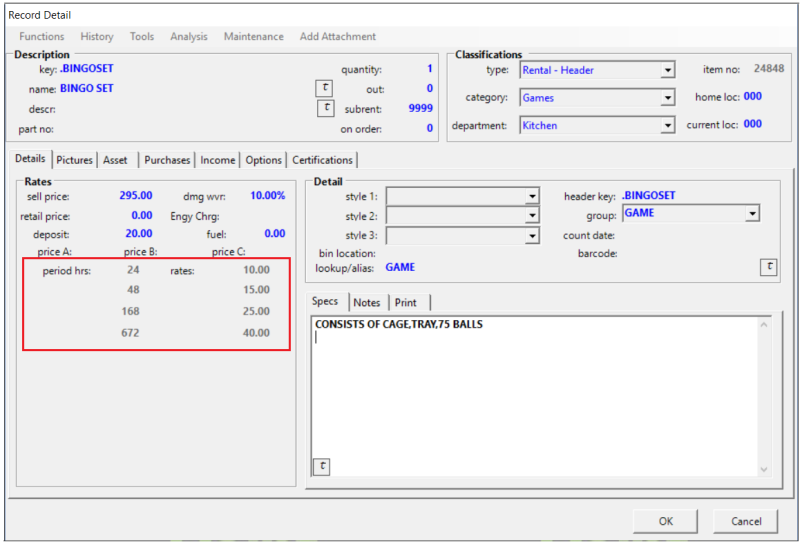
Under you details tab, your item rate structure will now reflect the new base rate structure.

Customer File Record
You can assign the rate engine from the customer level by going to Program Menu>File Maintenance>Customer File and select the appropriate customer. Under the pricing tab, select the rate engine from the drop down menu. The rate engine selected will be used when creating contracts with this customer.
*Note – Base rate would have to be assigned at the item level for rates to be calculated correctly.

Contract Level:
When the item is entered on the contract, the base rate will be used to calculate the rates. It is recommended, if your rate engine is set to base rate, then the items entered on the contract should also be entered as base rate items.
Note: If your item does not have a base rate assigned through the item record. Point of Rental will use the number that is in the rate 1 field, as the base rate.

Special Rates:
A Base Rate option has be added to use with Special Rates whether you only need to change the base rate and all of the other rates will be automatically computed.
Note - Special rates will supersede the base rate set on the item or venue level.
Right click on the item select set special rate. Here you can select the rate engine from the drop-down menu. Under calculated rates, you can set the base rate.
Rounding – checking the box will round the amount either up or down (depending what is entered in the hundredth column when entering the base rate). You will be able to see the rates rounded up or down on the left column under special rates. Select OK, to accept the new rates.
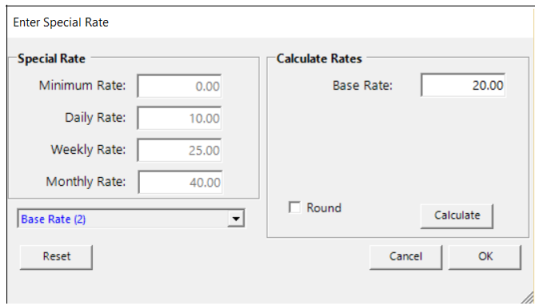
The new rate will be recalculated on the contract. Notice, that is shows in bold, to let you know a special rate has been applied.

Item Level
Jobsite Level
From the Program Menu>File Maintenance>Jobsite Venue>Pricing Tab. You can set the rate engine to a venue.
From inside the contract, select the Delivery Tab>Select Venue. You can select the venue to receive the new rate engine.

If the items on your contract do not have a base rate assigned through the item record. Point of Rental will use the number that is in the rate 1 field, as the base rate.
