Work Order Formats
Overview: Changing the look and feel of your contracts to accommodate business or customer requirements. Up to 20 different contract formats can be defined for use when printing, emailing, or faxing a contract. Default formats can be set based on contract status or delivery method (i.e. open, closed, reservation, email, fax and more). Point-of-Rental™ Software can print the ENTIRE contract including backside legal, lines and shading, if desired. However, most people have the backside legal preprinted and some preprint their logo and a watermark on the front of the contract. You can use any printing company or you can call Steve @ In-a-Bind for pre-printed forms. (800) 862-2463 He is familiar with the Point-of-Rental contract formats and will print them to our specifications. Note: All configuration settings are for the format Contract-Params unless specified.
Go to the Program Menu
•Configuration>System Configurations>Work Order Formats
•Click the edit button next to any formats that you want to edit.

Tip: It is recommended that you create a format called Test Format for testing so you can see what the different selections look like and how they affect the printed contract. As you make changes it is not necessary to exit POR to test the format. Go directly to a Counter System Menu and print a contract to see how your change has affected the contract. Once you are satisfied with your format edit the live format using those settings.
You must give the format a description. This is what you will see at the print screen
The file name should be Contract-Params.rpt. If you are creating a new format that did not exist before, simply click in the file name field and choose Contract-Params.
You will see five tabs labeled Header, Item Details, Detail Columns, Sections, and Footer.
View Format – Will allow you to view parameters for all contract formats.
Header Tab.

You may choose from 11 different headers. The example above uses a small 1”x2” logo at the upper left. You must insert your logo in parameter to use this feature.
You may also choose from 3 different fonts.
Check the boxes next to Operator Name, Barcode, or Setup Time if you want those to print on the contract. If you click Bill To, it will print your customer’s billing address instead of the physical address; the billing address needs to be entered in the Account tab of the customer’s file record. The Remit To will print your billing address, which you need to enter in the Store Info tab in Parameters. Include Web Links will print a small web logo by your store information that the customer can click and it will take them to your website (In Parameters)
Item Details Tab.

The Detail pull-down menu shows ten options; however, only four of them are used in the current version of Point-of-Rental. They are Standard, Delivery, Pickup, and Invoice.
There are 2 grouping levels. Main (Grouping), then a 2nd level (Subgrouping). You can group and subgroup from up to 8 different item sorts. Note: Default settings are listed above.
Below the detail pull-down is a list of options. Click the box next to the features you want.
Details Columns Tab:
There are 7 columns on the standard contract formats (Invoice format has 6, and column 5 does not apply). Several of these columns have up to 35 different selections, or you can choose none to leave the column blank. You may set your rental and sales columns up separately. (See Field Definitions section at bottom for descriptions of columns and fields

Sections Tab:
Let’s you choose from 4 different shade levels. This is useful if you want no shading, or you can adjust the darkness of the shading depending on your printer

There are several more choices to set up your contract. Please note you will need to create files for the Backside Legalese, Credit Card Authorization, and Marketing Page and download them into Point-of-Rental. Otherwise, you will get a blank page when you print the contract. (Refer to the How to Guide for the Backside Legal-Marketing Page-CC Auth Form setup)
*Note: The check box next to Backside Legalese will tell Point-of-Rental whether to print the Backside Legalese in before the contract or after the contract.
Footer Tab.
Let’s you choose from 16 different footer types, plus work order totals that separate labor and parts. See Field Definitions for these footers are at the bottom of the page. You also can turn on or off features like the owner’s signature or the customer signature. Or turn off the totals section or the footer entirely
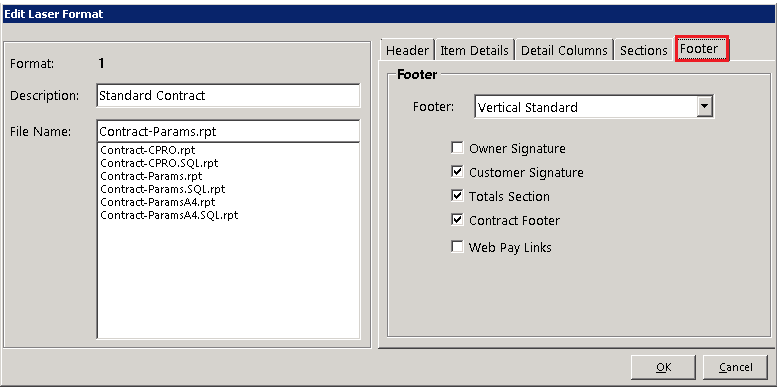
Footers
Vertical & Horizontal Standard – This is the standard footer used for most contracts. Totals Rental/Sales/Delivery/Damage Waiver/Item Percentage. The does subtotals and amounts paid.
Vertical/Horizontal 1 - Shows Retail values for rental items, sales items, damage waiver, & delivery fees then figure a “Savings” amount, then subtotals. The rest of the values are the same as the Standard.
Vertical/Horizontal 2 - Shows Retail values for everything in the totals section. This footer is good for showing to a 3rd party signing for the rental/sales items.
Vertical/Horizontal 3 - Shows Retail values for everything in the totals section. This footer is good for showing to a 3rd party signing for the rental/sales items.
Vertical/Horizontal 4 – Shows Undiscounted values for rental items, sales items, damage waiver, & delivery fees then figure a “Savings” amount, then subtotals. The rest of the values are the same as the Standard.
Vertical/Horizontal 5 - Shows Undiscounted values for everything in the totals section. This footer is good for showing to a 3rd party signing for the rental/sales items.
Vertical/Horizontal 6 - Shows Undiscounted values for everything in the totals section. This footer is good for showing to a 3rd party signing for the rental/sales items.
Vertical/Horizontal WO – Shows the same as the standard footer for a work order contract. The values are the same as the Standard, except it will total your sales as “Parts Charge”.
Vertical/Horizontal W/O Legal - Shows the same as the standard footer, it will exclude the legal statements.
After you created your various formats you can set when a format is used. Go to Configuration/Parameters/Contracts. You will see a Formats Tab. From there you may select default formats for open, closed, reservation…etc. After setting up your defaults you can test them from the Counter System Menu.
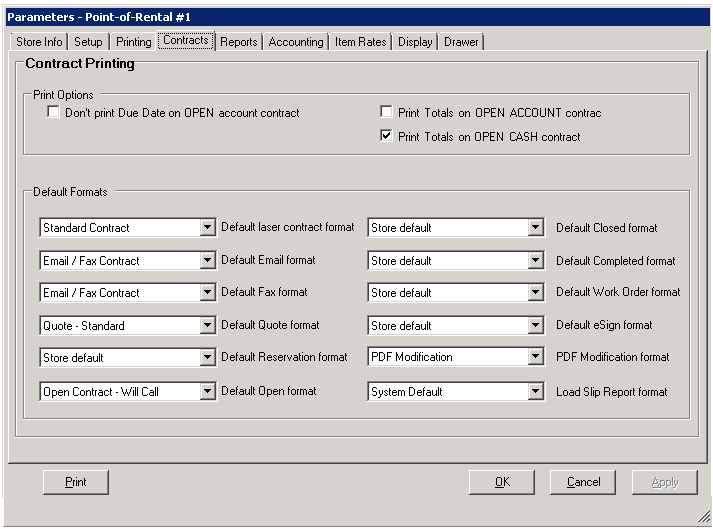
Field Definitions
Header
Standard - Prints store name, address, phone and fax#, and website information in upper left.

Logo-1x2 - Prints 2"w x 1"h logo in upper left, with address, phone and fax#, and website information just to the right of the logo. Logo must be formatted in 2 x 1 size.
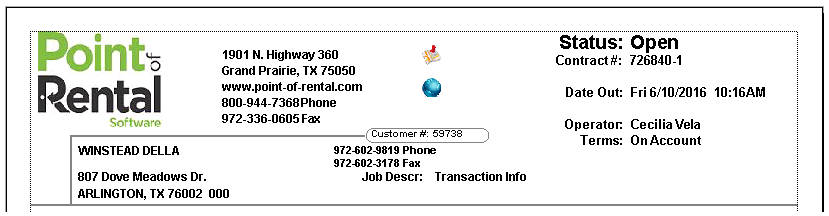
Pull Sheet - Prints minimal company info at top, with larger customer name. Designed for pulling and staging reservations.

No Logo – 1x4 - This prints no company information in upper left. It is designed for preprinted logo no bigger than 4"w x 1"h. In this format, your preprinted logo must have your address, phone, and web information included in it.

Use Invoice Format – No longer used for Contract Format Versions after Version 2010
Remit with Store - Prints store name, address, phone and fax#, and website information in upper left. Also prints store remit to address just to the right.
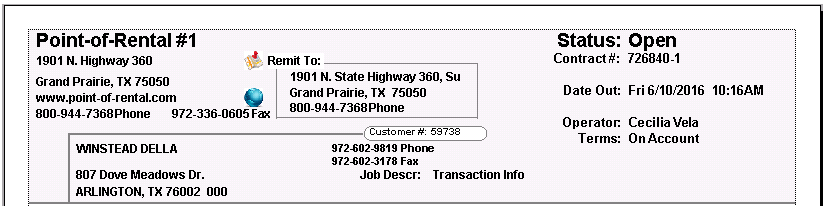
Logo - 1x4 - Prints on the contract a 4"w x 1"h logo instead of company information in the upper left. This REQUIRES you incorporate your company information in the logo.
Logo - 1x4 Box - Different design than the others, that uses boxes for the store and customer information.
Logo - 1x4 Basic - Prints on the contract a 4"w x 1"h logo instead of company information in the upper left, with minimal contract information on the header.
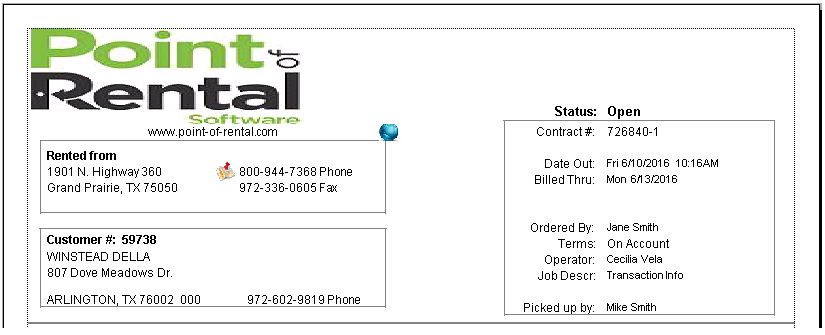
No Logo – 1x2 - Allows 2"w x 1"h area in upper left for preprinted logo. Note: This header does print company address, phone and fax#, and website information just to the right of the preprinted logo. This is designed for multi store users that want all stores to have the same logo, but also print address at each store. Note: The box is the example of where you may preprint.
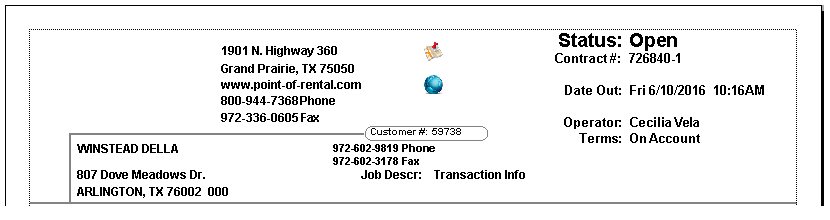
No Logo – 1x8 - Allows 4"w x 1"h area in upper left for preprinted logo. Nothing will print at the top of the heading section.

Item Detail Columns (Same for rental and sales items)
Column 1
Nothing - Leaves field blank.
Item Qty - Prints qty of each item.
Columns 2, 4, 6, 7
Nothing - Leaves field blank.
Key - Prints Item Key.
Number - Prints Item Number.
Part Number - Prints Item Part Number.
Serial Number - Prints Item Serial Number.
Each Price - Prints Total Price Divided by Qty.
Discount Amount - Shows discount amount for the line item.
Discount Percent - Shows discount percent for the line item.
Due Date Only - Shows only date due, not time for each item.
Date Time Due - Date and time due back for each item.
Total Price - Line item total price.
Delivery Boxes - Prints 2 boxes for you to check that items were loaded and delivered.
Pickup Boxes - Prints 2 boxes for you to check that items were picked up and unloaded.
List Box - Prints 1 box for you to use however you like.
Manufacturer - Item Manufacturer.
Vendor - Vendor 1 in item record.
Model # - Item Model Number.
User Defined 1 - User Defined 1 field.
User Defined 2 - User Defined 2 field.
Item Weight - Item Weight defined in item record.
Item Setup Time - Item Setup Time defined in item record.
Bin Location - Bin Location field in item record.
Discount % /Each - Combo field that shows discount percent and each price.
Discount Amt /Each - Combo field that shows discount amount and each price.
Replacement Cost - Replacement field is used if defined. If blank, then uses sell price.
Retail Savings - Retail Price minus final price.
Extended Retail Price - Item Price as it is listed in item record, before any price modifications or discounts.
Hours/Days/Weeks - Best for closed contracts. Shows total hours/days/weeks rented.
Each Retail Price - Retail Cost divided by item qty.
Item Description - Field right below item name in the item record. If used in Column 2, leave column 3 blank. Also, if there is no item description, it will use item name.
TTL Discount - Shows discount if either or both discount amount or percent is used, based off Retail Cost.
Each Undiscounted – Each Price of the item before the discount, based on the price of the item on the contract. This is different from the effective discount because it discounts off what is shown on the screen, not the retail price of the item.
Extended Undiscounted – Same as above, just the total of the line item.
Purchase Case Qty – Case Quantity in the Options tab of the item.
Rental Case Qty - Rental Quantity in the Options tab of the item.
TTL Discount Amt – Complete discount of the line item, regardless of whether it’s an amount or a percent
Rental Date – From the date of the open to the date the item closes
Rental Date/Time -- From the date of the open to the date the item closes with the time
Rental Period – From the date of the open to the date the item closes
Rental Period W/Time – From the date of the open to the date the item closes with the time
Comments – Used for the Load Slip format
Column 3
Nothing
Item Name
Item Description
Column 5
Nothing
Status - Shows if item is open, returned, on hold, reserved...etc.
Discount % - Shows discount percent for the line item.
Footers
Vertical Standard – This is the standard footer used for most contracts. Totals Rental/Sales/Delivery/Damage Waiver/Item Percentage. The does subtotals and amounts paid. This format works the same in Contract-ParamsLite
Horizontal Standard - This is the same information as Vertical Standard, just in a horizontal layout. This format works the same in Contract-ParamsLite
Horizontal 1 – This shows Retail amounts for rental and sales items, then figures a “Savings” amount. The rest of the totals is the same as the Horizontal Standard This format works the same in Contract-ParamsLite
Horizontal 2 - This shows Undiscounted amounts for rental and sales items, then figures a “Savings” amount. The rest of the totals is the same as the Horizontal Standard
Horizontal 3 - This shows Retail amounts for Everything in the totals section, including tax/subtotals and total amounts. This footer is good for showing to a 3rd party signing for the rental/sales items.
Horizontal 4 – This shows Undiscounted amounts for rental and sales items, then figures a “Savings” amount. The rest of the totals is the same as the Horizontal Standard Vertical.
Horizontal 5 - This shows Undiscounted amounts for Everything in the totals section, including tax/subtotals and total amounts. This footer is good for showing to a 3rd party signing for the rental/sales items.
Horizontal 6 - This shows Undiscounted amounts for Everything in the totals section, including tax/subtotals and total amounts. This footer is good for showing to a 3rd party signing for the rental/sales items.
Vertical 1 - This shows Retail amounts for rental and sales items, then figures a “Savings” amount. The rest of the totals is the same as Vertical Standard
Vertical 2 - This shows Retail amounts for Everything in the totals section, including tax/subtotals and total amounts. This footer is good for showing to a 3rd party signing for the rental/sales items.
Vertical 3 - This shows Retail amounts for Everything in the totals section, including tax/subtotals and total amounts. This footer is good for showing to a 3rd party signing for the rental/sales items.
Vertical 4 – This shows Undiscounted amounts for rental and sales items, then figures a “Savings” amount. The rest of the totals is the same as the Horizontal Standard Vertical.
Vertical 5 - This shows Undiscounted amounts for Everything in the totals section, including tax/subtotals and total amounts. This footer is good for showing to a 3rd party signing for the rental/sales items.
Vertical 6 - This shows Undiscounted amounts for Everything in the totals section, including tax/subtotals and total amounts. This footer is good for showing to a 3rd party signing for the rental/sales items