Update Inventory Count with a Barcode Scanner
1. From Program Menu>Inventory Reports>Update Inventory Count.

2. Click in the “SEARCH” field and scan your barcode item.
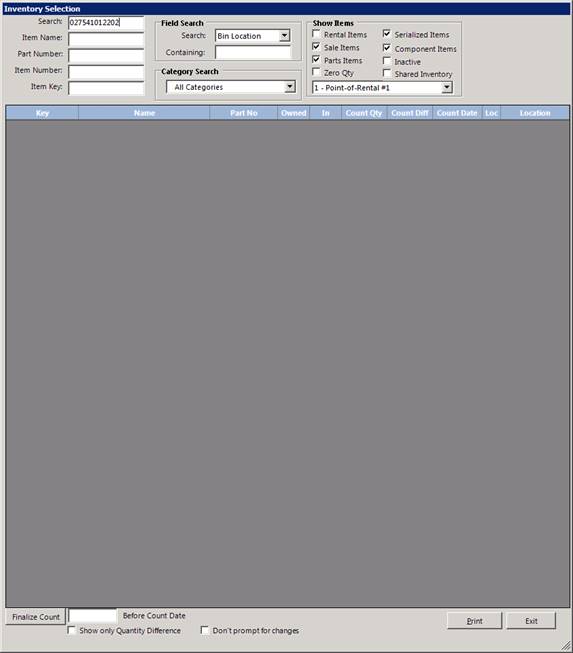
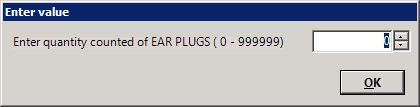
3. The quantity counted screen will appear, were you can enter the appropriate quantity for the specific item.
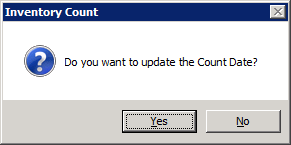
4. The system will ask if you want to update the count date, if the count is the same or inform you that the system counted differently, if you entered a different number.
If the count is the same:
If the count is different:
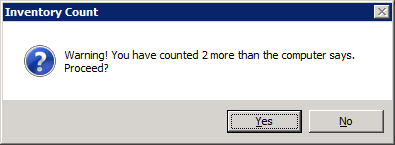
5. Select yes to update the count date. This will accept the qty shown in the count is different column.
6. You will need to select “FINALIZE COUNT” at the bottom left of your screen to finalize the new count.
7. * Note: You must go to File Maintenance> item file and input the barcode information in either the barcode field, part #, or item key field.