Troubleshooting
Web Service
•Webservice folder in c:\POR\PORSmartEquip directory
•Validate Port 57368 is open in firewall
•Check for Windows updates – needs .net 4.5
•Check for Web.config in c:\POR\PORSmartEquip\WebService
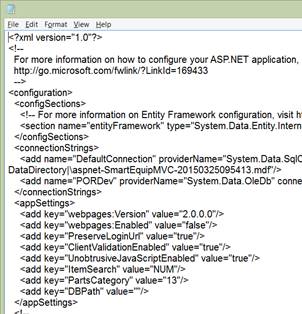
•Web.config customized appsettings
1. <add key="ItemSearch" value="NUM" />
§ Options are NUM for ItemFile NUM or KEY for ItemFile KEY
2. <add key="PartsCategory" value="13" />
§ Sets the default parts category for items added through SmartEquip
§ Determine this category by querying ItemCategory in the POR database – defaults to “Parts – Special Order” unless the customer specifies otherwise
SELECT [Name]
,[Category]
FROM [ItemCategory]
3. <add key="DBPath" value="C:\POR\users\" />
§ Sets the default path for por.ini
•In IIS Manager
•In IIS
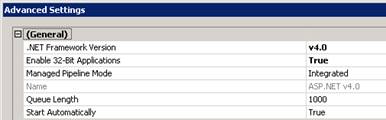
1. Configure Application Pool for ASP 4.0/4.5 to enable 32 bit applications to True

Click the Advanced Settings link under the Actions menu

Change Enable 32-Bit Applications to True
2. Path (c:\POR\PORSmartEquip\WebService)
3. Port 57368
4. Pool ASP 4.0
5. Browse to service on IE to validate

6. Click the API link to view API information
•
•
•Web Service Test
•Webservice - Copy folder in c:\POR\PORSmartEquip directory
•Validate Port 57368 is open in firewall
•Check for Windows updates – needs .net 4.5
•Check for Web.config in c:\POR\PORSmartEquip\WebService - Copy
•Web.config customized appsettings
1. <add key="ItemSearch" value="NUM" />
§ Options are NUM for ItemFile NUM or KEY for ItemFile KEY
2. <add key="PartsCategory" value="13" />
§ Sets the default parts category for items added through SmartEquip
3. <add key="DBPath" value="C:\POR\users\" />
§ Sets the default path for por.ini
•In IIS Manager
1. Configure Application Pool for ASP 4.0 to enable 32 bit applications to True
2. Path (c:\POR\PORSmartEquip\WebService - Copy)
3. Port 57368
4. Pool ASP 4.0
5. Browse
to service on IE to validate
6. Click the API link to view API information
•
•
•Using Fiddler (https://www.telerik.com/download/fiddler)
•Fiddler allows for sending XML files to the SmartEquip interface and receiving XML responses
•This enables testing from the customer Point-of-Rental server
•Click the Composer button to begin the test

•Click the Parsed tab – the History section will show historically created tests
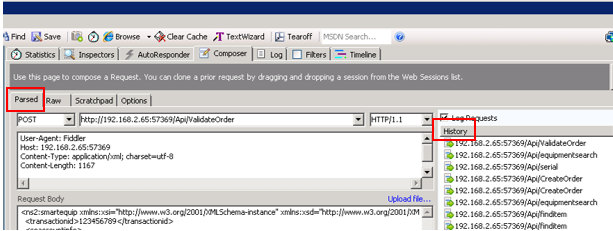
•The Point of Rental Test Server has sample tests that can be used on a customer system
o Login – tests user login – requires customer user id and password with SmartEquip role
o CreateOrder – creates purchase order and adds equipment to work order – requires customer user id with SmartEquip role, valid unit and valid Point of Rental transaction
o ValidateOrder – validates the existence of rental unit and Point of Rental transaction
o Equipmentsearch – searches for unit by unit number or KEY if specified in web.config
o Equipmentlist – searches for unit(s) by model and manufacturer – requires the customer has matched model number and manufacturer to SmartEquip(vendor) standards
o Iteminventory – searches for parts by KEY or part number, manufacturer and location – requires the customer has matched part number/KEY and manufacturer SmartEquip(vendor) standards
o Make – lists makes in a location by manufacturer – requires a valid location
o Modelsbymake – lists models for a manufacturer in a location - requires a valid location and customer has matched part manufacturer to SmartEquip(vendor) standards
o Serial – searches for unit by serial number and manufacturer - the customer has matched serial number and manufacturer SmartEquip(vendor) standards
o Search criteria must be taken from the customer’s Point-of-Rental instance
§ User ID and password
§ Unit
§ Model
§ Manufacturer
§ Serial number
§ Item
§ Part number
•Double-click the functionality to test and the Parsed section will update to the test criteria
•Click the Execute button to test the criteria

•The results will appear in the left hand capture box (Result of 200 means success)

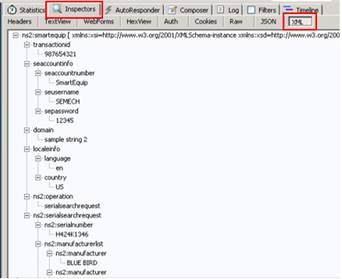
•Click on the right hand Inspectors tab and XML tab to view the results detail
•Log file is located at C:\POR\PORSmartEquip\Logs