Time Clock
Looking for a convenient employee time clock that interfaces with your payroll processor? This feature allows employees to clock in and out, review their entries, and gives management the ability to correct entry errors. Regular and overtime hours are computed and sent to ADP and other payroll processors. If Mobile Workforce is enabled, an employee can clock in or out directly from the phone while at a customer site and the entry is even geo-stamped for management oversight.
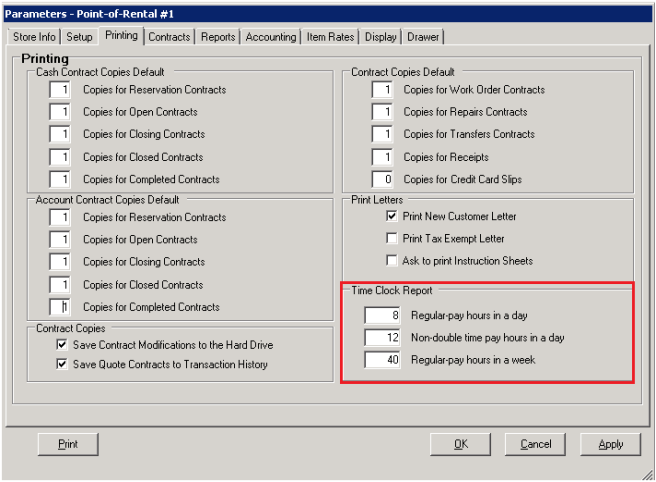
Some states charge over time based on set hours in a day verus the number of hours per week. To charge hours overtime based on the day, you would need to change the hours your Parameter>Printing Tab>Time Clock Report. Change the Regular pay hours to 8 hours, Non-double time pay hours in a day to 12 hours and Regualr pay hour in a week to 40 hours
Clock In/Out
This is used to keep track of clock in and clock out times for each employee. You can also make adjustments here as well. You will be prompted to enter your unique user id. Once you enter that you will get the following screen:
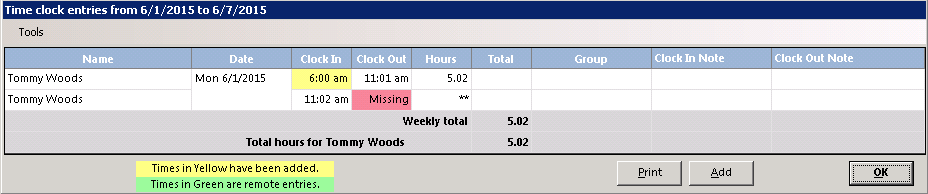
•Note – Times in Yellow have been added. You can chane or modify any time clock entry in Yellow
•Note – Times in Green have been adeeded remotely. See Mobile Workforce.
Time Clock Corrections
Adding Entry – You can add an entry by clicking on the red “MISSING” and you willl be asked to enter the clock In/Out time. Or you can add by clicking on the ADD button. In this case you will be asked to select the employee ant then enter the correct date an time. If you are correcting an employee’s time, ALWAYS start fro the morning and go to the afternoon. In other workds, start from the first time they missed for the day and go the last entry they missed for th eday. Any entries that have been added will be displayed in YELLOW. On the printed time sheets, and added entry will say “added” next to the entry.
Delete Entry - You can only delete time clock entries that are marked in yellow. Double click on the entry and you will be prompt to delete the entry. You will a have to manually enter the correct time for the employee.
Missing Entry – If the entry shows as missing, you can manually enter the emaployee time. You will need to select the employee and date, then you can enter the correct time.
Clearing Entry – When the Time Clock, report is ran without selecting “include cleared entries”, a prompt will be asked to clear the entries when finished with the report. Clearing entries does not delete the time clock entries. It just marks those entries as being completed. The report can still print out time sheets with cleared entries by clicking on “ include” cleared entries.”
•Note: The system keeps track of whether you are clocking In or Out based on the number of time clock punches per day. So if you forgot to punch out of lunch, the computer will think you punched out for lunch when you were really coming back. To correct the error, simply go into Time Clock Scheduling or view your time entries under Counter System and click on the red “MISSING” for that day. Then enter the time you left for lunch. The computer will fix the In and Out times.
Addition Codes
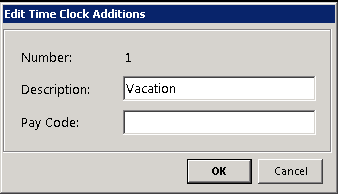
When you add a time clock entry for an employee, you will be given the option of adding a missed entry or additional pay types. If you select one of the additional pay types, you will be asked to select the date and the number of hours. Some standard pay types have already been added such as Vacation Pay, Holiday Pay, Jury Pay, Sick Leave, etc.

If you select Add to insert additional codes, you will get the following screen: