Service Call – Customer Billing
Overview: Allows you to create customer billing from a closed service call.
1. You will need to close the service contract, to bill the customer.

* Note – It is preferred that you only bill a closed service contract, as there may be charges not yet inputted into the contract. If you select create customer billing with the contract in an open status, you will receive the following message.

2. You can either right click on the service contract from Day at a Glance or Go to Counter System>Close Contract and enter the service call contract number.

* Note - Once the service contract is closed the status will change from open to repaired. The service call will disappear from Day at a Glance.
3. From within the close contract, go to Tools>Create Customer Billing and select the customer.

4. The Customer will be added to the new sales contract. You must have sales item miscellaneous record created as MS-1 Miscellaneous Sale Item as part of your inventory. (For multiple locations us MS-2, MS-3) This will be added to the item Key on the billed contract with the item being sold.
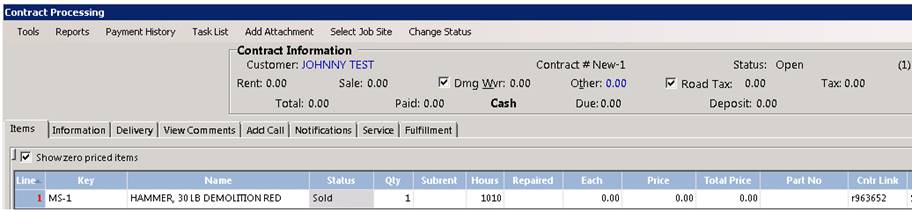
* Note – The sales contract has been created with Item Key as MS-1. Also under the Contract Link the service call number is shown.