Scanshell OCR Driver’s License Scanner
Overview: These articles cover how to install, configure and troubleshoot ScanShell OCR Driver’s License scanners. If your company has remote locations they should be on a secure virtual private network (VPN) with the location where the Remote Desktop Server hosting the Point-of-Rental software resides.
Note: Not compatible with Windows XP Home Edition and earlier operating systems.
Installing the OCR Scanner
1. From the Point-of-Rental server share the \POR\Pictures\ folder and allow everyone “write” access.
a. Obtain the share path by opening a Windows Explorer window and in the address bar type \\[server’s IP Address]\Pictures\ , i.e. \\192.168.1.6\Pictures\.
b. You may be prompted for user account credentials. If so, insert an appropriate user account’s credentials. You should now see the root of the Pictures folder you shared.
2. Download the OCR Installer (idScan) file from http://www.porhelp.com to the workstation that will have the Driver’s License scanner plugged into it.
3. Install the OCR Installer (idScan) program.
4. Follow installation procedures on installation wizard.
5. SetScan Installer Opens Up
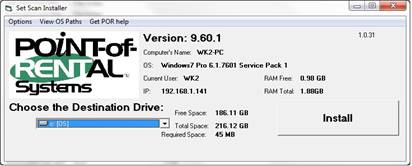
6. Click Install
7. Following Option Opens Up

a. Select ScanShell Option (Left)
8. Select Done on Scanner Setup

9. Navigate to C:\POR\OCR\Help

10. Open the IdScanHelp program.

11. Under ‘Server File Methods’ select ‘On Server’ and click the ‘Create IdScan Profile’ button.

12. Give a unique name for current workstation.
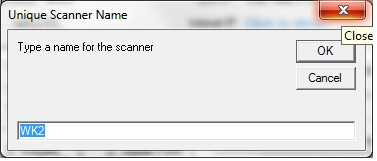
13. Next, insert the share path from step 1 and press OK.

a. If you are prompted for user account credentials enter an appropriate user account for the server.
14. Double-click on the “New Text Document” File.

15. Close the IdScanHelp program and start the IdScan program.
16. Remote into the Remote Desktop Server hosting your Point-of-Rental software from this computer and update the OCR scanner path in Printer Selections>Advanced, exit the Point-of-Rental program and get back in.
17. Test by scanning a license and you should see it arrive in the \POR\Pictures\ folder on the server. If it does then go to open a new contract in POR and select “From License” on the customer selection window. The license should be recognize and open a new customer record showing the license picture and populating the customer record OR asking if you want to update the existing customer record.
18. Finally, you must see if any other workstations are to share this OCR. If so, then their Point-of-Rental OCR scan path in Printer Selections should match the one you just configured.
Troubleshooting an OCR Scanner
If an OCR scanner suddenly stops working the first thing to try is to verify the scanner is plugged in. Next, reboot the computer to see if it starts working again. If not, it may give an error message when scanning a Driver’s License. If it does then see if the error matches any of the errors below and use the solution provided.
No Pathway Selected Error
Sometimes the folder on the server being shared is changed or permissions on the server are edited causing an error with transmitting the scan files to the server. This requires re-mapping the IdScan program to deliver the scan files to the server share again.
1. The first error you will run into is “IDScanOCR”: The destination folder to the auto-saved license images is Invalid. Please correct the patch by clicking on the button “AutoSave file naming” and select the image destination folder path.”

2. When you select “OK” you will be prompted with the following screen

3. Open “Task Manager”, highlight “IDScanOCR.exe from within the processes tabs, and select “End Process” to kill the program
• Note: If Windows 8 you will have to kill the program labeled “ScanShell MFC Application (32 bit)” under “Apps” section of Task Manager.
• Windows 8

• Windows 7

4. Next, determine the hostname (LAN IP address) the terminal is using to remote into the server.

5. On the local computer the scanner is plugged into open C:\OCR\Help\ and double-click “SetScan”
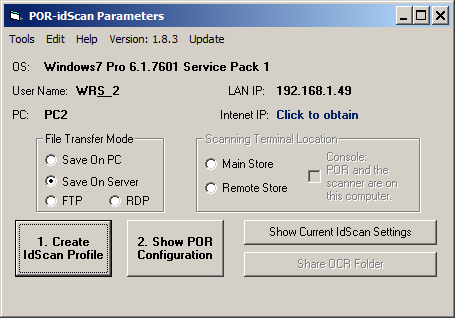
6. Select the “Save On Server” method and click on “1. Create IdScan Profile” button. You will be prompted with a window asking you “Are You Sure”. Click Yes to continue.
• This is the name of the file that will be created on the server in the \POR\Pictures folder
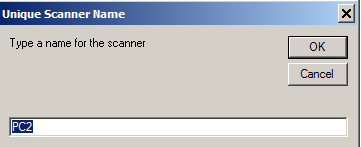
• Warning message pops up. Select “OK”
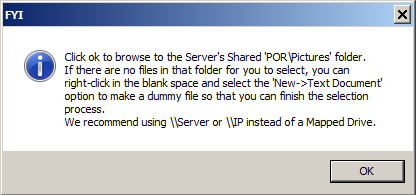
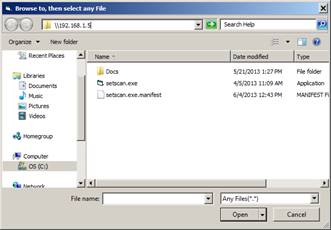
• In the top address bar navigate to the server’s IP address.
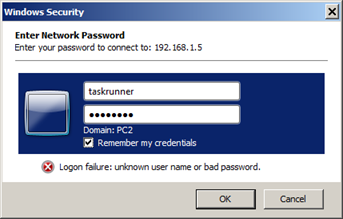
• When you attempt to navigate to the server’s ip address you will be prompted to enter valid server credentials. Use the username and password this workstation uses to remote into the server. Be sure to select the “Remember my credentials” checkbox
• After successfully imputing the credentials you will be navigated to the server’s \POR\Pictures folder from the local terminal
1. Select the pictures folder

2. Select “New Text Document” file, if there is not a file there then create it.

3. Start up the program and have the customer test by scanning his driver’s license through

• Now you are going to want to be on the local side on the terminal the scanner is physically plugged into and modify the settings of the remote desktop icon like so
Credentials Manager
Sometimes credentials to access the server folder share are saved even though they are wrong. Then, all you get is an error message stating you are using the wrong credentials. In order to edit the saved credentials open Control Panel -> Credential Manager. Credential Manager is available on Windows PCs going back to Windows XP Professional (not Home Edition). Once Credentials Manager is open click Windows Credentials to display your network share credentials. Maximize the appropriate saved Windows Credentials and click the Edit link to change the username and password.
