Salesforce Sync Password Reset Jitterbit
1. Log into the server.
2. Click on the start button and search for Jitterbit and click on Jitterbit Cloud Data Loader
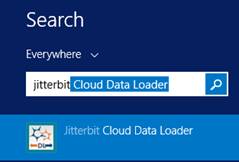
3. Click on Login for Jitterbit Cloud Data Loader
Note: These credentials should never change

4. In the Project Explorer on the left hand side, click on the folder My Salesforce Orgs
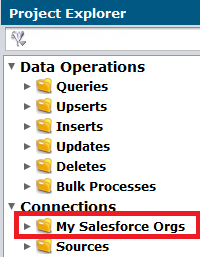
5. Click on the user within that folder
Note: Every time you reset your password you will need to get a token
6. Enter in New Password and enter in New Token

7. Click on Test Salesforce Login. You should get a success message.
8. The linking between Point of Rental and Salesforce is set up.
Helpful Hints:
If you are an administrative user for Salesforce you are required to reset you password every 90 days. If you are a normal user, you have an option to opt out of the 90-day password change. We recommend setting up the user inside Jitterbit as the normal user so you won’t have to worry about coming in and updating the password.