Review Billing
With this checked, you can return all the items to inventory, but the contract remains open. This allows you to review the contract for billing errors before the customer receives the closed invoice. Once the review has been cleared the contract goes to the Closed status and is ready to be invoiced.
There are four ways that you can set a contract to require Review:
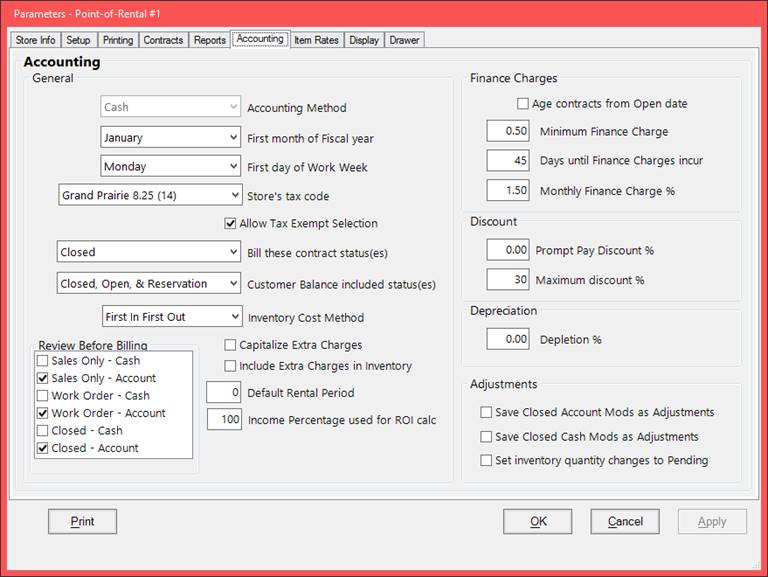
In Parameters, you can set the default type of contract to review (i.e. Cash or Account, Work Order, Regular Contract) and the payment type (cash and/or account). These settings would apply to all applicable contracts.
In the Customer Record, there is a checkbox to require this customer to have their bills reviewed. This would only apply to the specific customers.

In the Job Site Record, there is a checkbox to require all contracts for that Job Site to be reviewed.

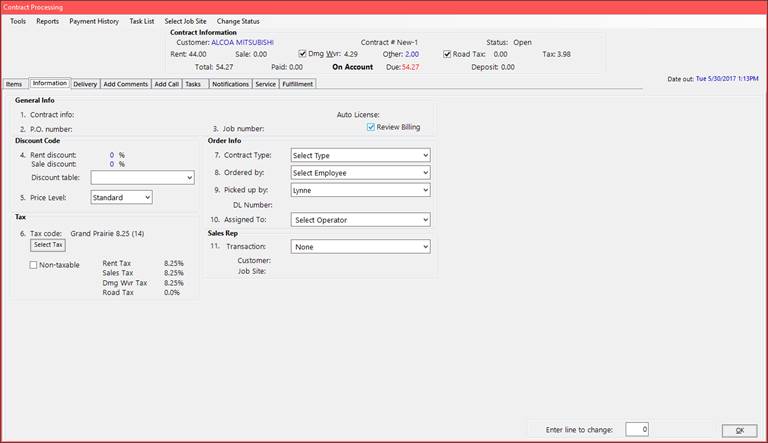
In the Contract itself, you can manually set or unset the Billing Review requirement. This must be set prior to closing the contract.
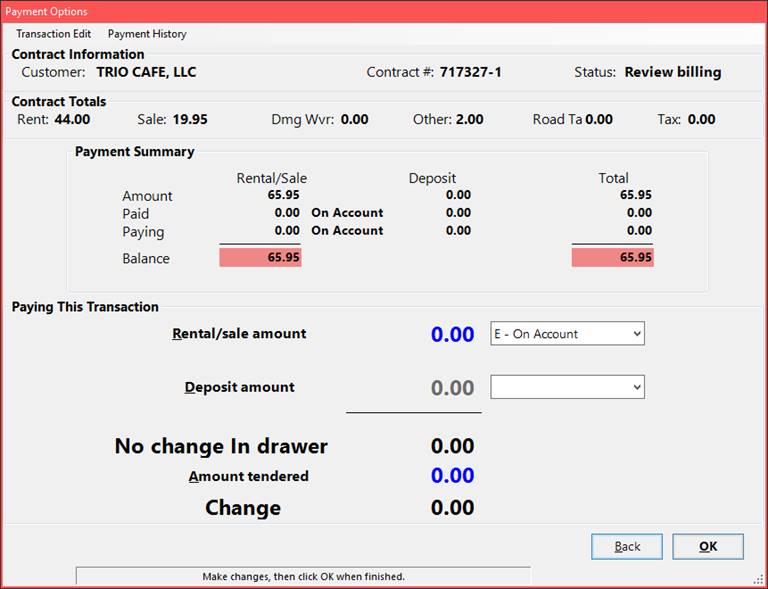
When a contract is closed it will have a status of "Review Billing" and remain an OPEN contract if printed.
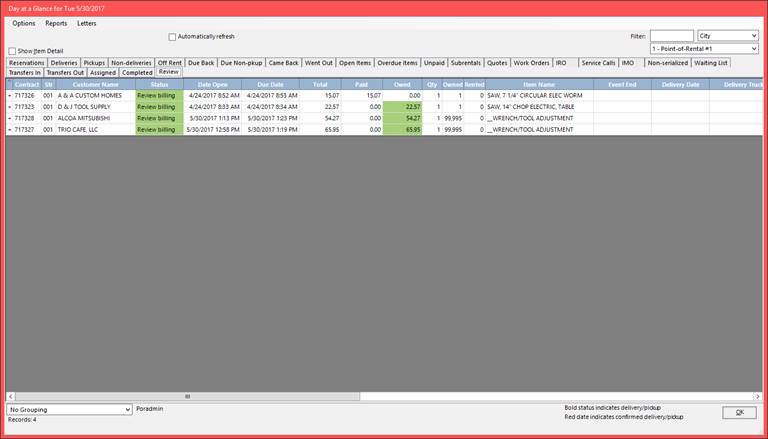
As contracts close for the you will be able to see all the contracts that need to be reviewed under the “Review” tab in Day at a Glance. Currently you must Modify the contract and manually uncheck the Review Billing checkbox. Once the box unchecked it is closed and ready to invoice.