Print Purchase Order
This allows you to print, email or fax a purchase order.
From the display screen, right click on the purchase order you would like to print.

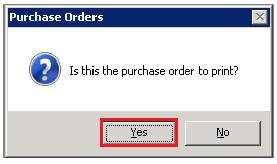
You will be entered this purchase order, you will have the option to print, Select Yes.
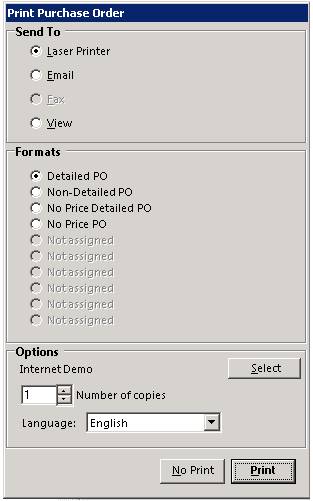
You will be able to fax, email or print from the print selection screen.
* Note - When faxing or emailing a purchase order to a vendor, an edit will be added to the purchase order edits within the purchase order.
Printer - You can choose to Print, Email or FAX the purchase order.
Formats - There are up to ten different print formats for the purchase order that can be defined.
Brief: This format is intended to be sent to the vendor accompanying the order. This format prints the vendor information, purchase order date, payment method, subtotal amount, shipping charges, tax amount, other charges, and total purchase order amount. In addition, each line will show the item number, name, part number, case order, units order, price each, and extended price.
No Prices: This format is the same as Brief except the prices are not printed. This can be used as a pick-up sheet for a deriver when you don't want him to know the prices.
Semi-detailed: This format is identical to the Brief format, except that each line item will include the line item comments.
Detailed: This format is identical to the Brief format, except that each line item will include the quantity received, expense to, GL Account, and line item comments. This format is intended for internal use.
Other: You can define up to ten different formats under the "Set PO Print Formats" menu option. You can also set the default number of copies to print there as well.
Notes: This first format will always be selected by default.
Number of copies - This selection defines the number of copies to print.
Select Printer - This button defines the printer that the report will print to.
No Print - This button skips the printing of the purchase order
Print - This button will send the purchase order printout to the selected printer, FAX or email