Print Aged Customer Balance Report
How to get there: Program Menu > Accounts Receivable > Print Aged Customer Balance
This selection from the ACCOUNTING MENU allows you to print a customer aging report. For each customer with any contracts on file, the under 30, 30-60, 60-90 and over 90 day totals are shown. The grand total for all contracts is printed at the end of the report.
First you will be asked to enter the Password. If you don't know it, just press ENTER and you will be returned to the PROGRAM MENU. Next you will see the following menu:
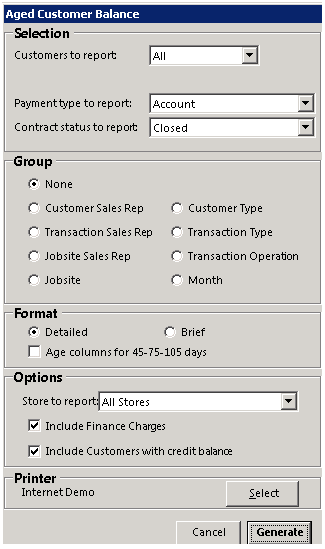
Customers to report – “ALL” means include all customers that have had any activity or have a balance due. You can also choose customers by Type, Restriction, or Age Date.
Customer type - You can choose which type you would like to process. Then only those customers with that type in their type field will be selected.
Restriction - Select all customers with a certain restriction to print. For example, you can select all customers that are Pay on Return.
Age Date – Select all customers with an age date greater than a given age date. For example, print only customers that are over 90 days overdue.
Payment type - There are three different selections: Account, Cash, or Account & Cash. If Account is selected, only contracts that are account payment method will print on the summary. If Cash is selected, only contracts that are NOT account contracts will print on the summary. If Account & Cash is selected, all contracts regardless of payment method will print on the summary.
Contract Status - There are three different selections: Open, Open & Closed, Open & Closed & Reservation. Only those contracts that are of the selected status will be printed on the summary.
Group – There are eight different fields you can group the aging report. If you select None for the grouping, all the customers will simply be listed in alphabetic order.
Format – Selecting Detailed will print the contract number, date, and amount for every contract and then total for each customer. Selecting Brief will print only one line per customer showing the customer’s total amounts for each aging date group.
Age Columns – The default aged columns are 0-30, 30-60, 60-90, and over 90 days. If you check this box, the aged columns will be 0-45, 45-75, 75-105, and over 105 days.
Report All Stores - This is for multi-store locations only. With this selection, you can choose which contracts will show on the summary by store number. If this is checked then all contracts will be selected despite store location. If you uncheck this box, you will get a new selection to enter the desired store number.
Printer Select – This option allows you to select the printer for the report. The report printer will be the default.
Generate summary - produces the summary based on the options selected. Therefore, before you click Generate you should change any of the options that are not to your liking.

* Note: The ? icon, is a link taking you to Net Help documents.