Overbooking
Overview: Procedures for handling overbooking of rental items for the Counter System.
Overbooking is best handled from the Item Availability screen where you have access to all the necessary tools to process and handle correctly. Although, there is an Overbooking Report in the Reservation Report section, it is designed for a wide date range view to make purchasing decisions and not necessarily for working overbooks on a day to day basis.
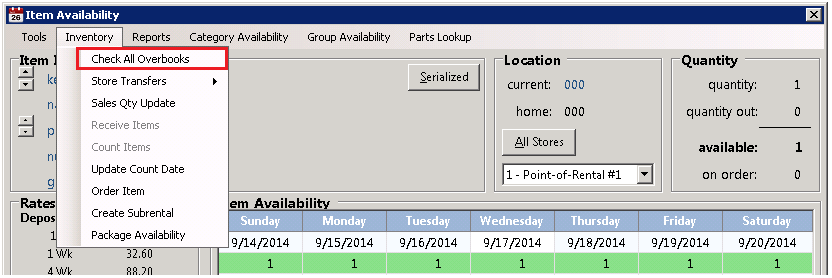
From the Item Availability screen choose the Inventory drop down menu and select Check All Overbooks.
Below is the Overbooked Items list.
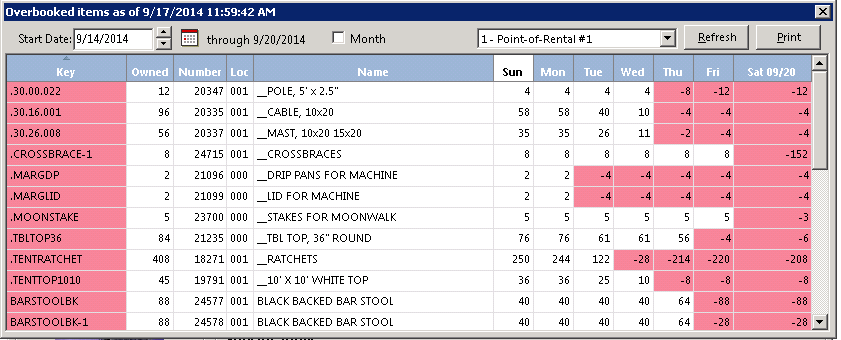
*Note: You no longer must wait until all items have been searched, the screen will display each over booked item as it finds them. You will also be able to hit the Esc key while it is running to stop it. This is handy if you wanted to change the store to display or the dates to search so you don’t have to wait for it to give your all the info you didn’t want.
• By default, the date is set to Sunday of the current week. You can change this date to any day you wish to get a weekend view if desired. You can also expand your view to a full month (28 days).
• If you are a multi-store system you can view by an individual store or by all stores.
Select the item you want to work with by left-clicking it once. Right-clicking an item will open the Item Contract Detail screen directly allowing you to skip the calendar view below.
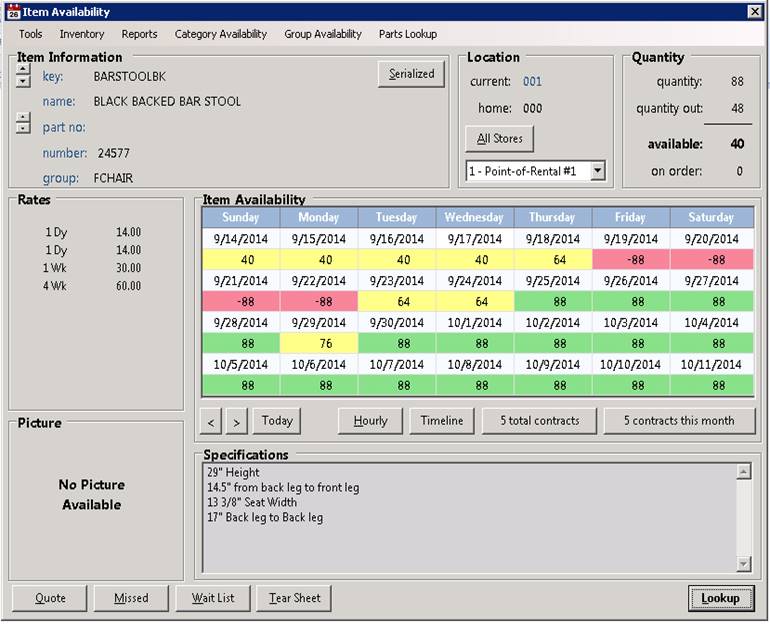
• Clicking on one of the days where there is an overbook (indicated by a red negative number) the following Contract Detail list will display.
• Right-clicking on a contract in this list allows you to Inquire, Modify, Cancel, Print, Send Out, Request Subrental allowing you to interact with a contract or make a subrental request directly from this point.

From this view, we can clearly see that there is an overbooking. A contract could be modified to reduce the quantity or substitute a new item (with your customer’s approval of course).
Press the OK button to get back to the Item Availability screen.
By selecting the Inventory drop down menu you can choose Order Item, Create Subrental, or Store Transfers.

Selecting Order Item will create a Pending Purchase order (you must have the Purchase Order Module). You will be prompted for the Quantity to order, the Vendor to purchase from if you have multiple vendors set, and if you have more than one pending PO for that vendor, which PO to add to. (Refer to the help section on Purchase Orders for more information)
Selecting Create Subrental will start a new Subrental Contract. You will select a Subrent Vendor, dates, and items. (Refer to the help section on the Subrental Process)
Multi-Store:
Selecting Store Transfers will allow you to transfer an item now or schedule a future transfer. (Refer to the help section on Store Transfers)

If a Purchase Order was created this is what the availability will look like.
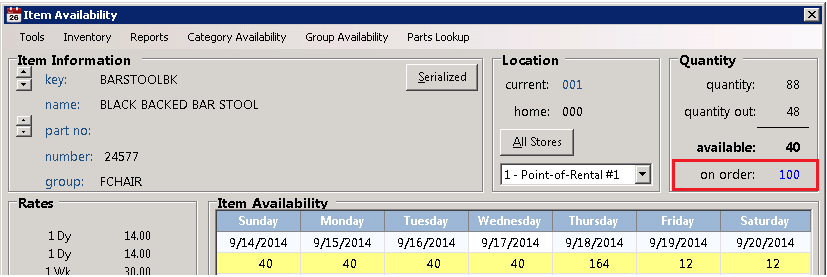
Note the On-Order Quantity in the top right corner. When created the Purchase Order was marked with an arrival date of 10/28/2012. In the 28-day calendar view 10/28/2012 shows 29 available; and increase of 15 from the day before.
*Note: Refer to the help section on Purchase Orders for specific details.
Once a Subrental Contract or a Purchase Order is created this is what the availability will look like.
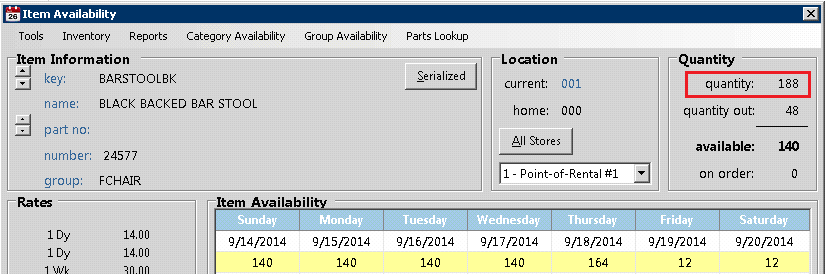
The Subrental Contract was written from 9/19/2014 through 9/23/2014. Note where the quantity available has increased by the amount of the subrental for only the days the subrental contract was written for.
*Note: Refer to the help section on the Subrental Process for more information.
As overbooked items are handled they will be removed from the Overbooked Items list.
Multi-Store: In a mutli-store environment it is important to view and handle company overbooks first then work at the store level if the goal is to satisfy overbookings using transfers. If the company is overbooked and the overbooking is resolved with either a Purchase or a Subrental, by default the store overbooking is handled also. If an overbooking still exists at the store level then a transfer should satisfy the overbooking.
Critical Overbooking: When an item is not quite overbooked, but at a level you have determined as critically low, the Critical Overbooking Report provides a tool to be proactive rather than reactive. Typically, this report is run on Monday for the next weekend. Items scheduled to go out but are below your critical level will report giving you an opportunity to verify inventory counts well in advance and make any necessary adjustments. Program Menu – Reservation Reports
• Critical levels are defined at the item level in the Critical Level field; either a number or a percentage. If you want to be warned when the available quantity of an item is between 0 and 20 you would enter 20 in the Critical Level field; in contrast enter .20 for a percentage warning from 0% - 20%. When an items availability gets below zero, by default, it becomes overbooked.
Overbooking from Item Availability is designed for Rental Items only.
Resale Items: It is recommended that the Resale Items Pending Report be used to ensure proper inventory levels for upcoming reservations. Program Menu – Inventory Reports