Modify Contract
How to get there: Program Menu > Counter System > Modify Contract
In the “Transaction Selection” screen you must enter the contract number or search for the contract by using any of the search options on the pull-down menu accessed by a mouse click on the “search by” box. Under Field Search, you can search a field for a certain word or phrase anywhere within the field. If you push ENTER the program will return to the Counter System Main Menu.
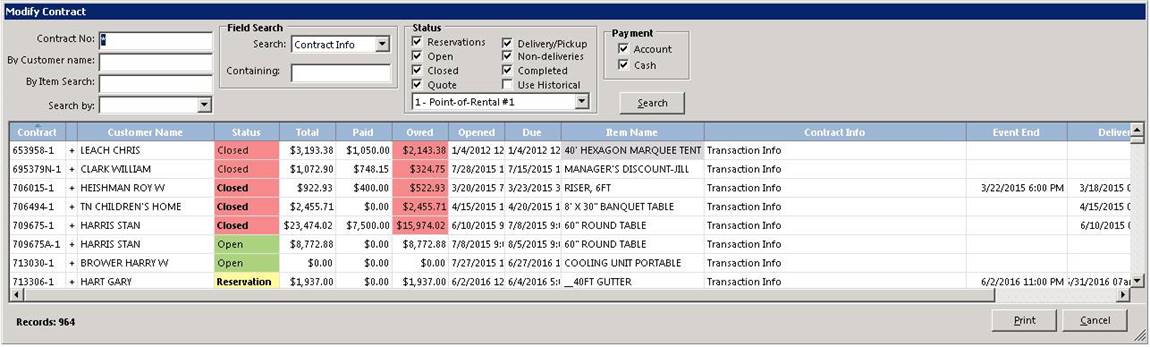
You can select any of the contracts by clicking on the contract number. If you click on the plus sign, then all the items on that contract will be displayed. If you click on the customer name, the customer record will be displayed.
Store to Display: This option allows the selection of only contracts for the desired store.
Status: These check boxes allow the selection of only contracts that have a certain status. Note: Some statuses will be unavailable when performing certain functions such as closed status will be unavailable when closing contracts.
Use Historical: This option will show completed contracts that have been moved to history that match the selection criteria.
Payment: These check boxes allow the selection of only contracts for Account and/or Cash customers.
Search: This button will perform the search of all contracts that meet the selection criteria based on the boxes checked.
* Note: Any amounts that are due from an Account customer will be displayed in green. Any amounts that are due on a closed contract for a cash customer will be displayed in red. For any contract marked for delivery or pickup, the contract status will be bold.
The contract will be displayed for your verification. If the contract cannot be found or you reject the contract, you will be asked for the contract number again. If the contract number you enter is already closed, you will be so notified and returned to the Main Menu.
Once you select an open contract, you will see the following:

There are several ways to modify an open contract. You can double click on the item you want to change to open a window box to make a change. You can make changes to (Key, Name, Status, Qty, Hours, Date Due, Time Due, Each Price Disc %, Sort, Delivery, Pick Up)
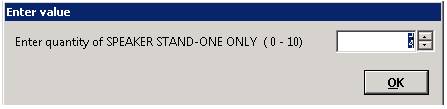
Example: Change to Qty – Double click on the qty box –
enter a new qty in the enter value box to make your changes.