Inventory Reorder Report
This selection produces a report of items in your inventory that need to be reordered based on information in the reorder min and max fields of the item record. Only items that have a minimum and maximum reorder quantity specified will be evaluated. For each such item, if the current quantity is less than or equal to the minimum quantity then that item will be reported. Also, if an item is within the defined percentage of the reorder value, it will be reported. The quantity to be ordered will be reported as the difference between the maximum quantity and the current quantity. If a case quantity has been entered for the item, then the reorder amount will be rounded to the nearest case quantity. An estimated order cost amount will be printed for each distributor. You will first see the following screen:
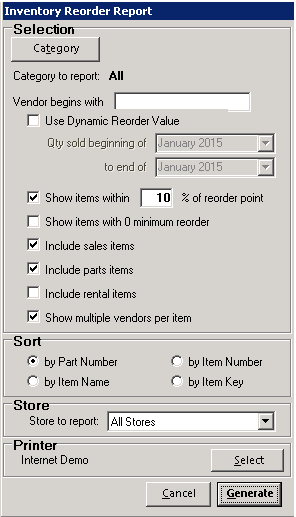
Category – With this button, you can select a specific item category for the report.
Vendor begins with – This option allows you to select a single vendor for the report based upon the first few characters of the vendor’s name.
Use Dynamic Reorder Value – This option allows you to select items needing reorder based on the quantity that was sold for the time selected of the previous year. With this unchecked, it will use the minimum and maximum reorder points in the item record.
Show items within x% of reorder point – This option allows you to select the percentage approaching reorder point.
Show items with 0 minimum reorder – This option allows items that have no minimum reorder value to show on the report. This is normally only used for Dynamic Reordering.
Include – With these checkboxes you can choose what types of items are shown on the report.
Show multiple vendors per item – If you have more than one vendor entered for an item then the second vendor will be displayed under the item on the report. With this unchecked, only the first vendor is displayed.
Sort – The report will be sorted alphabetically by Distributor name, and for each Distributor the items can be sorted by part number, item name, item number, or item key.
Printer – Select the desired store to report.
Select Printer – This button defines the printer for the report.
The report will look like the following sample report:
