How it works
SmartEquip browser – log in using your Point of Rental ID and password.

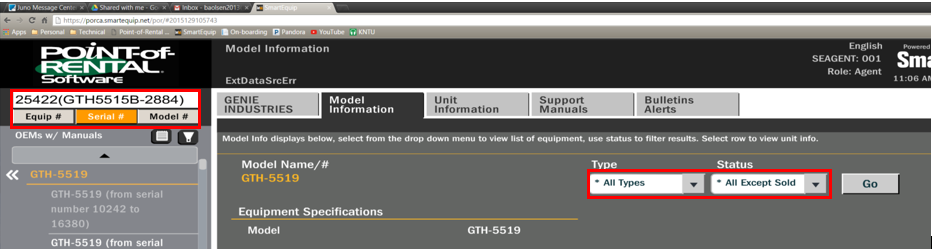
It is possible to search for the unit to be serviced by the Point of Rental Item number, Item serial number or Item model number. Below is a sample GENIE Telehandler in Point of Rental.
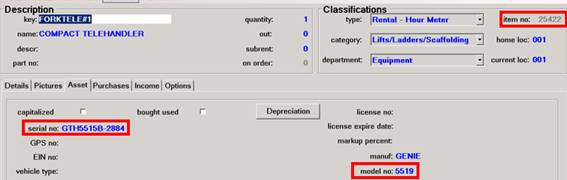
•Equipment is searchable by unit, model, manufacturer or serial number – the model, manufacturer and serial number must match manufacturer specifications
•SmartEquip will provide assistance with manufacturer naming conventions and model naming conventions
•The unit search can be configured to default to unit number or KEY
To search by Serial #, enter the Point of Rental item serial number into the Search field, select Serial # from the Category drop down and then click the Search button. Click the GENIE Brand/Manufacturer line.
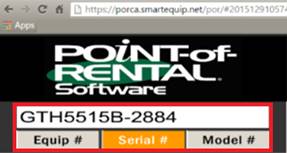

To search by Model #, enter the Point of Rental model number into the Search field, select Model # from the Category drop down and then click the Search button. Click the GENIE Brand/Manufacturer line.

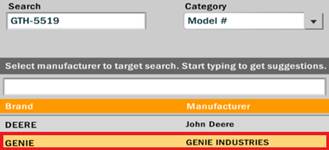
To search by Equipment #, enter the Point of Rental item number into the Search field, select Equipment # from the Category drop down and then click the Search button.
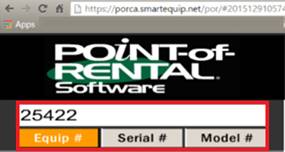

For any of the searches, the GTH-5519 Model # appears - click it to select the Model.

In the left hand frame, the serial number options appear – click the option that best matches the unit to be serviced and select “All Types” from the Type and “All Except Sold” from the Status drop down.
Point-of-Rental Item File Maintenance
•Parts are searchable by part number, manufacturer or KEY– the part number and manufacturer must match manufacturer specifications
•SmartEquip will provide assistance with manufacturer naming conventions
•A default Parts category can be configured for parts added through SmartEquip
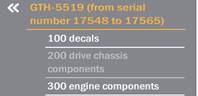
•Select the component group for the needed part
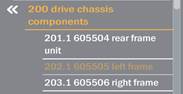
•Select the subgroup
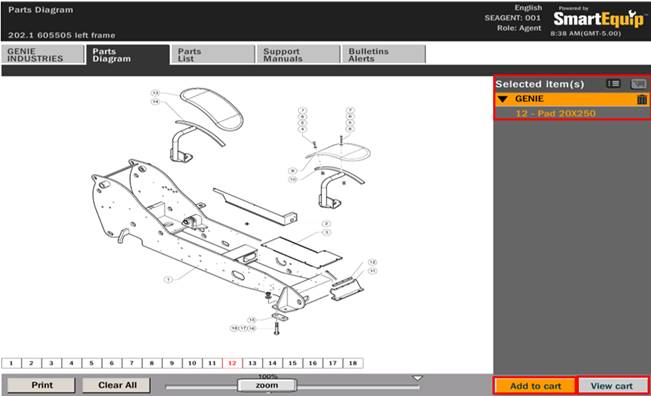
•Click the number of the part to be selected
•The part appears in the right-hand Selected Items dialog
•Click Add to cart to purchase the item
•Click View cart once all needed items are added
•Parts are added at the company level but can be received to the store where the work order resides.
