General Ledger Interface
The Point-of-Rental Systems can produce a General Ledger Interface file on a daily or monthly basis that includes all the entries necessary to post to third party accounting program such as QuickBooks or Peachtree. To use this file, you must setup several things in the Point-of-Rental System.
Be sure that the General Ledger report is selected in Parameters:
From the Program Menu select Configuration. From the System Configuration menu, select Parameters. Click on the Reports tab. Make sure that there is a check mark by Print General Ledger Entries.
Enter account numbers into POR:
From the Program Menu select Configuration; Accounting Configuration; select Account Numbers. Enter each QuickBooks account number into the corresponding field on the Account Numbers chart in POR. Multi-store: Account numbers need to be entered at each store. If a QuickBooks Class is defined for each store, enter the Class in the QB Class field of the corresponding store’s Account Numbers chart in POR. You can also enter the File extension, ex iif.

These account numbers are all that is necessary for basic record keeping. Some customers prefer to keep records that are more detailed in their financial package. If imports that are more detailed are desired, account numbers may also be entered for each item category. To enter account numbers for each category, select Configuration from the Program Menu. From the System Configuration menu, select Item Categories. Enter your password. Click on a category line for which you would like to enter a G/L account number. Enter the G/L account number in the Edit Item Category screen and click OK:
Item Categories

Double click on one of the Categories

Detail Edit Item Category

Select when and where the export file is created:
If the Account Numbers form is not already open, then from the Program Menu select Configuration. From the System Configuration menu, select Account Numbers. At the bottom under Miscellaneous, choose the desired format. Choose the preferred Export Frequency – daily or monthly. Enter the Export Location where the export file is saved. The default location is C:\por\qb\.
End of Day Processing: A GENERAL LEDGER ENTRIES report is printed at the end of each day or month during End of Day Processing to help you enter your Sales and Receivables Journals into your General Ledger. This is also when the G/L Interface is generated and stored in the location specified on the Account Numbers screen as the Export Location. You can re-generate this import file at any time by running the Reprint G/L Entries under Accounting; Accounting Reports.
QuickBooks Interface
Make sure that QuickBooks is set up to use account numbers:
In QuickBooks, click on Edit and then Preferences. The Preferences screen will open. Click on the Accounting icon and then on Company Preferences tab. Make sure that there is a check mark in the box next to Use account numbers. Click on OK.
Check to see that account numbers have been assigned in QuickBooks:
Open the chart of accounts by clicking on Lists and then Chart of Accounts. If account numbers have been assigned, they would appear in front of the account name. If they have not been assigned, consult your accountant to determine the numbers to be assigned. General guidelines for account numbers are as follows:
Asset Accounts: normally 1000s series
Liability Accounts: normally 2000s series
Equity Accounts: normally 3000s series
Revenue Accounts: normally 4000s series
Cost of Goods Sold: normally 5000s series
Expense Accounts: normally 6000s series
Other Revenue (for example, interest income): normally 7000s series
Other Expense (for example, income taxes): normally 8000s series
Note: The Accounts Receivable account in QuickBooks must be set to a normal asset account. Do not set the account to the QuickBooks A/R asset account, because QuickBooks will not let you import entries against its A/R account. The same is true for Sales Tax Payable. It needs to be a normal liability account, not a QuickBooks tax liability account.
Multi-store option: Create a different Class name for each store in QuickBooks to track individual store finances.
Import file to QuickBooks:
From QuickBooks, click on File at the top of the page. From the File drop-down menu, click on Import. The following screen will open:
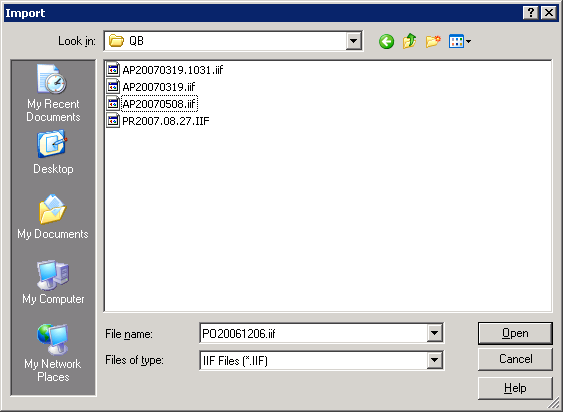
If the QB folder is not displayed at the top, click on the down arrow and search for the location of the QB folder on your computer or network. The location is the same location as the Export location listed in POR on the Account Numbers screen. Choose the file to import by clicking on it. The file name is in the format PR.yyyy.mm.dd, where yyyy – year, mm – month, and did –day for daily imports and PR.yyyy.mmMONTHLYONLY for monthly import. Click on Open and the import is complete.
If it is necessary to make corrections to the account numbers in Point-of-Rental, then correct the account numbers then reprint the General Ledger entries to correct the G/L Interface file. This can be done with the Reprint General Ledger Entries on the Accounting; Accounting Reports menu. You will have to enter the owner or manager’s level password. Next, you will be asked to enter the desired date. If there are no totals for that date, you will be notified and given a chance to select a new date. A new G/L Interface file will be created for that date.
It is also necessary to reprint your G/L entries if you set up your account numbers after the date that you wish to begin importing. For example, assume that you want to start importing data beginning with information from November 1, but you are not able to set up your account numbers in Point-of-Rental until November 13. You would need to reprint your G/L entries from November 1 through November 12 in order for the account numbers to appear on the G/L Interface file. After the entries have been reprinted, you may then continue with your imports.
Peachtree Interface
• Start Peachtree.
• Click on File, Select Import/Export.
• Click on General Ledger
• Click on General Journal on the right side of the window.
• Click on the Import Icon.
• Click on the Options tab.
• Click on the arrow to the left of the Import/Export filename.
• Double click on the POR folder, then the QB folder (Note, this is the default account; however, it can be changed under Configuration, Account Numbers.)
• Click on the correct file, then click the OPEN button.
• Click the OK button.
• That is all you have to do.
Note: If you get an error when importing, it usually means that you don’t have all your account numbers entered into the Point-of-Rental System. Go under Account Numbers and verify that every field is entered. If not, enter the account number and then reprint the store totals file to regenerate the import file. Then try the import again