Esign
Need a signed contract before authorizing delivery to a site? No problem! Utilizing integrated DocuSign technology, this feature allows rental contracts, terms and conditions agreements, and more to be signed remotely by your customers, making transactions easier than ever. Ideal for businesses of all sizes, this technology eliminates the paper, fax, shipping, storing, and re-keying errors that come with paper signatures, while providing a valuable convenience to your customers. Plus, documents signed with DocuSign come with legal enforceability and offers your company protection as a binding contract
Note: E-Sign module will need to be configured before using.
Monthly Service Agreement
You will need to sign up for the POR eSign service at www.rentalesign.com/signup and enter your company information. Select the number of packages on the first page, then enter your credit card information on the second page, then you can set up a password once the account as been created. This will allow you to send out the number of esign documents you have sign up for.
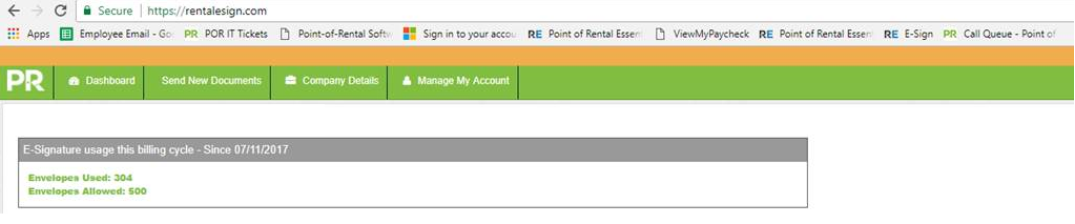
Once your account has been set up, you will be able to view the number of packets you have used vs how many you have left for the month. Allow you to see the esign document that have been requested vs on file.
E-Sign Setup
Once the E-Sign module has been purchased and configured. You will need to set up a email letter containing the eSignLink for your customers to sign and confim.
System Configurations>Email Letters
Select Add button, create a new email message to include the {eSignLink} in the message. This will provide a link for the customer to click on to sign the document.

From Day at a Glance, select contract to email, from the print screen you can select Email electronic signature and click on the email button.

In the upper left corner, select Standard Message and the contract type (Reservation, Open) where you created the email message.
Note: This is the email letter you set up earlier and will provide the customer with the eSignLink.

Once the e-Sign message is selected, it will add the {eSignLink} to the body of the email. This will be the link for the customer to sign the document.

Below is a sample of what the eSignLink your customer will receive will look like. Customer will click on the link to sign the document and return back to you.
Thanks for checking out Point of Rental e-Signature feature. Click the link below to see what your customer could be receiving from your business.
The Sales Team @ Point of Rental
800-944-7368
Demo User
Point-of-Rental Systems
800-944-7368
Once the customer clicks on the link, the following documents will be displayed. A PDF view of the contract will be displayed along with the signature box. Click on the Sign Document button to sign the document.
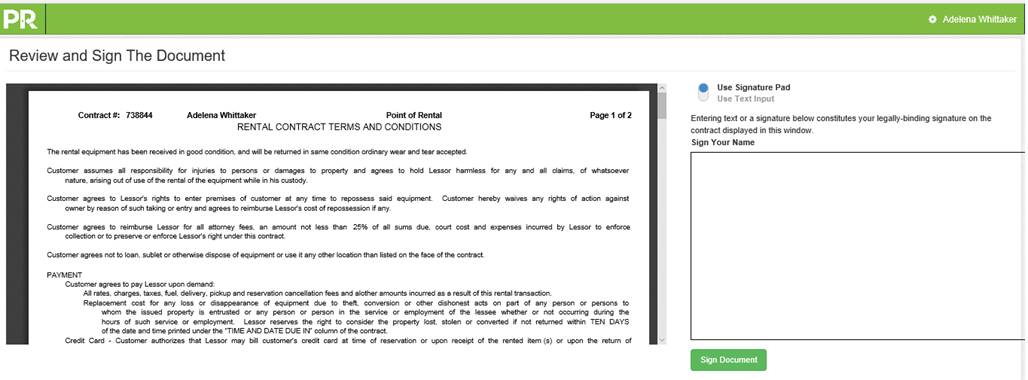
Your customer will enter their signature, and click the Sign Document button when done.
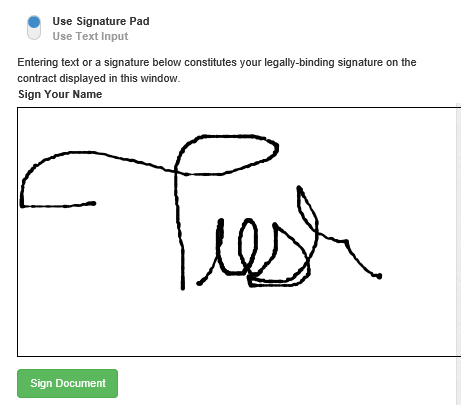
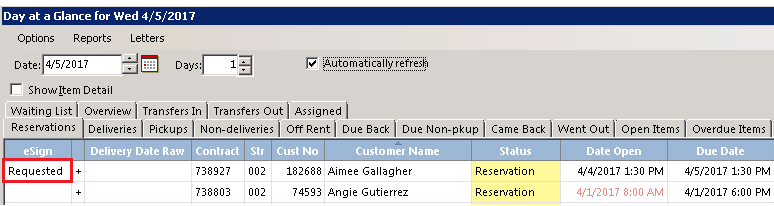
Your customer will be brought to the Review and Confirm Page, they can review the document and have the option of either accepting the signature or redoing. Once satisfied, click on the confirm button. In the top left corner the document will say “Successfully Signed Document”. In your Day at a Glance you will see under the esign column the staus will change to “Requested”.
•Note: You can add a esign column to your Day at a Glance by right clicking on the blue header bar and checking the box for esign. You can move this column to be viewed in any order by selecting the Move Up or Move Down buttons. You would do the same procedure for each tab in Day at a Glance you would like to add the esign column.
Point of Rental will update the status hourly and change it from “requested” to “on file”. You can manually update the status if you are sure your customer had agreed and signed the document, by modifying the contract and going to the Reports tab at the top of the contract and selecting transaction history. Here you will see the document file in a pending status. Click on the pending status to open the document.
•Note: You can set up esign updates frequencies through your System Configurations> Task Runner.

There will be a PDF copy of the contract along with the Offical Signature Page with the customers signature.

When you go back to Day at a Glance, the status in the esign column will be updated to “on file”. When you send out the Reservation, the “on file” status will carry over to the open contract. You will be able to see the status through your Day at a Glance.
To make sure your Esign documents are being updated at a regular interval, you will need to make sure your program is currently up to date ( You can download program updates from configurations>other updates>check for updates). Then go to the POR Task runner (configurations>system configuration>Configure Task Runner ) show in active task and mark the “eSign-get signed documents” as an active task.
Setting the scheduled task
You can set a scheduled task on how often esign confirmatons will update in Day at a Glance. Once the customer signs and returns the eisgn documents, the status in Day at a Glance will change from “requested” to “on file. You can set the task to update by the minute, hour, day, week, etc.
Go to Program Menu>Configurations>System Configurations>Configure Task Runner

Name: Enter the name of the scheduled task
Description: Enter a brief description of the task.
File to run: Enter the file name . Enter the drive letter your point of rental program is installed on, followed by the file name (See example above)
Path Name: Enter the drive letter followed by the path name. Drive letter will be were your point of rental is installed on. (See example above)
Recurrence: You can set the amount of time between updates, (Minutes, Hours, Days, Weeks, Months)
Interval: This would ab a numberic number entered for the amount of (Minutes, Hours, Days, Weeks, Months)
Start Date: Enter the day when the task is to begin.
Start Time: Select the time when the task is to begin.
•Note: After the first scheduled run, the history will populate each day to confirm the last time the esign updated.