Email through Contract
Note- Point of Rental does not store emails, you can set up a blind carbon copy (bcc) to have a copy sent to your inbox.
From any contract, once you past the payment screen, you will be given the option to either, print, fax or email your contract to your customer. Once you select email, you will see the No Print/Print button change to No Email/Email.
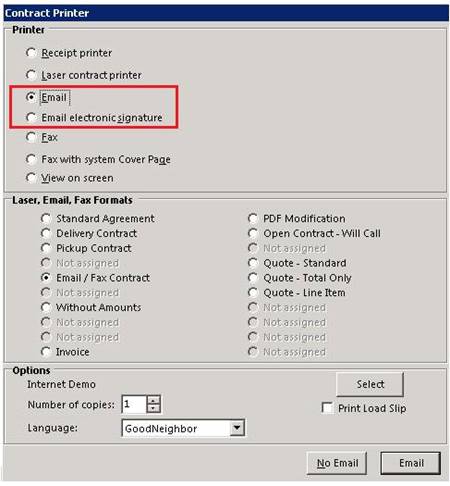
If you are emailing the contract to the customer, you can select the method on how they are to receive the email. Either as a regular email or with an electronic signature. If you select with electronic signature, your customer will receive a URL link to the document for them to sign. Once the document is sent back, it will appear in the transaction edit of the contract. (* Need to have Esign Module).

If sending regular email select email and enter the customer email address. * Note: if more the one customer is to receive the email enter; at the end of the first email address, the add the additional email address.
• Note- Point of Rental does not store emails, you can set up a blind carbon copy (bcc) to have a copy sent to your inbox.
Preview PDF - You have the option to view the contract prior to sending the email by selecting the Preview PDF button or the Preview email before sending.
Standard Message:
You can add a default message to your emails based on the contract type. (Reservation, Quote, etc.) and have them auto populate when sending out an email. Click on the Messages in the top right of the email box. If there are any email messages created, you can them from the Standard Message tab.

* Note: To add a new message go to (Configurations>Edit System Letter)
Employee:

Stores - Allows you to select all stores or an individual store for an employee name
Group - This will list the names of the employees under the group or department the work for. This is especially helpful if there are two people with the same name. If you know the department they work for you can select from the group drop down menu.
ex. There might be two Brad's, list in the Employee Names, you know the one you are looking for works in the office. You can select office from the group list, and all employees associated to that group will appear.
