Double Blind Scan
Allows you to scan in inventory items when you do not know the contract or customer number. You will only be able to utilize this function by selecting the IN button in the upper left corner of the module. Once select, the Double-Blind Scan Radio button will appear.
•Note – Only serialized item or bulk serialized item with a quantity of one, can be scanned in.
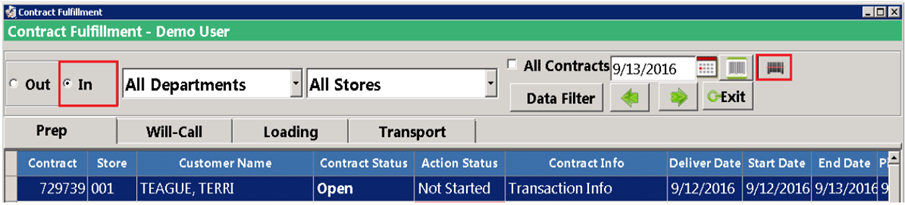
If try to scan in an item that is not serialized or bulk serialized, you will receive a FAIL at the top of Double Scan Mode screen, indicating the item has not been scanned in.

Unique Identifier
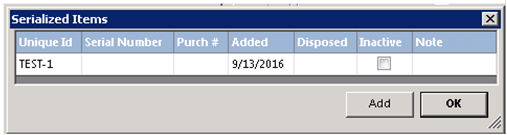
Items being scanned must be uniquely identified. You can set up a unique name for the item in File Maintenance>Item File>Option Tab. Check the box for Bulk item and select one of the options from the drop-down menu. (Normal Bulk, Bulk Serialized, RFID Bulk) Select the Bulk Serialized. From here, you can select tools at the top of the page and select bulk serialization and click the add button.
Loading, Transport or Will-Call (Out or in)
Select the appropriate action (Out or
in)
Select the appropriate tab (Loading, Transport or Will-Call) to produce a list of contracts.
Select any additional filters.
Select any contract to proceed with the fulfillment.
There are two ways that a contract can be processed.
a. Use this list to select each line or all lines (using the check box) and press the Count Out/In button to show completion for the selected items.
For a more detailed view select any line (not the check box) to view the Item Detail Screen. The detail screen provides more detail than the list view.
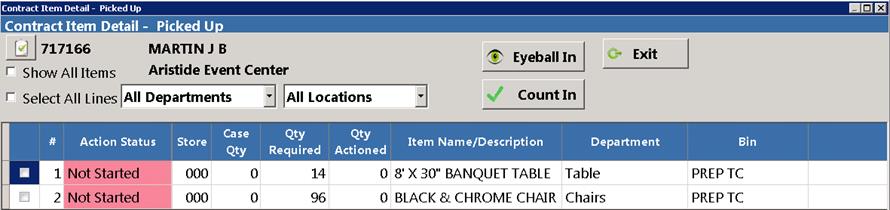
Eyeball In – Use only when items have not been physically counted, but a visual has been made. (i.e. linen or dishes have been returned, but you did not physically count/check them.)
*Note: Eyeball in is not available in Prep In.
Clipboard – Will display additional information about the transaction and the customer
Show All Items – Displays all items; by default, this screen will only display items requiring action. Checking this box will include items that have already been processed.
Select All Lines – Will check the box on all visible lines.
Count Out/In – Used when one or more lines have been selected to show completion for the selected items.
From the Item Detail view, click/touch the number under ‘Quantity Required’ to auto fill the ‘Qty to be Actioned’ box. You can manually adjust the quantity with the up/down buttons.
Add comments to the line item by entering the text in the Action Comments. Comments can be viewed in the Item Detail screen, Action History, Fulfillment Tab in the contract, or from the Fulfillment Manager.
Comments can be used to notate damage or any exceptions pointed out by the customer or the employee.
You can move to the next or previous item by clicking/touching the right and left arrows. Pressing the next/previous arrow will save your current entries and move to the next item.
View Action History will show the action history of this selected item.
The calculator and keyboard icons are shortcuts for touch screen users.