DocuSign
Overview: Request signatures electronically from customers. Rental customers can sign from their computer, tablet or smartphone (requires Docusign app).
*Note: This is an add-on feature from Point-of-Rental and requires a linked Docusign Business account with a minimum of 5 users. Please contact [email protected] for more information and to get signed up. Do not contact DocuSign to get set up.
Setting up DocuSign within Point-of-Rental - Docusign 5 User Business Account Required
Configurations-> Reports and Notifications-> System Email Setup-> DocuSign Setup
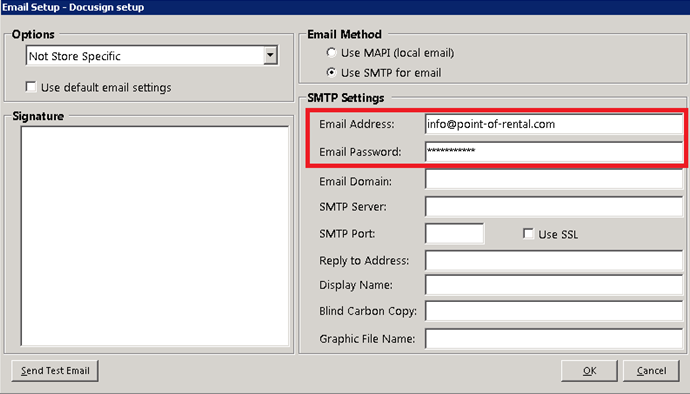
1. Enter in Email Address -- DocuSign Username
2. Enter in Email Password -- DocuSign Password
3. All other fields are NOT used now.
Email Contract to Customer to Sign
From the print screen of a contract select Email Electronic Signature and click Print

Enter your customer's email address and click send.
*Note: Multiple documents can be attached, like instructions that have Initial/Signature Lines. DocuSign will ask for signature for those documents also.
1. Your customer will receive an email with instructions from Docusign.
2. They will click Review Document and complete the signing process with Docusign.
3. Once completed an email will be sent to the email address setup in your Docusign account.
* Note: There must be a signature line at the bottom of the contract. or you will receive an error message on screen.
Signed documents can be retrieved/viewed from the contract within Point-of-Rental.
Reports-> Transactions Edit-> click Pending or View for the Docusign entry to retrieve/view the signed document.

*Note: Docusign signatures are not part of Point-of-Rentals signature capture through the Signature Pad or Mobile WorkForce and will not print on a contract, invoice, or statement.