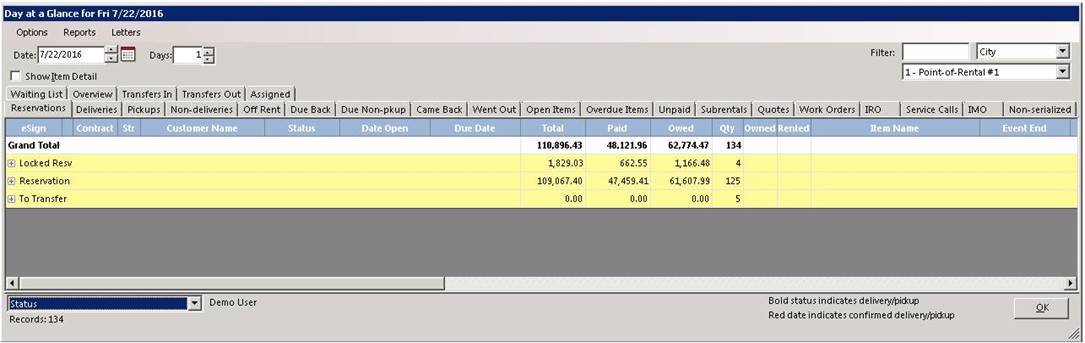
Day at A Glance
Overview: Day at a Glance is a very useful tool for managing the daily activities of a rental store.
Day at a Glance as multiple Tabs that select entire contracts or applicable line items from contracts that meet the selection criteria of the Tab.

Overview: This shows the number of deliveries, will calls, pick up and due back contracts set in a seven-day time from the date entered at the of the screen.
Reservation: This shows all reservations contracts ready to be sent out based on default date many days selected.
Deliveries: This shows all outgoing contracts based on date and number of days selected.
Pick Ups: This shows all contracts scheduled to be picked up based on date and days selected.
Non-Deliveries: This shows all will call (store pickups) based on date entered and days selected.
Off Rent: This shows any contract that the rent has been stopped but not entered in a close status.
Due Back: This will list all contracts that are scheduled to be returned based on the due date. It will list any open, reservation and sub-rented contract.
Due Non-Pickups: This will list all contracts (will calls) that are due or past due based on the contracts due date. It will list any or sub-rented open contracts.
Came Back: This will list all contracts that have been picked up and returned to the store. IT will list any completed, cancelled contracts.
Went Out: This will list all contracts that have been sent out based on date and days entered. Contract status can be open called off rent, cancelled or completed.
Open Items: If boxed is checked to show items, it will list all items on the contract. If box is unchecked, it will only show one item that is on the contract.
Overdue Items: This shows contracts in an open status that are past their date due.
Unpaid: This shows all contracts that are being sent out. that still have money owed on them.
Sub-rentals: This shows all contracts from vendors that are being created to cover overbooked items on a contract.
Quotes: This shows all potential contracts they have not been converted to a reservation.
Work Orders: This shows all open work orders that are currently in an open status.
IRO: This will list all Internal Repair Orders that have equipment taken out of stock for repair that are currently in an open status. * Note - This will take items out of inventory.
Service Calls: This shows all open contracts that are scheduled to have service created for customer.
IMO: This will list all Internal Maintenance Orders that are scheduled for Maintenance. * Note - this will not take items out of inventory
Non-Serialized: This allows the selection of serialized items when the header record is sent out. * Note - Parameters are set to not force serialized time on send out.
Waiting List: List of customers who are waiting for equipment. This is created when a customer is added to the time waiting list.
Transfer In: List all equipment contracts being transferred in from another store location, it will also display resell items if you are selecting item details.
Transfer Out: List all equipment contracts being transferred out to another store location, it will also display resell items if you are selecting item details.
Assigned: List all contracts that you are assigned, so you can see at a glance what you have in process and what needs to be finished up.
When Day at a Glance is selected it defaults to the Overview Tab
* Note: This can be changed by going to security menu, select Day at a Glance Tab, uncheck the boxes you do not want to show in Day at a Glance. Not all boxes can be deleted.
The Reservations, Deliveries, Pickups, Due Back, Came Back and Went Out tabs will default to the present date. If you are using muli-store software you many use Store in Display to display only contracts written at the specific store selected or chose All stores to display all contracts. Show Item Detail is also an option. If this box is checked, the screen will redisplay and show all the rental and sale item(s) on each contract that meet the selection criteria.
Being able to select the contract date can be very useful especially for the Reservations, Deliveries and Pickup Tabs. For example, you can quickly determine if contracts were supposed to be delivered but were not (or possibly someone forgot to “open” the reservation contract) by going into the Deliveries Tab and selection dates in the past such as yesterday. Again, this feature is useful for the Pickups Tab to quickly see if a pickup was missed.
Date: The date can be change several ways. You can quickly change the date by pressing the plus “+” or minus”- “keys on the number pad. You can type the date in the date box in the upper left-hand corner. You can click the up and down arrows to the right of the date box. Or you can double click on the calendar icon to display a monthly calendar.
Days: The number of days to report can be set in this field.
*Note: All Open Items, Overdue Items, On Hold, Internal Repair Order, Service Calls and Periodic Maintenance items are shown regardless of date out and only if they meet the selection criteria so the date option and the Show Item Detail options normally in the upper left of the screen are not displayed. Some tabs such as Quotes, Subrentals, and Waiting Lists show all contracts without regard to contract dates.
Auto Refresh: Checking the box will automatically refresh the Day at a Glance in five minutes intervals. This is useful for dispatcher or operations managers who are continually reviewing changes to contracts.
Filters: You can filter the results by typing in the filter string and selecting the filter field. For example, if you wanted to only see only contracts in Arlington, type ‘Arlington” in the filter box and select City for the filter field.
Store to Display: You can select a store or all stores. Only those contracts from the store(s) selected will be displayed. If the contracts do not belong at your store, their store number column will be in red.
Show item Detail: Checked means that all the items on the contracts will be displayed. Unchecked means that only one line per contract will be displayed and the contract values will be listed. Open Items, Overdue Items and Items n Repair tabs always show item detail: therefore, this option is not available on those tabs.
*Note: you can sort by any column by clicking of the heading of the column. You can change the order of the columns or hide any column from a tab by right clicking on the header line. Then uncheck each column you no longer want displayed. The column order, sort order, and columns displayed are held for each tab by Operator Id. So, when you set your preference, this preference will follow you to each terminal you use.
Note: You must now click the box to “show item details” before you can “confirm” and “update the substatus”. In order to update every line on the contract you must have all items displayed.
Columns
You can add or remove columns to customize the way you view Day at a Glance. Right click on the blue header bar above the first item in the list to display the Column box. Checking any box will add a new column. You can also move the boxes up or down by selecting the Move Up or Move down buttons.
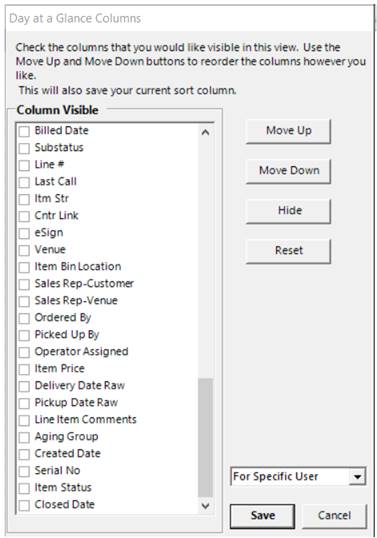
-
Note: the following have been added to Columns in v2017
-
Created Date
-
Serial Number
-
Line Item Status
Grouping - Allows you to group any tab by Status, Sales Rep, Operation, Customer, Job Number, City, Substatus, Zip and number of other fields. Each grouping will show the count of contracts as well as the Total, Paid and Owed.

Once a group has been selected, you will see the screen display the information. The top line will be bold with the total value of all columns by (Total, Paid, Owed and Qty).