Customizing Columns
Overview: Point-of-Rental™ Systems allows users to customize almost any screen that displays lists of data; such as the contract processing screen, customer selection and inventory selection. Giving each user the ability to customize the columns displayed and the order they are displayed in allows them to focus on the data they need to for their specific responsibilities. All customizations are per user and not global.
From Contract:
1. From the contract processing screen, right-click on the blue column heading row above the items with the column titles (Key, Name, etc.).
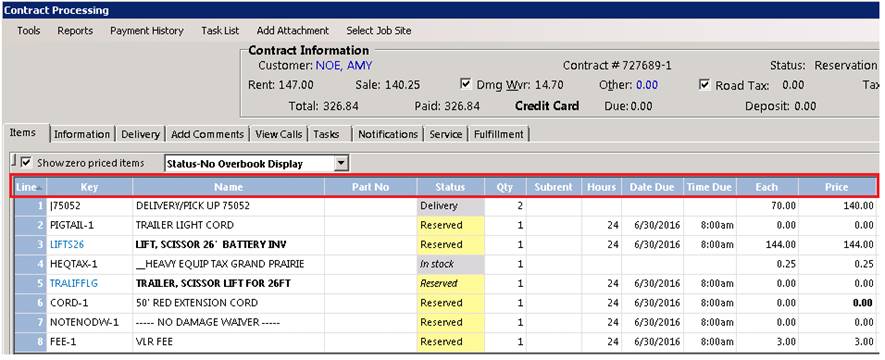
2. The Column Customization screen will open.
a. To add a column, check the box next to the item you want displayed.
b. To remove a column, uncheck the box next to the item you want to hide; You can also click on the column name then select Hide.
c. To move a column, click on the column name then use the Move Up and Move Down buttons. Move Up will move the column to the left on the processing screen and Move Down moves it to the right.
3. The Reset Button will revert to the original default program settings.
4. When finished click the OK button to exit.
5. Clicking on the column heading will sort the list off that column in ascending order. Clicking a second time will sort in descending order.
6. To save the sort column, sort the column you want then open the Column Customization screen and click OK.

There are many screens that allow customization; other examples include:
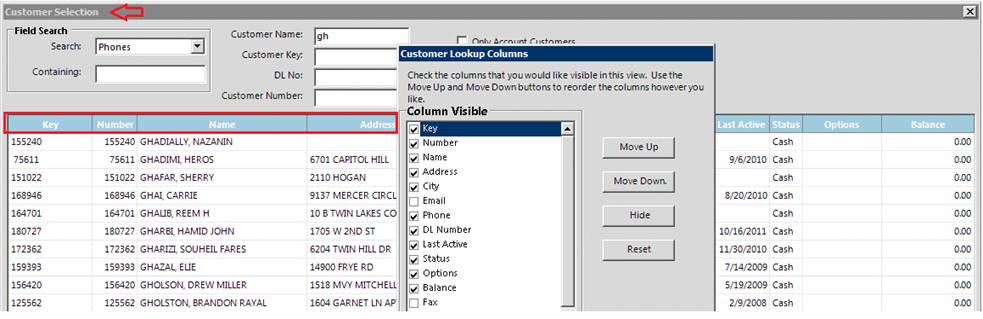
The Customer Selection screen (in Counter System or File Maintenance)
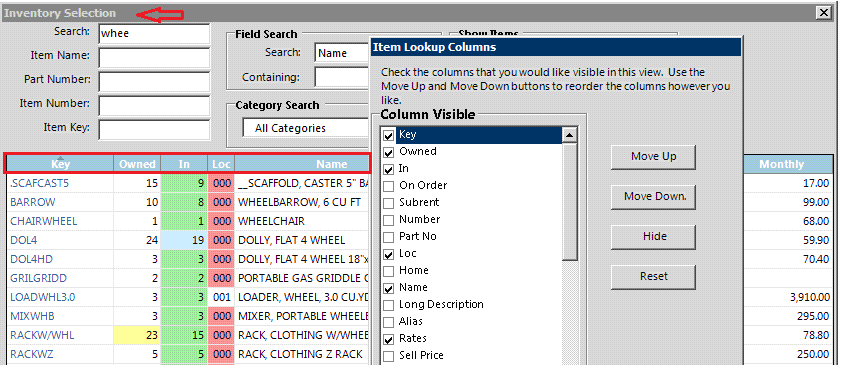
The Inventory Selection screen (in Counter System and File Maintenance)
Other Applicable Menus:
• The Transaction Selection screen
• The Day-at-a-Glance Screen (Each tab can be customized individually)
• The Update Inventory Count Screen
• The Customer Balance Screen
From Item Lookup:
Right Click on the blue header bar (key, description, etc.). The following box will appear.

* Note: To prevent employees from changing these settings, you must be an owner or Regional Manager.
Check the items you want to view when looking up your inventory items. Select from the drop-down menu whether you want to set this default for a Specific User, Store level or Company level.
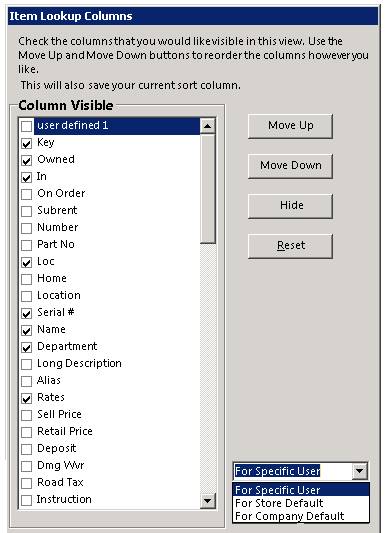
Note: new items such as Items Marked for Sale have recently been added to Column Selection