Customer Dashboard
Program Menu>Counter System> Customer Dashboard
Customer Selection
Select Customer Dashboard, it will open the Customer Selection screen, were you can enter the customer’s name
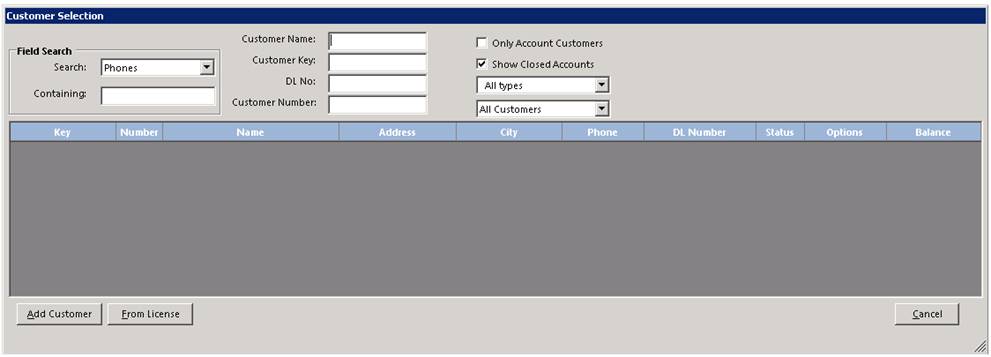
Field Search
Search – Allows you to search customer by the following criteria:
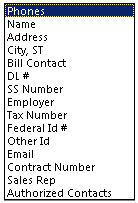
Containing – Allows you to search customer within a selected criteria. Ex. If you enter phone in the search and type 972.in the containing, it will look search and any part of a number or word you entered.
Customer Name – Allows you to enter customer name
Customer Key – Allows you to look for customer by customer key.
*Note: this would be a unique number you set up when creating the customer.
DL No: Allows you to look up customer by driver’s license number
Customer Number: Allows you to look up customer by customer record. This would be the number to the far right in the customer record. Point of Rental automatically assigns customer numbers when the customer is created.
Only Account Customers – With this box checked Point of Rental will only search for account customers. Unchecked will only search for cash customers.
Show Closed Accounts – Checking this box will show you closed customers account, unchecked will only show open accounts
All Types – Allows you to select the type of customer (Homeowner, Caterer, etc.)
All Customers – Allows you to select customers by aging (30,60,90,120 days).
Add Customers – Allows you to add a new customer to Point of Rental.
From License – Allows you to add new customer based off driver’s license. Point of Rental will populate the information from the driver’s license and auto add to the correct fields in Point of Rental.
Customer Dashboard
This option displays a quick summary of all the active contracts that a customer has along with any balance due of each contract. At the bottom of the screen, an aging summary is displayed for the customer.

Tasks
Create Reminder – From the reminder page, you will be able to create a reminder using Point of Renal Internal Task List, Microsoft Outlook, Microsoft Calendar or Google Calendar. The reminder can be created for yourself, for an employee, employee group or anyone with an email account. You can create reminders from within a customer’s record, the Customer Balance screen or from Day at a Glance.
Tasks Assigned – From this option you can view any tasks that have been assigned to contracts dealing with this customer.
New Contract – Clicking this button allows you to create a new contract for this customer
Print – Clicking this button will print the current list of contracts as viewed on the screen.
*Notes;
A contract can be modified by clicking on the contract number.
A customer record can be displayed by clicking on the customer key or name. If you are working your overdue accounts, you can click on the customer’s key to bring up the customer record.
A MORE screen listing customers can be displayed by clicking on the headings “key” or “name”. The MORE screen will be sorted in the order of the heading clicked.
The balance displayed may not match that on the customer’ statement. For example, if you bill only Closed contracts on the statement, the customer’s statement only shows Closed contracts even if the customer has some Open or Reservation contracts. On the Customers Balance screen, you may check or uncheck any of the Contract Status boxes in the lower left-hand corner of the screen to display certain status contracts you are interested in including All (active) Contracts for this customer.
Tools
Make Account Payment – Allows you to make an account payment from this screen and apply payments to customers account.
View Customer Record- Allows you to view the customer record
New Contract- Allows you to create a contract for the customer.
Reports
Open Items: This report will display all the rental items this customer has out on rent
Open Items by Job – This report will display all the rental items this customer has out on rent. The items will be grouped together by Job Site/Venue.
Aged Balance – This report will list all the contracts for this customer with the age date of each contract.
Payment Report – This report lists all the payments received from this customer.
Call Logs - This report lists all the call logs entered for this customer.
Account Summary – brings up report to show all information in the customer record including notes and any contracts/authorized users.
Print All Contracts – This will print all contracts for the selected customer that is displayed in Customer Balance.
Export to Spreadsheet – Allows you to export information to excel spreadsheet
Customer Dashboard Columns
You can add, remove, arrange the columns in the customer dashboard. Right click on the blue header bar and check the box you want to appear in the customer dashboard columns. * Note: You should check regularly for updates to the Customer Dashboard Columns.
Recently added Delivery City and Delivery Zip.

Move Up - Allows you to arrange the columns up
Move Down - Allows you to arrange the columns down
Hide - Allows you to hide the columns from the customer dashboard
Reset - Allows you to reset the boxes to the default settings.
Specific User - Allows you to save the setting for a Specific User based on Employee ID
Store Default - Allows you to save the settings for a Store Location
Company Default - Allow you to save the settings based on Company.