Creating a New Disbursement Item
Overview: Disbursements are generally used for petty cash transactions but can also be used to make accounting entries for things such as check refunds, bad checks, or bad debt. They can also be used to create additional payment types for account payments for direct payments made to your bank account. All disbursements will show on your daily G/L report and if you are importing to your accounting software they will import.
From the Program Menu select #9Configuration>Accounting Configurations>Disbursement Items.
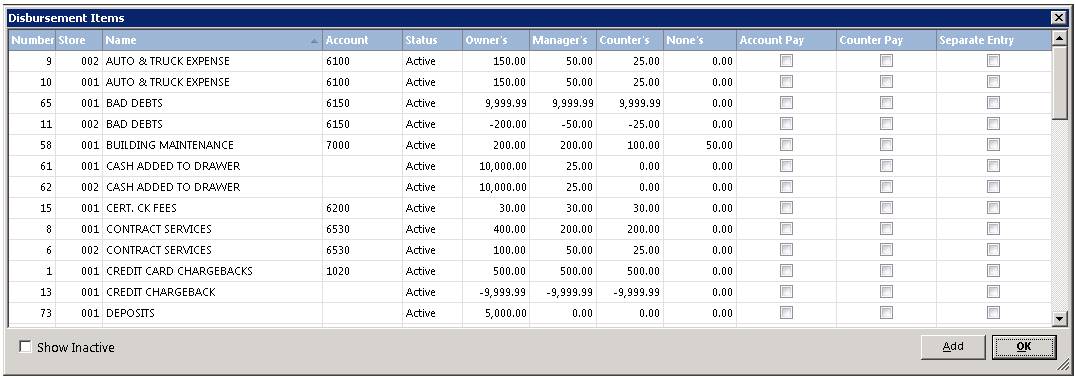
1. Click on the ‘Add’ button.
2. If you have multiple stores and want to use the disbursement at one location, enter that store’s number in the ‘Store’ field. If you want ALL stores to have access enter ‘000’ in the ‘Store’ field.
3. Enter the name of the Disbursement.
4. Enter a General Ledger Account number (if you are importing to an accounting program).
5. If you are going to disable the Disbursement, you can check the box to make inactive. This will mark this disbursement in red and hide it in the background.
6. You can use a disbursement as a payment method in the payment drop down box by checking the Use as Account Payment Method.
7. You can have separated your GL entries by checking the box. Your GL entries will be separated by disbursement.
8. Finally, enter the maximum amounts allowed per password level. This is not necessary when using as an account payment method.
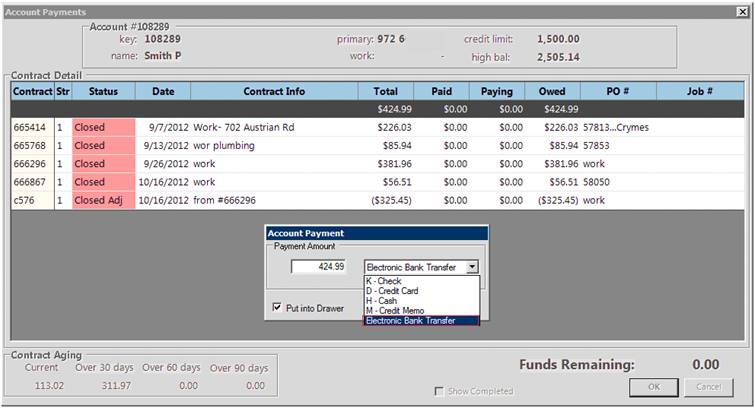
9. Optionally, you can create a disbursement item to be used as an alternative payment type; EFT, Pay Pal, Direct Deposit, etc.… The disbursement becomes a payment type when making an Account Payment.
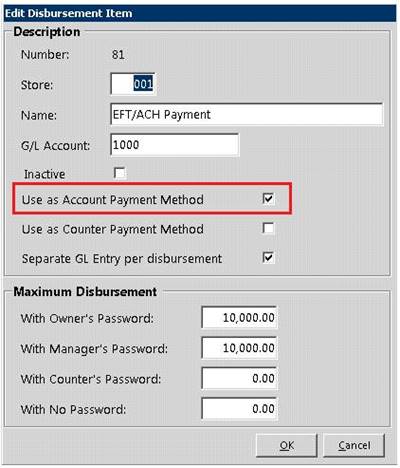
Use as Account Payment Method - With box checked, it will allow you to use a payment method when taken a payment through Accounts Receivable
Use as Counter Payment Method - With the box checked, it will allow you to use as a payment method when taking a payment at the counter.
Separate GL Entry per disbursement - With the box checked, it will create a separate GL file at the End of Day in you IIF files to be imported.
Maximum Disbursement - Allows you to set the dollar amount based on security level to create a disbursement.
Disbursements Report
This report will print the individual detail for each disbursement for the month you select. The report will look like the following report:
