Clone Contract
Allows you to clone (make a copy of) a contract into either a Quote, Reservation or an Open contract. No changes are made to the original contract. * Note: Any Asset Sale items will not be copied to the cloned contract. In addition, any serialized items will be replaced with the header item.
1. From Counter System, choose Clone Contract.
2. Enter the contract number of the contract you want to clone (you can enter SSC in the contract number field to search for closed contracts, or SSO to search for open contracts).

3. If the status is not bold, this is a will call contract.
4. Choose the contract you want to clone.
5. Choose Yes when prompted “Is this the correct contract to clone?” if this is the correct contract you want to clone.
6. You will be asked “Do you want a different customer?” If the clone is for the same customer choose No. If the clone is for a different customer, choose Yes.
7. If Yes is selected, enter the name of the customer this clone is for on the Customer Selection screen this clone is for. Once customer is chosen, you may be asked to enter your password. If so, type in your password and click Enter.

8. If No is selected, you may be asked to enter your password. Type in your password and click Enter.

9. You will then be prompted to enter the reservation pick up date. Select the appropriate date and enter the appropriate time.

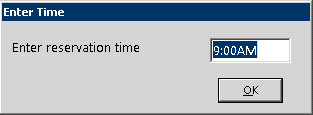
10. Enter rental period.

11. When prompted “Do you want to recomputed the prices?” You can choose yes to recomputed and no to not recomputed. If yes is chosen, all item prices will be recomputed to the new rate(s). If no is chosen, the prices will remain.
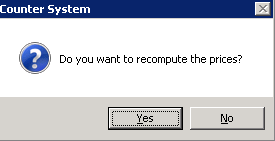
12. You will continue thru the remaining steps of the contract by clicking Ok and getting to the payment screen.
NOTE 1:
If there are any items that not available when cloning, the overbook screen will appear to allow you to overbook the item. If any items are inactive, they WILL be added to the cloned contract. You will not be warned that they are inactive, however, the item will indicate that it is Overbooked. Also, if you have any items set as critical levels, and you exceed those levels, you will also be prompted a message.
NOTE 2:
If you’re in Canada and this is a contract that was cloned from last year before the PST tax law came in effect, you want to check the PST option box at the top of the contract to bring in the PST taxes for each item. Otherwise, the PST tax will not be added and there’s not a way to go back and add it once out of the cloning process