Changing Windows User Password
Overview: Between the password complexity and expiration requirements, it is entirely possible for employees to forget those passwords. This document will assist you in resetting user account passwords when forgotten.
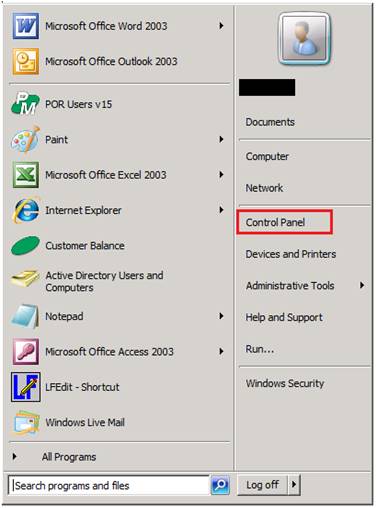
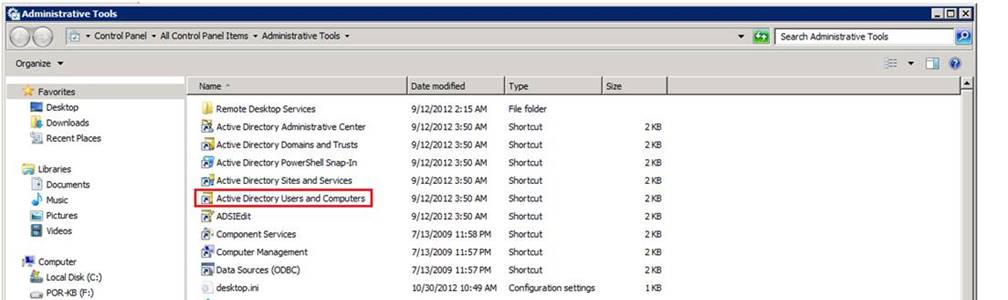
Your server can be configured two different ways, one as a Domain Controller and one as a Workgroup Server. Go to Control Panel>Administrative Tools. If you see an icon called Active Directory Users and Computers, you are a Domain Controller, follow the set of directions under Domain Controller Server. If you don’t see that icon you will see one called Server Management. This means you are a Workgroup; skip to the second set of instructions under Workgroup Server.
Domain Controller Server
1. First, you need to physically be at the main server logged in as Administrator. Some servers have the username Server as well, which will not work. If it is logged in as anything but Administrator you will not have permission to change a user password.
2. Go to Control Panel>Administrative Tools>Active Directory Users and Computers. You can also often find Administrative Tools in the Start Menu by itself or under Programs.

3. On the left pane select the appropriate folder that holds your user accounts. If you are not sure then start with the Users folder. There may be folders called Managers as well and the user might be in there. By simply opening the folders on the left you are not hurting anything.

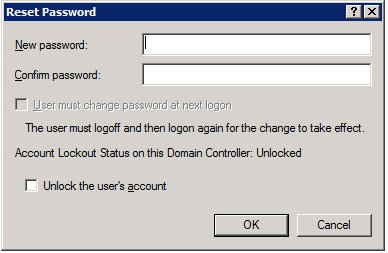
4. Once you find the user you are looking for, right-click on them and select “Set Password”. You will have to enter a password with a capital letter, a number and a symbol. A good template to vary from is “POR2004!”.
Workgroup Server
1. First, you need to physically be at the main server logged in as Administrator. Some servers have the username Server as well, which will not work. If it is logged in as anything but Administrator you will not have permission to change a user password.
2. Open Control Panel>Administrative Tools>Computer Management. You can also often find Administrative Tools in the Start Menu by itself or under Programs.
3. On the left pane you will find Local Users & Groups. Select the Users folder for the list of you users.
4. Right-click on the user whose password you wish to change and select “Set Password”. You will have to enter a password with a capital letter, a number and a symbol. A good template to vary from is “POR2004!”.