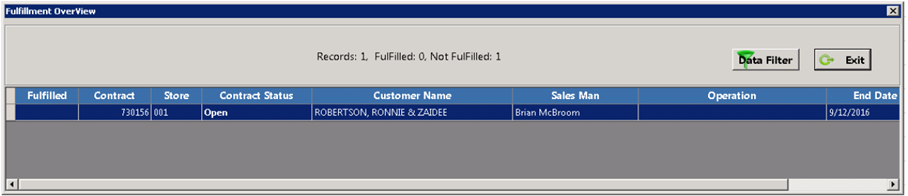
Blind Scan
Allows you to scan in inventory items from either a contract or customers. You will only be able to utilize this function by selecting the IN button in the upper left corner of the module. Once select, the Blind Scan Radio button will appear.

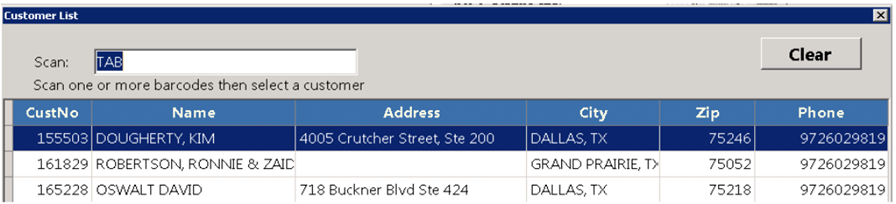
Select the Blind Scan radio button in the upper right corner of the module, it will display a Customer List, where you can enter the inventory item in the Scan Field, displaying a list of customers who have contracts with this item.
.
When you select a customer the Scan Mode screen will be displayed showing you the contracts and inventory associated to that customer. You can now begin to scan in your items with either a barcode scanner or RFID.

Once the item has been scanned back in, at the top of the page next to the Scan field, you will see the inventory item number increase next to the word PASS, letting you know it has be received.
•Note – Each line item needs to be received in individually.

View Contract List
This will display all contracts that have a least one scanned item.