Account Tab
Left clicking on the Account tab will display fields on that tab.

Bill To: - Allows you to enter where the billing will be sent to, you can enter the following information. (Contact, phone, address, city, state, zip)
Contractor License: - Allows you to enter information about the contractor (License No, Expiration date)
Other Info: - Allows you to enter other information about customer using the user define fields.
Contract - Allows you to set preferences for customers on how they will receive their invoices. Invoices would be sent out at the end of the day.
Format: – Allows you to select different invoice formats when sending to the customer.
Mass Send To: – Allows you to choose how the customer will receive their invoices (print, email fax).
• Note: One of these options must be selected. If by email, there must be an email address or fax number set in the top half of the customer record. If no option is selected, the invoice by default will print out.
Language – Allows you to receive invoices in different languages (English, French, Spanish) plus two undefined fields.
Statements - Allows you to set preferences for customers on how they will receive their statements. Statements can be sent out daily or monthly.
Format: – Allows you to select different statement formats when sending to the customer.
Mass Send To: – Allows you to choose how the customer will receive their statements (print, email fax).
• Note: One of these options must be selected. If by email, there must be an email address or fax number set in the top half of the customer record. If no option is selected, the invoice by default will print out.
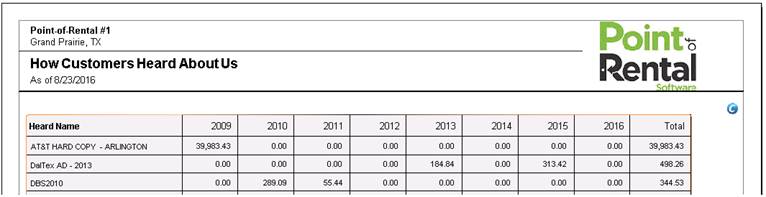
Heard About – Allows you to select from a drop-down menu how a customer heard about your company. You will then be able run a Customer Heard about report, from Program Menu, Marketing Reports to see how many customers
Operator Assigned – Allows you to assign an Operator to a Customer. Helpful if have an employee you always want to handle this customer.
Force on Open – By checking the boxes below, this will force a display on the screen to input additional information.
Contract Information: – Checking this box will force a display to appear on the open contract to add contract information.
Purchase Order Number – Checking this box will force a display to appear on the open contract to add a purchase order number.
Job Identification – Checking this box will force a display to appear on the open contract to add a job identification. Ex. (Super bowl, Expo).
Website – By checking this box, customer name and contracts will appear on website.
Email – By checking the box, this will not send marketing emails to the customer.
Credit Card – By checking the box, this will not store historical credit card information for this customer