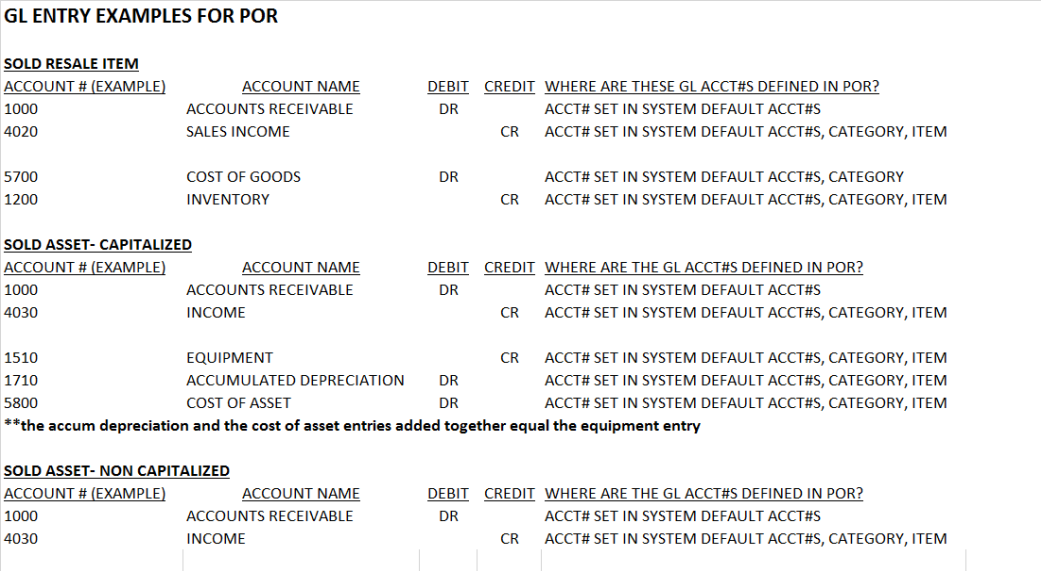
Account Numbers
How to get there: Program Menu > Configurations > Accounting Configurations > Account Numbers
If you want to use the General Ledger import feature, you must define your General Ledger account numbers used in your accounting program. These account numbers will also be printed out on the General Ledger Entries sheet printed at the end of the day and month. Once you select Account Numbers from the Configuration Menu, the following screen will be displayed.
*Special
tags that can be used in any GL Number (these tags can be used anywhere in the
GL Number; leading, middle, or end:
# Example: 1020.# or 1020-## or 1020.[###] (# are replaced by
the store number) 1020.1, 1020-01, 1020.[001].
{Store} Example: 1020.{Store} or 1020-{Store} ({Store} tag is replaced by the store number) 1020.1, 1020
{Class} Example: 1020. {Class} or 1020-{Class) ({Class} tag is replaced by the text included in the QB Class/Store Code field)
Enter the
appropriate account numbers in each field. When you are done, click the OK
button. If you want to cancel your changes, click the CANCEL button.
The account number fields are defined below:

Asset
Accounts
Bank
Deposits – This account is an asset
account (normally a 1000’s series). In your General Ledger, it is probably
called Cash in bank.
Account Payments – This account is an asset
account (normally a 1000’s series). In your General Ledger, it is probably
called Cash in bank.
Credit Cards – This account is an asset
account (normally a 1000’s series). In your General Ledger, it is probably
called Cash in bank.
Debit Cards – This account is an asset account (normally a 1000’s series). In your General Ledger, it is probably called Cash in bank.
*
Note: Entering a “CC in the Debit GL Account Number will include the amount with
the credit card entry
American Express – This account is an asset
account (normally a 1000’s series). It allows you to have a separate bank
account or separate deposits for this n your General Ledger.
* Note: Only define if AMEX is deposited separately. If American Express is being deposited to the same GL as credit cards add a tilde to the end of the GL number to force a separate entry in the accounting package (i.e. 1562~).
Added
Cash – This account is an asset account (normally a 1000’s
series). In your General Ledger, it is probably called Cash in
bank.
Petty Cash – This account is an asset account (normally a
1000’s series). In your General Ledger, it is probably called Petty
Cash.
Accounts Receivable – This account is an asset account (normally a 1000’s series). This account is not used for Cash Accounting. Note: Do not set this account to your QuickBooks’s A/R account. Just set it to a regular asset account in QuickBooks.
Equipment (default) – This account is an asset account (normally a 1000’s series). This is your default capitalized equipment account. This account is only used if you do not specify the G/L asset account in the item record. In your General Ledger, it is probably called Equipment.
Accumulated Depreciation (default) – This account is a contra-asset account (normally a 1000’s series). This account is only used if you do not specify the “accum deprc acct” within the item record.
Sales Inventory (default) – This account is an asset account (normally a 1000’s series). This is your default inventory account. This account is only used if you do not specify the G/L asset account in the sales item record. In your General Ledger, it is probably called Inventory.
Liability Accounts
Sales Tax Payable - This account is a liability account (normally a 2000's series). this account holds the amount of sales tax that was collected an i snow due to the government.
Item Percentage - This account is a liability account (normally a 2000's series). this account holds the amount of item percentage that was collected and is now due to the government. IF this is used for a percentage fee such as an EPA fee, the this would be an income account.
Customer Deposits - This is a liability account (normally a 2000's).
Suspense Fund - This account holds any collected money that has yet to be categorized. This account can be classified as a liability (treaded like a customer deposit that you are holding until you actually bill them) or it can be classified as an income account (treated like uncategorized income). Most commonly, it is treated as a liability account.
Expense Account
Over/Under - Each night when you close the cash drawer, you count the money to check it against the amount that was rung up all day long. These amounts do not always match. There are many reasons for this but some of the most common are giving the customer incorrect change, forgetting to disburse money from the drawer, paying a contract in the computer for which you never received money, or not paying a contract where you did receive money. In any of these cases, the differences between the computer's counted and the actual amount is held in Over/Under. This account would be an expense to the company, you could have too much money, in which case it goes to the same account. It would just be a negative expense in the account.
Disbursement (default) This account is the default account for disbursements. it is only used if the actual disbursement account can't be found. The G/L account number is defined in each disbursement item.
Miscellaneous - This account is the default catch account for any entries that couldn't be posted. If everything were setup properly, it would rarely be used.
Depreciation (default) - This account is the depreciation expense account number. the debit side entry of monthly depreciation would be posted to this account.
Cost of Asset Sales - This account holds the debit side entry of a capitalized asset sale (i.e. the purchase price of the asset).
Cost of Goods Sold - This account holds the debit side of sales inventory sold during the time period.
Repair Cost - This account holds the debit side (expense) entry of sales inventory used in Repairs during the time period.
Inventory Adjustments - This account holds the debit side (expense) entry of sales inventory that disappeared during the time period.
Inter-Store Balance - This account is used for multi store locations that run as individual companies. It will hold the income received at one store from another store's contracts.
Income Account
Rentals - This account is an income account (normally a 4000's series). this account holds all rental income.
Sales - This account is an income account (normally a 4000's series). This account holds all sales income.
Asset Sales - This account is an income account (normally a 4000's series). This account holds the amounts for the sale of an asset item.
Dmg Waiver - This account is an income account (normally a 4000's series). This account holds all damage waiver amounts.
Other Income - This account is an income account (normally a 4000's series). This account holds all amounts charged under Other. This amount also includes any Finance Charges charged. Other income is nontaxable income.
Discounts Taken - This account holds all Prompt Pay Discounts that were taken by customers.
Purchase Orders
Shipping - This account holds all Shipping charges included on purchase orders.
Tax - This account holds all the Taxes included on purchase orders.
Miscellaneous - This account holds all Miscellaneous amounts included on purchase orders.
Expense (default) - This account is the default Expense account for the purchase order itself if you don't have individual accounts broken out.
Account Payable - This account allows each store to separate and define the Accounts Payable account in the POR Export routine.
Miscellaneous
The Point -of-Rental System can create an import file that contains all the debits and credits for the day's transactions to be imported into a third-party accounting system. the file name is in the format PRyymmdd, where yy -year, mm - month, dd - day for daily imports and PR yymmMONTHLYONLY for monthly imports.
Export Format - This option allows the selection of the export file format.
IIF QuickBooks - The IIF format is a format that is used by QuickBooks
CSV Peachtree - The CSV 9comma delimited)format is used by Peachtree and others.
TXT Account mate - This is a tab delimited format used by Account Mate.
CSV Business Works - This format is a comma separated file used by Business Works.
CSV Sage Accpac - The CSV (comma delimited) format is used by Sage Accpac and others.
TXT ComputerEase - This is a tab delimited format used by ComputerEase.
CSV Tech Systems - The CSV (comma delimited) format is used by Tech Systems and others.
CSV Microsoft Dynamics - The CSV (comma delimited) format is used by Microsoft.
CSV MAS 90/200 - The CSV (comma delimited) is used by MAS 90/200 and others.
TXT Simply Accounting - The TXT (tab delimited) format is used by Simply Accounting and others.
Export Format - Allows you to choose the format to create the files to import ( QuickBooks, Peachtree)
Export Location - Under the Export Location field, you can define where the import files are created. The default account is C:\POR\QB\
File Extension - Allows you to choose the file extension to use, when creating the file ( iif, csv)
Email - Allows you to enter an email to have a copy of the files will automatically email the GL entries files at the end of each day.
Export Frequency - This option allows the selection of when the export file is created: daily, monthly, or never.
QB Class - This field is used in QuickBooks to define separate profit centers (usually each store has its own class).
Note: QB Online export format has been added to the Export options. It requires, a 3rd party add in such as Transaction Pro Importer to load the Excel Spreadsheet into the QBO. This is in a CSV file.
Print
Button
Selecting the print button will allow you print out a snap shot of you current GL accounts. This makes it easier if you have multiple store locations and must enter GL numbers into each location.
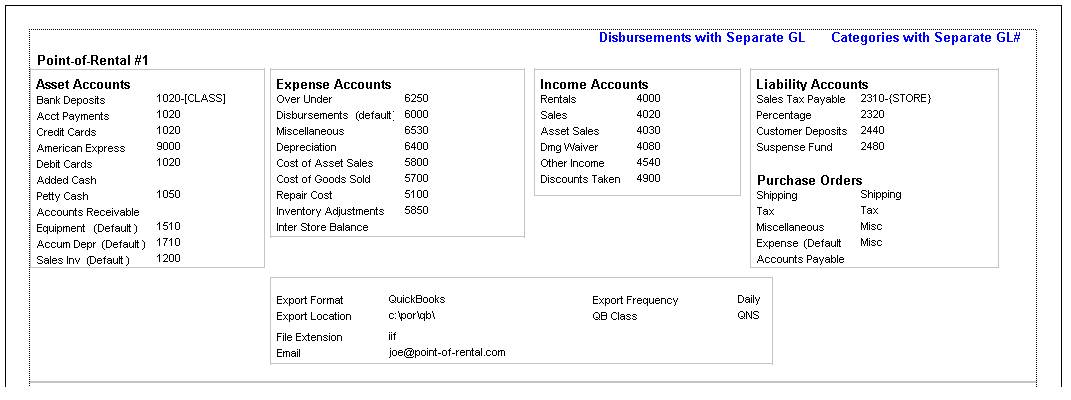
Disbursement with Separate GL - Allows you to see the separate Disbursements GL you have set up in your system.

Categories with Separate GL - This allows you to print out a listing of your GL assigned to different categories.