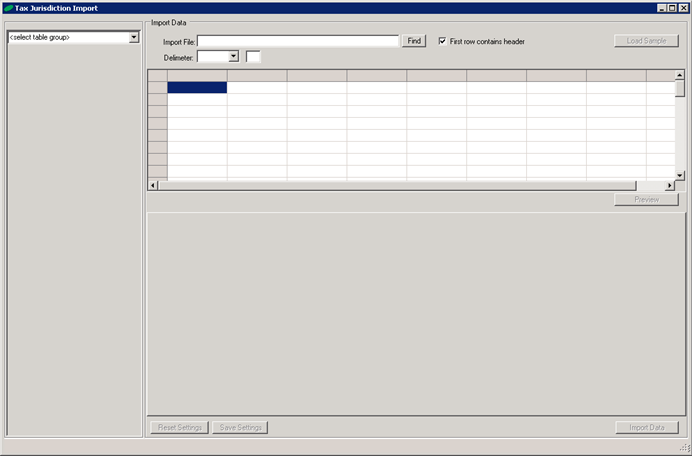
Prerequisite: Tax Jurisdictions need to be imported before Zip Codes
This example will show how to import zip code/tax jurisdiction mapping.
1. In the Select Table Group drop down choose Tax
2. Click the Find button to locate the file to be imported. .csv (Comma Separated Values) or .xls or.xlsx (Excel / Spreadsheet)
3. Click Load Sample to view the data in the top grid panel
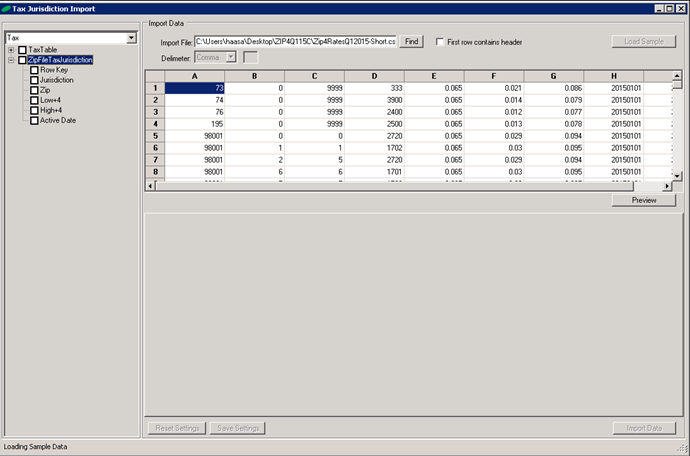
1. Move the column name from the import file to the appropriate line in the tax free on the left
a. Drag the column heading A,B,C, etc… and drop on the appropriate field in the tree
In this example this is how the mapping was done(See Row Key Definitions below)
1. Column A,B,C,D were all mapped to Row Key as those can not be duplicated
2. Column D was mapped to Jurisdiction
3. Column A was mapped to Zip
4. Column B was mapped to Low+4
5. Column C was mapped to High+4
6. Active Date can be a Set Value or Mapped
Note: Setting a Value can be done by right clicking the field name in the tree. This is also where you can clear any mappings.

1. Once all the necessary columns are mapped then click preview
2. If everything looks correct then click import data
Row Definitions:
Row Key -- Unique Identifiers, fields that should not be duplicated
Jurisdiction -- The tax code located in the tax jurisdiction.
Maximum Tax -- The maximum amount of tax that can be collected on a contract per your state's requirements.