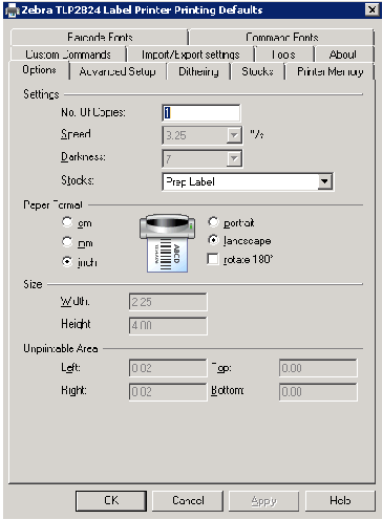
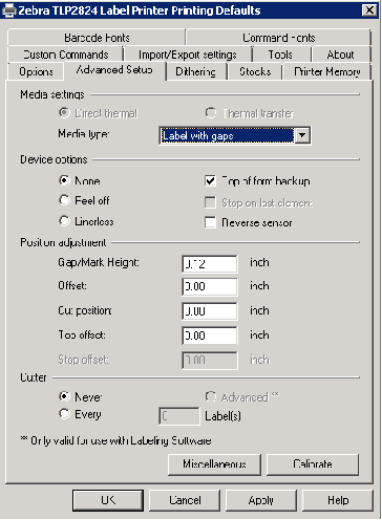
1. Printer Properties.
2. General Tab – Preferences and Advanced Tab – Printing Defaults (must set both)
3. Set the Options and Advanced Setup Tabs as shown in the images.
4. Set to Landscape in both Advanced Setup and in Preferences.
5. DO NOT create a Stock.
*NOTE: Labels must be 2.25” x 4.00”. Cannot use the Zebra for both Item Prep Labels AND Barcode Labels. Must have a separate Zebra for that.
For Item Prep Label, if the report is printing off on two labels; first have the customer measure the label (must be 2.25 x 4.00) second, make sure they have the most current ItemPrepLabel.rpt (run FTP Update)
Windows Server 2008 SP2 64-bit using a Zebra 3844 printer the report needs to be .25” for the Top Margin.
Windows Server 2008 R2 64-bit using Zebra 2824 printer the needs to be 0.00” for the Top Margin.
Windows Server 2003 SP1 32 bit using Zebra 2824 printer the needs to be 0.00” for the Top Margin.
If the customer has purchased 2.00” x 4.00” labels (or any size other than 2.25” x 4.00”) then they will need to have a custom report written ($150) to accommodate the change in label size. We cannot have 1500 customers with varying label sizes.
The label size MUST be 2.25” x 4.00”.
Drivers:
Windows 2008 Server R2 = ZDesigner TLP 2824 ; on print driver select screen click Windows Update and then select Zebra > ZDesigner TLP 2824
Windows 2003 Server (32-bit) = ZDesigner TLP 2824 ; on print driver select screen click Windows Update and then select Zebra > ZDesigner TLP 2824