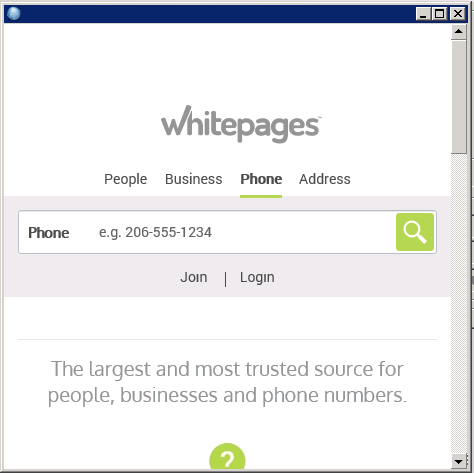
Verify – This option will verify the customer’s address using their telephone number. There are several Internet sites to choose from. Simply select the site to use. The screen will look similar to the following:
Add Attachments:
This option allows you to attach files to the customer. The files can be of any type accessible on the server. Once you have attached a file, you can open the file by clicking on the file name. Whatever program that is associated with that type of file will be used to open the file. For example a .DOC file would be opened with Microsoft Word; a .PDF file would be opened with Adobe Acrobat.
Add File – This option will add a file as an attachment to this item.
Delete File – This option will delete an attachment from this item.
Add Internet Shortcut – This option will add an Internet site as an attachment for this customer.
Get Picture – This button allows you save a picture with the customer’s record. When selected, the following screen is displayed:

Scan Image – This button pulls the customer’s license in again. This is only necessary if you re-scanned the customer’s license.
Ok – Click this button to save the driver’s license on the screen to this customer’s record.
Cancel – Click this button to cancel this picture. No picture will be saved.
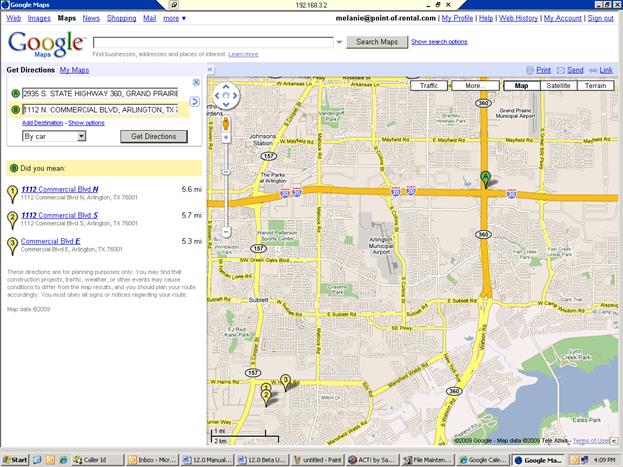
Map It – This button prints the driving directions from your store to the customer’s house. The directions will look similar to the following: