Overview: Many companies have a standard percentage they mark up resale items. Generally, the more expensive an item is the lower the margins are. For example, you may mark up an item you purchase for $1.00 by over 200%, but a $35,000 item may not (unfortunately) enjoy that same margin. Point-of-Rental gives you the ability to set specific markup percentages based on the cost of the resale item.
*The Vendor Markup is not applicable to anyone NOT licensed for the Purchase Order module.
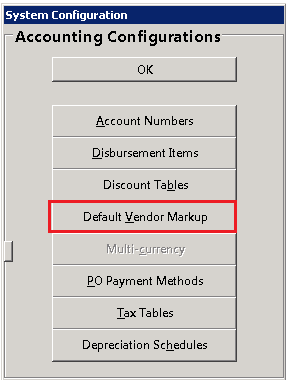
1. Program Menu - Configuration>Accounting Configurations>Default Vendor Markup.
2. You will see a box with two columns, Min(imum) Price and Markup %. Click the 'Add' button to enter the minimum price and percentage. In the example below, any item that costs between 1 and 29 cents will be marked up 800 percent; items costing 30 to 99 cents will be marked up 400 percent etc...
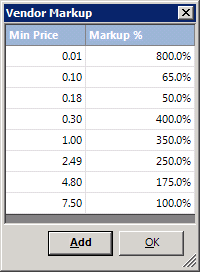
3. Once you have a markup scheme defined, anytime a sale item is purchased using a purchase order, the sale price will automatically be set. It is possible to manually change the sell price if desired.
**Caution: Most companies do not set markups schemes across the board. They are typically set by vendor or for a specific item.
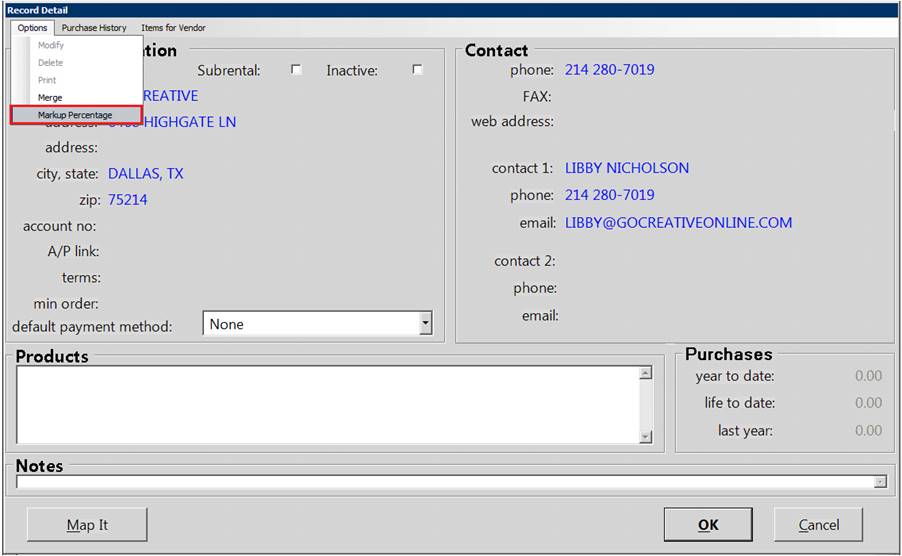
4. Setting up a markup percentage for a vendor: Open the Vendor File in Purchase Orders or File Maintenance and select a vendor. Click on the Options drop down menu in the top left corner and select Markup Percentage. Refer to Step 2 to setup the markup scheme for this vendor.
5. Setting up a markup percentage for an item: Open the item record in File Maintenance. The Markup Percentage field can be found on the Asset Tab.
