
Overview: This is an add-on module and is not part of the standard Point-of-Rental Software. This guide will explain the steps necessary to setup the data connections required for the UPS or FedEx integration for creating the Ship Link Data Connection
There are several steps that must be completed.
Step 1: Setting up an ODBC connection allowing the UPS and FedEx software to read and write to your Point-of-Rental System.
1. You must be logged in as an administrator.
2. Run: c:\Windows\SysWOW64\odbcad32.exe
3. Click on the System DSN tab.
4. Click the Add… button
5. Select the driver named: Microsoft Access Driver (*.mdb). There are several variations of this name; be sure to select the correct one.
6. Select the Finish button.

7. Fill in the Data Source Name and Description.
8. Click on the Select button to choose the database.
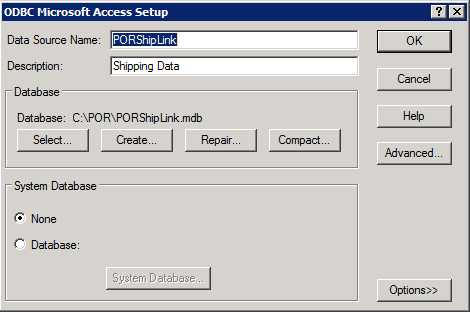
9. Navigate to the location of your PORShipLink.mdb file. It will be in the POR folder that is typically located on the C: drive. The drive letter will vary depending on your specific setup.
10. Press the OK button.

When completed your ODBC Data Source Administrator should have an entry for your newly added database.