
Overview: You now have the ability to unpost a previously posted PO by selecting the unpost option and entering a password. This will allow you to make corrections to the Purchase Order and then repost. You will need to make an entry in your Accounts Payable system, since it will pull in a newly modified PO (probably voiding the first incorrect bill).
*Note: Before you unpost a Purchase Order, you will want to make sure your PO Payment Methods are set to be posted to AP. From your Program Menu>Configurations> Accounting Configurations, PO Payment Methods. (see PO Payment Method in Net Help)
1. From your Program Menu, go to Purchase Orders, choose export Purchase Orders
2. You will received a promp on how many Purchase Orders will be exported based on what you selected in the PO Payment Method
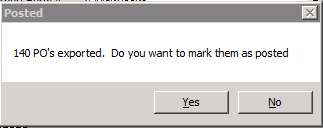
3. Once you selected Yes, you can look up the Purchase Order by what was posted.
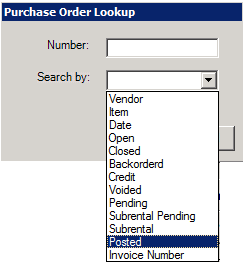
4. You will see a list of Purchase Orders that were posted based on the criteria you selected in PO Payments Method.

5. Select the Purchase Order you want to unpost, once opened, from the options tab, select Unpost PO

6. You will receive the following message. If you really want to unpost the Purchase Order, then select yes.
Note: you will have to manually remove the orginal bill from your AP program.

7. Enter your user ID and password

8. Enter name of vendor in the Name field
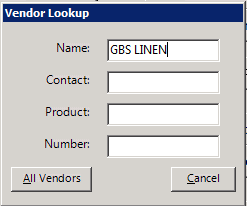
9. Choose the correct vendor

10. Select the correct Purchase Order

11. You can now make the changes to the Purchase Order. (Change invoice number, invoice date, price)

12. Can see in the example the ext price was changed. Also, at the bottom of the Purchase Order, the total price has also changed. Click on Apply

13. Once the Purchase Order has been correct, you can export the Purchase Order to your account payable program.
14. This will put a copy of the file record in your QB folder. Purchase Order files will start with “AP”
