Overview: TSO Integration allows for realtime GPS tracking of trucks, realtime arrival and departure times, route integration with a Garmin unit for easy access by drivers.
Point-of-Rentals award winning Dispatch Center required for TSO Integration.
For information about TSO Mobile visit www.tsomobile.com or call (877) 477-2922
Integrating TSO Mobile
Overview: The following describes the steps necessary to link the Dispatch Center to an active TSO Mobile account.
1. Create your TSO account and login credentials. http://www.gpsadvantage.net/
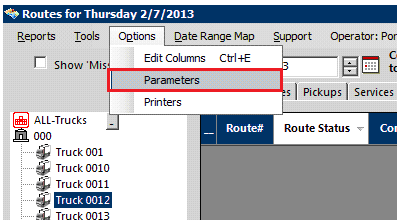
2. In the Dispatch Center, Click ‘Options’ at the top.
3. Click the ‘Parameters’ listing.
4. Inside Parameters, click the ‘GPS’ tab then “Edit GPS Login”

5. Double-click the username and enter your TSO website username.
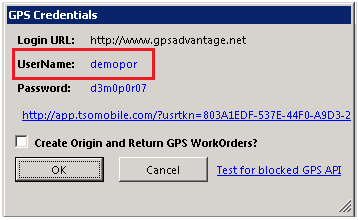
6. Double-click the password and enter your TSO website password.
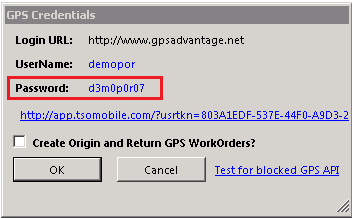
7. Click the OK button.
8. Click the Save button in Parameters.
9. Exit and restart the Dispatch Center.
Integrating Trucks
Overview: Setting up trucks to link properly to your TSO Mobile account.
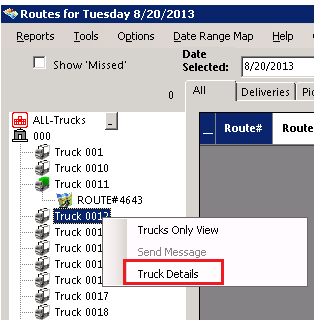
1. Right Click the Truck you want to link.
2. Select “Truck Details”
3. On the Truck Detail screen, click the top menu “Set GPS”

4. In the Set GPS Form, click the top menu “GPS Lookup”
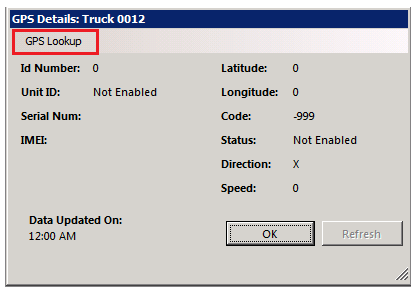
5. The “Vehicle History” form will appear, click the “Show Details for All Units” button
6. Find your truck(s) in the list, Copy the ID and the Unit Id information.

7. Minimize or close the “Vehicle History” Form.
8. Double click the 0 next to “Device ID” in the Dispatch Center’s GPS Details Screen.
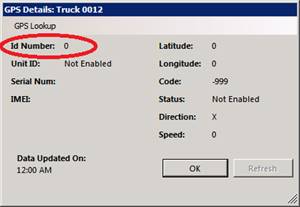
9. Type in your password, if asked.
10. Type the ID number and click “Ok”.
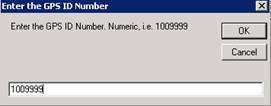
11. Double click the “not Enabled” next to “Unit ID”

12. Type the Unit ID and click “Ok”.

13. Click the ‘Refresh” button a few times to verify the link. You should see location data and a timestamp appear.
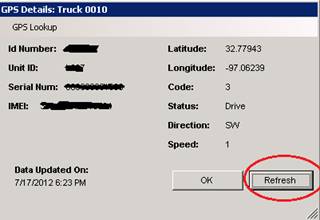
14. Click OK
15. Click Save on the Truck Detail Screen.
16. Repeat Steps 6 through 15 for each additional GPS unit.
Status Codes
|
Dispatch Center TSO Work Order Status Codes | |
|
|
|
|
Status |
Definition |
|
Initialized by DS |
Dispatch Service has created the work order, but no status update has arrived from The TSO website. |
|
Created |
The TSO website has prepared the work order. |
|
Sent |
The TSO website has sent the work order to the Transponder. |
|
ReceivedByUnit |
The Transponder has acknowledged the work order. |
|
ReceivedByGarmin |
The Garmin has acknowledged the work order. |
|
Read |
The Driver has clicked the work order and viewed it. |
|
EnRoute |
The Driver has selected the work order and clicked "Go". |
|
Arrived |
The Vehicle has entered the geofence for the work order location. |
|
Departure |
The Vehicle has left the geofence for the work order location. |
|
Completed |
The Driver has clicked "Mark as Done" for the work order in the Garmin. |
|
DeletedFromUnit |
The Driver has clicked "Delete" for the work order in the Garmin. |