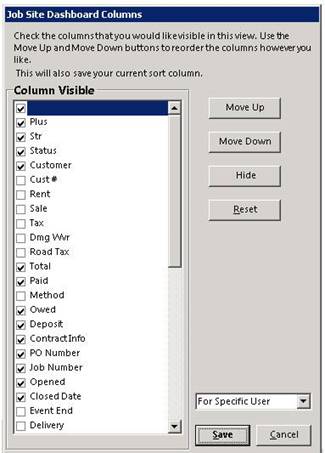
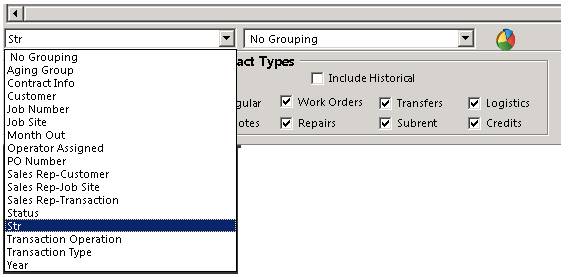
Allows you to view total revenue by transaction based on filtering on contract status, type, job site, grouping or store location. First line will display grand total of all contract transactions. You can group or subgroup by Operator Assigned, PO Number, Job Number, Sales Rep by Transaction, Customer or Job Site, Transaction Operation, TransactionType, Contract Info and Customer.
+ - Clicking on the plus sign will display all the contracts under that particular transaction (Open, Closed, Completed, etc). You will see the status of the contract, total revenue for all contracts, amount paid, owed, deposits and total number of contracts under this particular status or contract type.
You can filter your view by selecting different criteria from the drop down menus. Each criteria selected can be grouped or defined by an individual criteria.
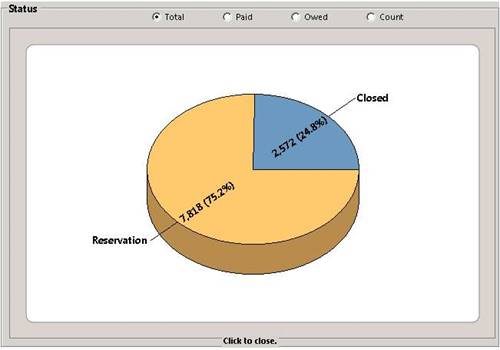
Click on the graph icon to view a color display of the revenue breakdown for your filtered criteria. "Click to close" to close the graph box.
You can search by Contract Status and Contract Type, displaying the total revenue by grouping.

Contract Status:
Closed Contract - By Checking, will display all closed contracts.
Open Contract - By Checking will display all open contracts.
Reservations Contracts- By Checking will display all reservation contracts.
Completed Contract - By Checking will display all completed contracts.
Contract Types:
Regular Contracts - By Checking, will display all regular contracts.
Quote Contract - By Checking will display all quote contracts.
Work Orders - By Checking will display all work order contracts. .
Repairs Contracts - By Checking will display all repair contracts.
Transfer Contracts - By Checking will display transfer contracts.
Subrental Contracts - By Checking will display subrental contracts.
Logistics Contracts - By Checking will display logistic contracts.
Credit Contracts - By Checking will display credit contracts.
Note: You can change the view of the columns in the transaction dashboard by right clicking on the blue header bar. Check to display or uncheck to remove column from the transaction dashboard. You can also move columns by selecting the move up or move down buttons.