
Tools:

•Set Credit Card -- Allows the Credit Card number to be stored till contract needs paid. Only the Card Number and Expiration Date is stored here.

•Change Contract’s Store – Allows you to change the contracts store. If there are bulk items on the contract and you have auto-select bulk serialization enabled in Parameters it will update all the bulk items to the correct store.
Add Asset Sale – Allows adding an asset sale item to a contract
Set Contract Price – Allows the price of the contract to be set to a static amount

•Track Shipment – If integrated with the Shipping module you can track where shipments are.
•Export to Spreadsheet – Exports the contract to a spread sheet
Reports:
•Transaction Edit – Shows all edits that were done on the contract
•Print Instructions – If the item(s) has instructions, this gives you the capabilities to print them again from here.
•Posted To Total – Generates report that shows if this contract has posted to total
Payment History – Shows all payments made on the contract
Task List:
Create Reminder – Creates a contract reminder
Task Assigned – Shows if this contract is assigned to an employee
Add Attachments: Allows documents/pictures to be attached to the contract. Note: The attachments must be in a shared drive otherwise other employees will not be able to access the attachments.
Select Job Site: Assigns a Job Site to the contract
Or you can right click with your mouse for a list of options to make changes to your contract. List

Partial Return: This option allows you to return a partial quantity of the items. If this is a sales item, then a new item will be created with a negative quantity. If this is a rental item, a new line item will be added with the quantity returned and the original line item will be decreased by the quantity you enter.
Asset Sale: This option will bring up the enter value box, enter the quantity of the item to be billed to the customer. You will also enter a price that will be billed to the customer for the sale of the asset. An additional line will be added to the contract with a gray status box.
Breakage: This option will bring up the enter value box, enter the quantity of the item to be billed to the customer. You will also enter a price that will be billed to the customer the replacement cost for the breakage or missing rental item.
Exchange Item: This option allows you to exchange one serialized item for another serialized item of the same kind. This option only functions on serialized items. If you want to exchange BOBCAT-B for BOBCAT-A, then right click on BOBCAT-A and left click on Exchange Items. When all of the serialized bobcats are displayed, select BOBCAT-B. The system will close out BOBCAT-A and change the price to zero. Then BOBCAT-B will be added to the contract with the original information (hours, due date, price, etc.) of BOBCAT-A.
* Note - In the file record under groups, all items must be listed in the same group to be able to exchange items.

You will see the original BOBCAT-#01 is on the contract.
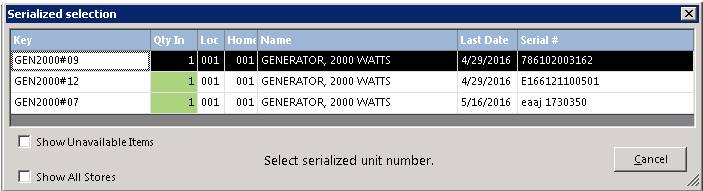
Right click on the item key and select exchange item. A list of serialized items for the same item will appear. Select the one you want to exchange for.
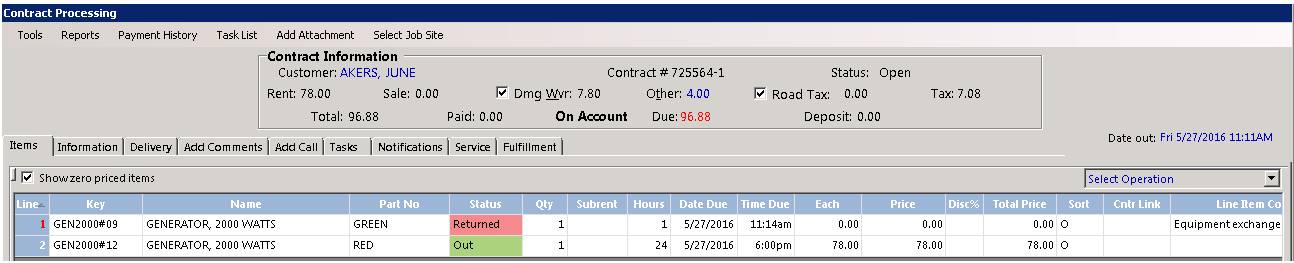
The original inventory items will show as a returned status and the replaced inventory item will be added to the contract showing as a separate line item.
Close Item: This option will allow you to close the line item, the status line will changed from green to red, showing the item has been returned stopping the rental on this item. Hours will be calculated based on when the item was closed.
Change Sub status: This option allows to change the status of the item on the contract ex. (Clear Sub status, Counted, Counting, Loaded, Loading, Pulled, and Pulling).
Set Special Rate: This option allows you to set a special rate of an item on a contract. Right click on the item line, enter the special rates in the appropriate fields.

You can change the
Minimum Rate, Daily, Weekly or Monthly rate. You also have the option to reset
the rate back to the original price.
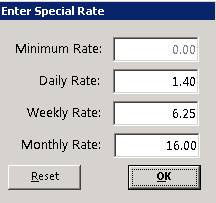
Once the special rate
has been entered, select ok, the price will be reflected in bold, indicating
there is a special rate applied to the contract.

Remove Item: This option will remove the item from the contract. If the item was just added, the item will be completely removed from the contract. If the item was added previously, the quantity of the item will be changed to zero.
Category Availability: This option shows the availability for each item in that category for a week’s time period. The time period can be changed on the screen.
Group Availability: This option is the same as Category Availability, but only items with the same Group will be displayed. This option is only available if a Group is defined for the item.
Show Other Contracts: This option will show any other contracts that this item is on.
View Item: This option displays the item record.
Line Item Comments: This option allows for one line of comments to be entered for the line item. These comments will be printed on the contract directly below the item.
Move Item: This option allows you to move a line item up or down on the contract.
Select All Lines: This option allows you to highlight and select all lines on the contract. The Line column will be highlighted, if you right click on the blue line column the following options will appear.
.
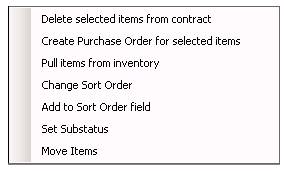
Unselect All Lines: This option allows you to unselect all the lines that were previous selected.
Break into Two Lines: This option allows you to take a line with a quantity and break it into two lines. Ex. Line has 100 quantity, you select Break into Two Lines, Select 30 from the message prompt, Line 1 will then show 70 Line 2 will show 30.
If the item is part of an Item Kit and you adjust the main line item. The component items will increase each of the component items quantity to the proper quantity.
Refer to OPEN CONTRACT step 5 and step 6 to make changes to times on the Item, Information or Comments tabs.
Payment Options – Payment Options screen will be displayed. Under Modify Contract you may change payment and / or deposit amounts:
Rental/sale payment (refund) amount - You may specify a (-) negative amount limited to the amount previously paid or a positive amount up to the amount owed. The negative amount would be used to refund an amount paid on this contract, usually an amount applied in error. Note: If the Setup parameter is set to force entry of payment amounts, you will be required to enter the payment amount if something is owed.
Rental/sale payment (refund) method – Select any of the valid payment options for this customer. Again, you may be limited to certain codes. Note: To change a payment method that was previously rung up incorrectly you must refund the full amount of the incorrect method then modify the contract a second time and ring it up using the correct method.
Deposit payment (refund) amount - May only be changed if the contract is Open. This is the amount collected or refunded on this transaction. Note: If the Setup parameter is set to force entry of deposits, you will be required to enter a deposit amount when a contract is opened.
Deposit payment (refund) method - Select any of the valid payment options for this customer. Again, payment methods may be limited.
Amount tendered – If anything is owed, you may enter the amount tendered. The change will then be calculated and displayed.